Agency Activities
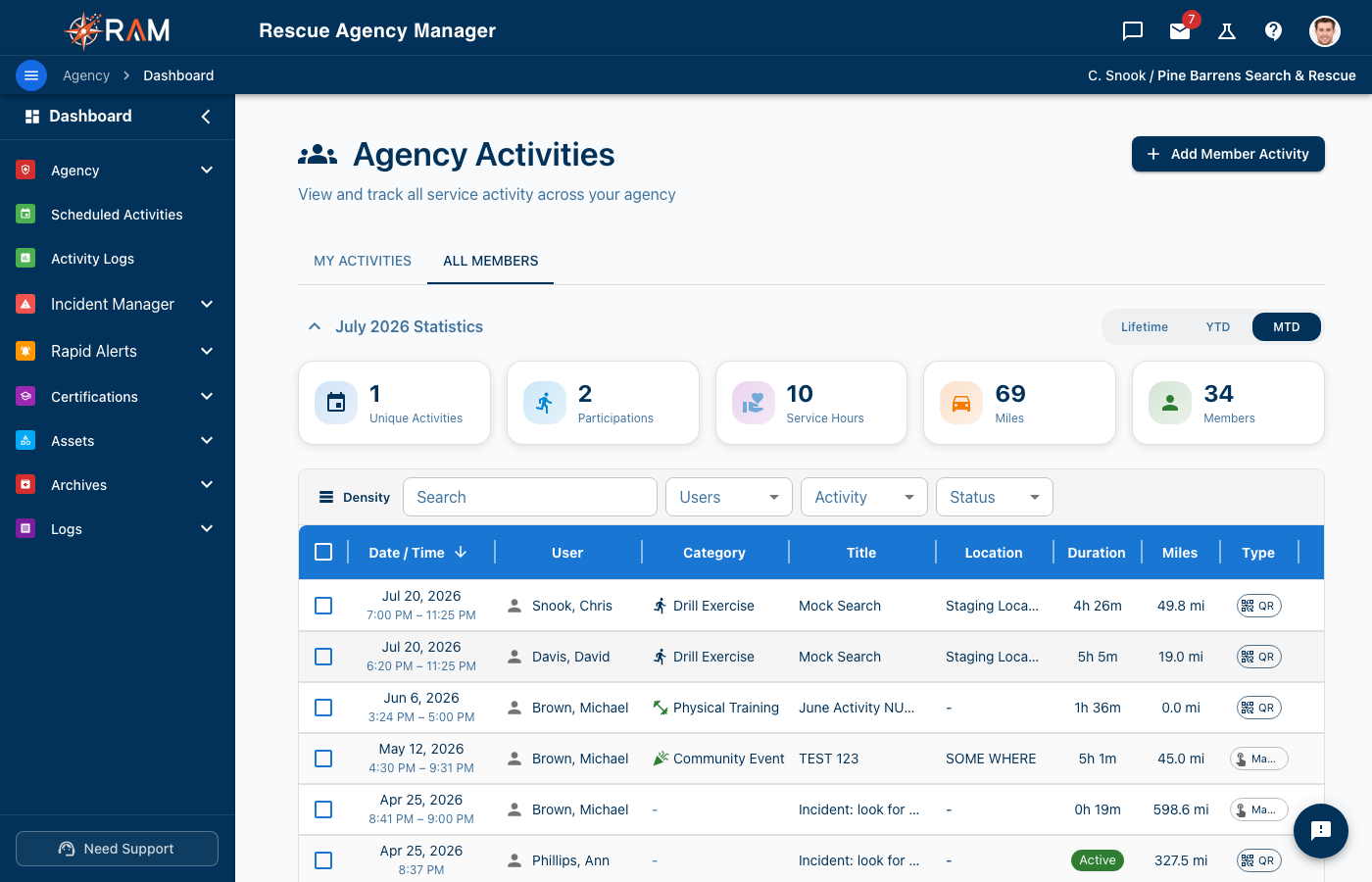
The Agency Activities page gives administrators a comprehensive view of all activity across the organization. Track member hours, validate activity entries, manage activity categories, and review the edit audit trail.
Accessing Agency Activities
- Navigate to Activities > All Members from the left sidebar (or the All Members tab on the Activities page)
- You must have Administrator, Activity Manager, or Activity Log Viewer permissions
Agency Statistics
Five stat cards at the top summarize agency-wide activity:
| Stat | Description |
|---|---|
| Unique Activities | Number of different activities with participation |
| Participations | Total activity sessions logged across all members |
| Service Hours | Cumulative hours across the agency |
| Miles | Total miles traveled by all members |
| Members | Total agency member count |
Use the MTD / YTD / Lifetime toggle to change the time period.
Filtering Activities
The Agency Activities page provides powerful filtering to find specific entries:
| Filter | Description |
|---|---|
| Search | Full-text search across user names, titles, descriptions, locations, categories, and notes |
| User Filter | Multi-select dropdown to filter by specific members |
| Category Filter | Filter by activity category type |
| Status Filter | Filter by validation status (Pending, Validated, Rejected) - only shown when validation is enabled |
| Time Period | MTD, YTD, or Lifetime toggle |
Activity Display
Desktop View (Data Grid)
Activities appear in a data grid with the following columns:
| Column | Description |
|---|---|
| Date / Time | Date on top, start-end time range below |
| User | Member name, formatted as "Last, First" |
| Category | Color-coded icon and category name |
| Title | Activity title |
| Location | Where the activity took place |
| Duration | Time spent (or "Active" if still ongoing) |
| Miles | Distance traveled |
| Type | QR Code or Manual entry indicator |
| Status | Validation status badge (only shown when validation is enabled) |
Default sort: Most recent activities first, then alphabetical by member last name within the same date.
Left-aligned cell content: User, Category, Title, and Location columns have their values left-justified for readability; headers remain centered.
Selecting and Bulk-Deleting Activities
Admins can select multiple activities and delete them in a single operation:
- Check the boxes next to the rows you want to delete (left edge of each row)
- A Delete N Selected button appears in the filter row
- Click it to open a confirmation dialog showing:
- Number of records selected
- How many users are affected
- Total hours that will be removed
- Confirm to delete all selected activities
There's no "select all" checkbox in the header — this prevents accidental bulk actions. Admins must intentionally select each row (or use the checkbox on a filtered page to scope the selection).
Bulk delete is permanent. Deleted activities cannot be recovered and hours are immediately subtracted from affected users' totals.
Mobile View
On mobile, activities display as cards with the same information in a stacked, touch-friendly layout. The mobile view uses per-card edit and delete buttons instead of bulk selection.
Activity Categories
Activity categories organize events and activities by type. They determine how hours are classified for reporting and compliance.
Configuring Categories
Navigate to Agency Settings > Activity Categories to manage categories.
Each category has:
| Field | Description |
|---|---|
| Name | Display name (e.g., "Skills Training") |
| Code | Auto-generated identifier |
| Description | What this category covers |
| Color | Visual color on calendars and reports |
| Icon | Material icon for visual identification |
| Counts Toward Training | Hours count toward training requirements |
| Counts Toward Deployment | Hours count toward operational requirements |
| Counts Toward Membership | Hours count toward membership requirements |
Default Categories
New agencies receive a standard set of categories:
| Category | Training | Deployment | Membership |
|---|---|---|---|
| Search and Rescue | - | Yes | Yes |
| Medical Emergency | - | Yes | Yes |
| Fire Response | - | Yes | Yes |
| Water Rescue | - | Yes | Yes |
| Technical Rescue | - | Yes | Yes |
| Skills Training | Yes | - | Yes |
| Physical Training | Yes | - | Yes |
| Equipment Training | Yes | - | Yes |
| Drill Exercise | Yes | - | Yes |
| Team Meeting | - | - | Yes |
| Equipment Maintenance | - | - | - |
| Community Event | - | - | Yes |
| Public Education | - | - | Yes |
| Standby Coverage | - | Yes | Yes |
| Fundraising | - | - | - |
| Other | - | - | - |
Managing Categories
- Add custom categories specific to your agency
- Deactivate categories you don't use (inactive categories are hidden from dropdowns)
- Default categories cannot be deleted but can be deactivated
- Categories in use (with logged activities) cannot be deleted
Activity Validation
Agencies can require manual activity entries to be reviewed before they're considered official.
Enabling Validation
Activity validation is configured in Agency Settings > Record Settings:
- Toggle Require Activity Log Validation on or off
- When enabled, all manual activity entries start with "Pending" status
- Event check-in entries are auto-validated (since the system records them)
Validation Workflow
Validation Status Badges
Status is displayed as an icon-only badge (hover for tooltip):
| Icon | Color | Status |
|---|---|---|
| Hourglass | Orange | Pending Validation |
| Shield with checkmark | Green | Validated |
| Circle with X | Red | Rejected |
The Status column is only shown in the table when at least one record in the agency has a validation status set.
Reviewing Pending Activities
- Navigate to Agency Activities
- Filter by Status: Pending to see entries awaiting review
- Click an activity to open the detail modal
- In the modal footer, click Validate to approve or Reject to deny
- Optionally add validation notes explaining your decision
Retroactive Validation
The Validate and Reject buttons are available for activities in any status (not just Pending):
- Null status (record pre-dates the validation requirement) — both buttons shown
- Pending — both buttons shown
- Validated — only Reject shown (to reverse)
- Rejected — only Validate shown (to reverse)
This lets admins validate legacy records after enabling the validation setting, and reverse mistaken decisions.
Who Can Validate
| Role | Can Validate |
|---|---|
| Administrator / Super Admin | Yes |
| Activity Manager permission | Yes |
| User Activity Approver permission | Yes |
| Regular Members | No |
Editing Activities
Administrators can edit any activity in the agency. The system enforces a tiered permission model to maintain data integrity.
Permission Tiers
| Who | Can Edit | Constraints |
|---|---|---|
| Record Owner | Their own records | Within 72 hours of creation. Cannot edit validated records. |
| Admin | Any record in agency | Must provide a reason when editing another user's record. |
| Validator | Validation fields only | Can only change validation status and notes. |
Opening the Detail Modal
Both the admin and member use the same activity detail modal, which has two layouts:
- Modal view (centered dialog, ~900px wide)
- Side panel view (slides in from the right edge)
Toggle between them using the ↗ / ↙ icon in the modal header. Your preference is remembered across sessions.
The modal's tabs are: General → My Notes → Training → Timeline (Training only appears for TRAINING-category records, My Notes only for the record owner).
Editing Another User's Record
When an admin edits a member's activity:
- Click the activity row to open the detail modal
- Click Edit in the modal footer (available to admins on any activity, not just manual entries)
- Make the necessary changes in the edit form
- Provide a reason for the edit (required when editing another user's record)
- Save — the edit is logged in the audit trail
Admin Override
For validated or expired-window records that need correction:
- Open the edit dialog
- Toggle Admin Override on
- Provide a reason for the override
- Save - the override is logged and flagged on the record
Admin overrides are tracked and visible in the audit trail. Use them only when corrections are genuinely needed.
Edit Audit Trail
Every edit to an activity log is tracked for accountability. This creates a complete history of who changed what and why.
What's Tracked
For each edit, the system records:
| Field | Description |
|---|---|
| Who | The user who made the edit |
| When | Timestamp of the edit |
| Reason | Why the edit was made (if provided) |
| Changes | Field-by-field diff showing old and new values |
| Admin Override | Whether override permissions were used |
| Editing Others | Whether someone edited another user's record |
Viewing Edit History
- Click an activity to open the detail modal
- If the activity has been edited, you'll see:
- An edit metadata bar showing edit count, last editor, and date
- Admin Override badge (orange) if override was used
- Hours Adjusted badge (blue) if hours were manually changed
- Click Edit History to expand the full audit trail
- Each entry shows who, when, why, and exactly what changed
Edit Indicators
Activities with edits show visual indicators:
| Indicator | Meaning |
|---|---|
| Edit count | Number of times the record was modified |
| Admin Override badge | An admin used override permissions |
| Hours Adjusted badge | Hours differ from the calculated duration |
Form Validation
The system validates activity data to prevent errors:
Hard Errors (Block Saving)
| Rule | Description |
|---|---|
| End time must be after start time | Prevents impossible time ranges |
| Hours must be 0-24 | No negative or unrealistic values |
| Miles must be non-negative | No negative mileage |
Soft Warnings (Allow Saving)
| Rule | Description |
|---|---|
| Miles over 500 | Prompts for confirmation but allows saving |
These validations run on both the frontend form and the backend API for consistency.
Active Events
The Agency Activities page shows currently running events at the top of the page, including:
- Event title and category
- Number of participants checked in
- Quick access to event details
Required Permissions
| Feature | Required Permission |
|---|---|
| View Agency Activities | Admin, Activity Manager, or Activity Log Viewer |
| Edit any activity | Admin or Activity Manager |
| Delete activities (single or bulk) | Admin or Activity Manager |
| Validate/Reject activities | Admin, Activity Manager, or Activity Approver |
| Manage Activity Categories | Admin or Event Manager |
Configure permissions in Groups and Permissions.
Related Pages
- Event Calendar - Creating and managing events
- Agency Settings - Configure activity categories and validation settings
- Groups and Permissions - Configure user permissions
- My Activities - User guide for personal activity tracking
- Event Calendar (User Guide) - User guide for the event calendar