Agency Settings
Agency Settings is where administrators configure how RAM behaves for the whole organization (features, specialties, notifications, and other admin-level defaults).
Those are edited on the Agency Profile page (not in Agency Settings).
Need to edit agency identity details like name, address, timezone, or logo? See Agency Profile.
Accessing Agency Settings
- Open Agency Settings from the app’s navigation.
- You must have Administrator permissions to view or change settings.
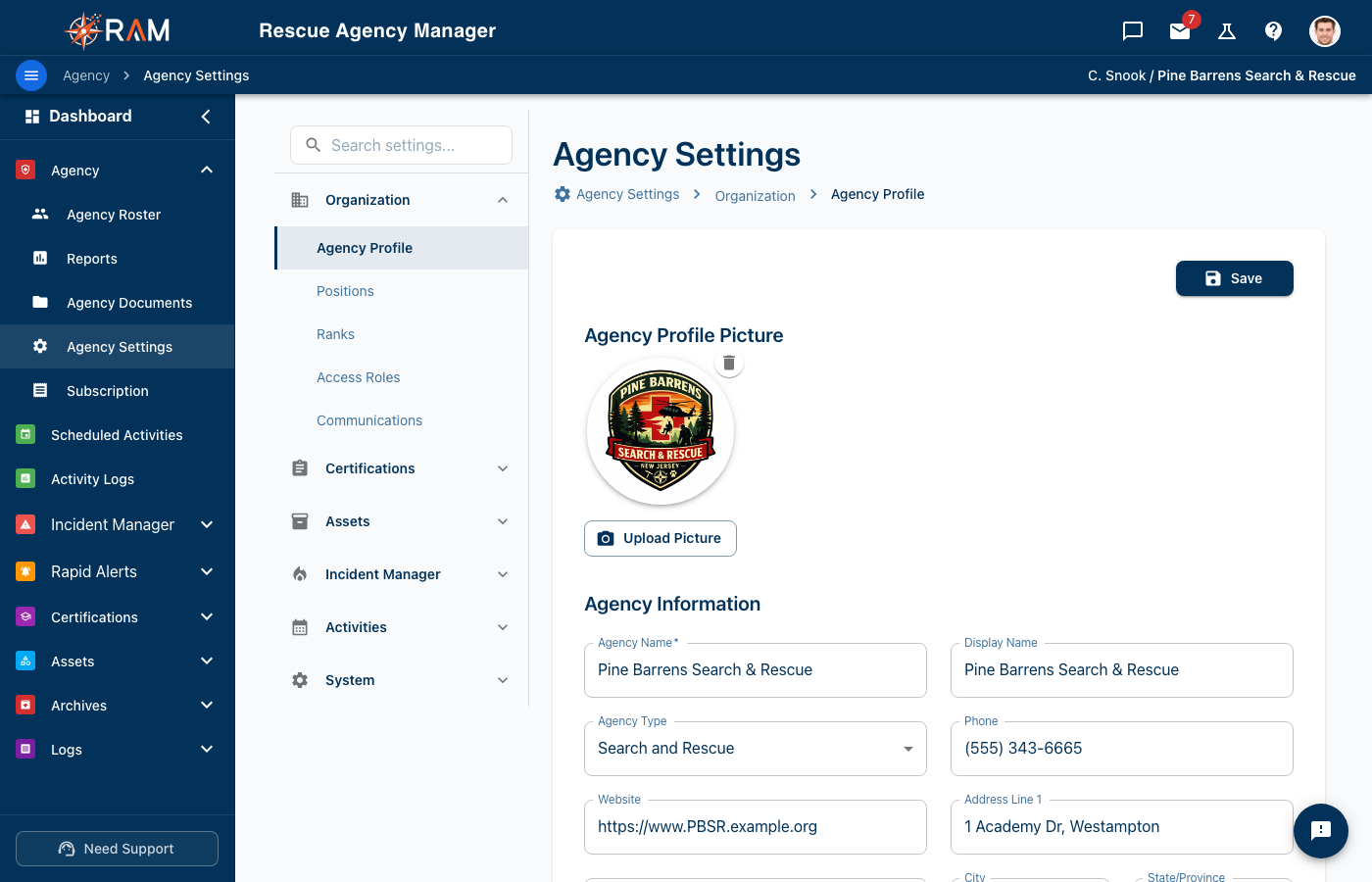
The left column groups every setting: Organization (Agency Profile, Positions, Ranks, Access Roles, Communications), Certifications, Assets, Incident Manager, Activities and System.
What belongs in Agency Settings
Feature Settings
Turn optional modules on or off for your agency.
| Feature | Description |
|---|---|
| Certifications | Track member certifications |
| Assets | Manage equipment and supplies |
| Animals/K9s | Track working animals and their handlers |
| Mission Management | Coordinate missions and callouts |
| SAR Mapping | GPS tracking and terrain analysis |
Disabling a feature can hide menus and screens tied to that module. Existing data is typically retained, but it may not be visible until the feature is re-enabled.
Positions and Ranks
Agency Settings → Organization is where you define your org chart:
- Positions — functional roles a member can hold, and a member can hold several at once (Field Team Leader, Incident Commander, Medical).
- Ranks — seniority, one per member, ordered to reflect your hierarchy (Chief, Deputy Chief, Captain).
See Positions & Ranks for the full guide.
Specialties were replaced by Qualifications, which define a named capability from a tree of certification requirements and then track who meets it. They live under Certifications → Qualifications, not in Agency Settings. See Qualifications.
Access Roles (Permission Bundles)
Agency Settings → Organization → Access Roles is where you decide who can do what in your agency.
A role is a named bundle of permissions — for example, an Inventory Manager role can add, edit, and check out assets. Every new member is automatically given the Agency User starter role, which grants read access to most areas of the app. From there, you assign additional roles to expand what each person can do.
From the Roles page you can:
- See every role and who's been assigned to it
- Build custom roles with any combination of permissions
- Rename roles and adjust the permissions they grant
- Add or remove members from a role
- Delete roles you don't need (the two starter roles — Agency Admin and Agency User — can't be deleted)
To give someone full admin access, assign them the Agency Admin role. That alone makes them a full agency administrator. Removing the role demotes them back to a regular member.
See Roles & Permissions for the full guide, including the default role contents and the complete permission catalog.
Asset Settings
Configure how assets work for your organization.
Typical settings include:
- Asset types available to your agency
- Asset ID / numbering configuration (prefixes, counters, format)
- Defaults that help keep equipment tracking consistent
Notification Settings
Set organization-wide notification defaults and recipients.
Examples:
- Expiration warnings for certifications or assets
- Weekly digests (if enabled)
- Emergency / high-priority notification behaviors
Individual users may be able to customize their personal notification preferences. However, agency-mandated notifications cannot be disabled.
Incident Settings
Configure how incidents and operational periods behave for your agency.
Operational Period Defaults
| Setting | Description | Default |
|---|---|---|
| Default Period Duration | How long each operational period lasts (hours) | 12 hours |
| Alignment Time | The time of day that recurring periods align to (24h format) | 06:00 |
| Auto-Create Next Period | Automatically rotate to the next operational period when the current one expires | Off |
How Auto-Rotate Works
When Auto-Create Next Period is enabled:
- A background task checks every 30 minutes for active incidents with expired operational periods
- When a period exceeds the Default Period Duration, it is automatically closed
- A new period is created with the start time aligned to the Alignment Time in your agency's timezone
- The Incident Commander carries forward to the new period
Example: With a 12-hour duration and alignment time of 06:00, periods rotate at 06:00 and 18:00 in your agency's local timezone.
The alignment time uses your agency's timezone (set on the Agency Profile page). An agency in Central Time with alignment at 06:00 will see periods rotate at 6:00 AM CT, not UTC.
You can always create operational periods manually regardless of this setting. Manual periods created via the Incident Workspace are not affected by auto-rotate.
Audit and Record Defaults
Depending on your configuration, Agency Settings may include administrative defaults such as:
- Audit log / activity settings
- Record settings used by certification workflows and reports
Data Retention
System › Data Retention controls what happens to a member's data after they are archived.
- Always kept: the member's name, member number, rank, incident participation, activity logs, hours, certifications and audit trail. This is the agency's record and is not a setting.
- Removed after the window you choose: home address, date of birth, phone numbers, emergency contacts, profile photo and login.
The default window is 1 year. Options are 90 days, 180 days, 1 year, 3 years, 7 years, or keep forever. Choosing "keep forever" shows a warning — privacy law expects a stated reason for retaining personal data.
Changing the window applies to members already archived as well, and the page tells you how many that affects before you save. If the new window puts someone past their date, their details are removed in the next daily run — the removal runs once a day, not the moment a date passes.
Deleting a member entirely, history included, is never automatic; see Archiving Members.
What belongs in Agency Profile (not here)
Use the Agency Profile page to update:
- Agency name and display name
- Agency type
- Timezone
- Address
- Primary contact information (email, phone, website)
- Branding (agency logo / profile picture)
- Tax exemption status and documentation (if enabled)
What lives elsewhere
Two things that used to be configured here have moved, because they are operational data rather than agency configuration:
| Looking for | Now at |
|---|---|
| Storage Locations — facilities, areas, sections, bins | Assets → Storage Locations (guide) |
| Specialties | Replaced by Certifications → Qualifications (guide) |
Old bookmarks still work — they redirect to the new pages.
Subscription
Agency Settings also shows subscription information:
- Current plan details
- User counts and limits
- Billing information and upgrade options