Digital ID Cards
RAM's Digital ID card is a QR code a member can carry on the back of their agency ID, or on their phone. Someone who finds the member hurt can scan it and see who the member is and who to call, with no RAM account and no sign-in.
RAM does not print Digital ID cards for you. The member, or you on their behalf, gets the code, and your agency puts it on the card it issues.
Table of Contents
- How it works
- Turning it on for your agency
- What a member does
- Issuing a card for a member
- What someone sees when they scan it
- Expiry and resetting a card
- Troubleshooting
How it works
- Off until turned on. Your agency allows the feature, then each member's own card is off until they (or an administrator, if you allow it) turn it on.
- The code is the only key. Anyone who has the QR code or its link can open the page. Treat it like a key. If a card is lost, reset it. See Expiry and resetting.
- Members choose what the page shows. Name and agency always show. Emergency contacts and certifications are separate switches, off until chosen.
Turning it on for your agency
Agency (left menu) → Agency Settings → Security → Access & Sessions → Digital ID card. Only Agency Admins can open it.
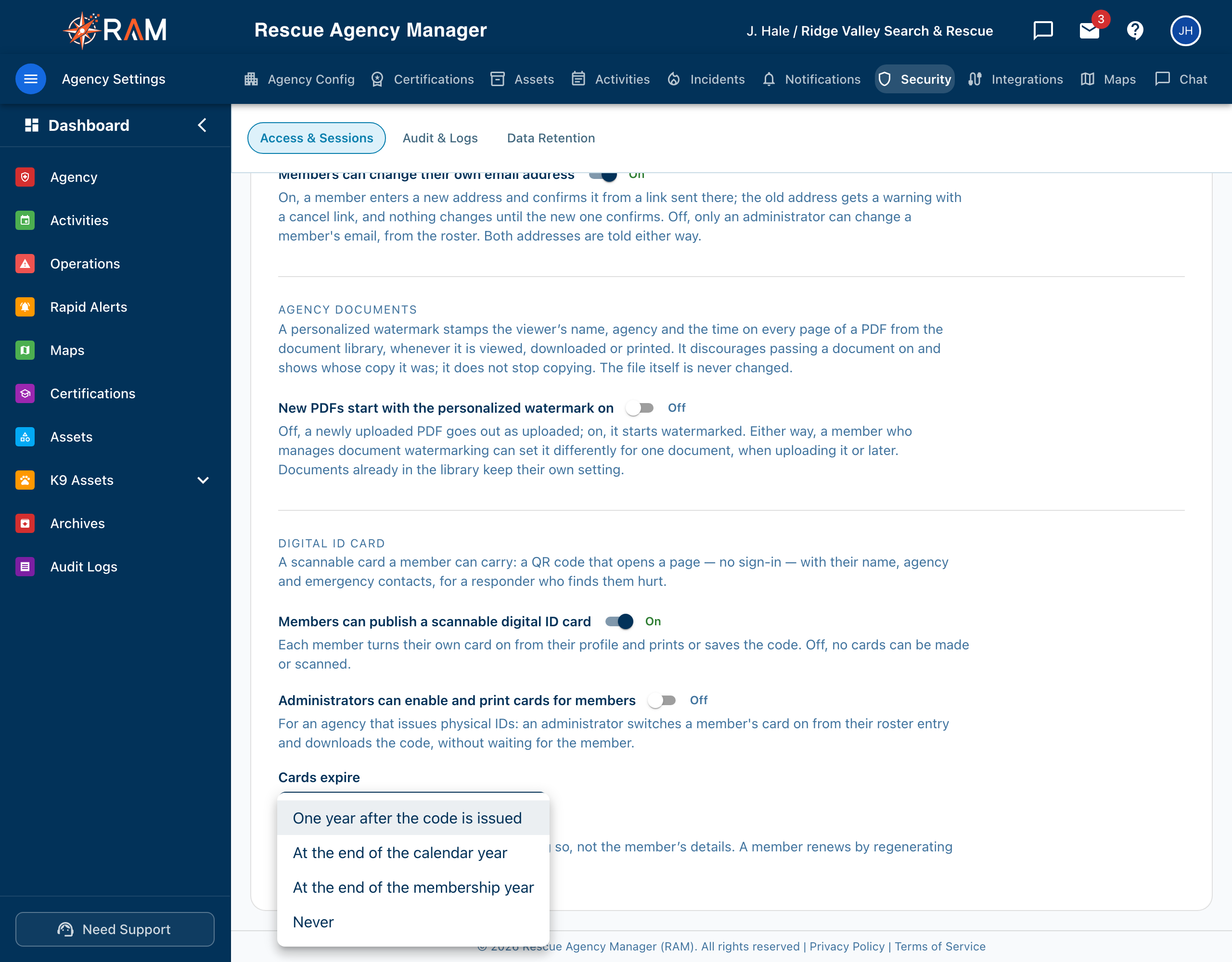
| Setting | What it does |
|---|---|
| Members can publish a scannable digital ID card | The master switch. Off, no cards can be made or scanned, including cards members already made. On, each member can turn on their own card from their profile. |
| Administrators can enable and print cards for members | Shown once the master switch is on. For an agency that issues physical IDs: an administrator switches a member's card on from that member's profile and downloads the code, without waiting for the member. |
| Cards expire | When a card stops working. See below. |
Choices for Cards expire:
| Choice | The card lapses |
|---|---|
| One year after the code is issued (default) | One year to the day after the member's code was created |
| At the end of the calendar year | December 31 of the year it was issued |
| At the end of the membership year | On the month and day you set (choose Membership year ends and Day) |
| Never | Not until the member resets it or turns it off |
A card that outlives someone's membership still opens a page with their name and agency. If you choose Never, make sure you reset or turn off cards for members who leave.
Changes save on their own. See Agency Settings.
Add your logo and color first
The agency logo and color from your Agency Profile appear on the card page and on wallet passes. With no logo, they show none.
What a member does
On the bottom of their own profile edit page (the Digital ID card section) a member can:
- Turn on Enable digital ID card.
- Under Information shared publicly, choose what to add:
- Emergency contacts. RAM asks them to confirm first, since names and phone numbers become visible to anyone who scans.
- Current certifications, and, under it, Expired certifications.
- Use the card link and QR code:
- Copy link and Preview card
- Download QR code, an image to print
- Reset card, which makes a new code and stops every printed card (RAM confirms first)
- Add it to a phone wallet, when offered:
- Apple Wallet, an Add to Apple Wallet badge, shown once Apple Wallet has been set up for RAM.
- Google Wallet, shown but unavailable, with a note that it is being tested and coming soon.
The page tells them when the code was issued and when it expires (or that it does not expire). If it has expired, it says to reset the card to renew.
If your agency has turned the feature off, the member sees a notice instead, saying an Agency Admin can turn it on under Agency → Agency Settings → Security.
For members' side of this, see My Profile.
Issuing a card for a member
This needs Administrators can enable and print cards for members to be on. Only Agency Admins can do it. A role with permissions alone is not enough.
- Open Agency → Roster, and edit the member.
- Scroll to Digital ID card.
- Turn on Enable digital ID card. Choose what is shared. Download QR code to print.
You can also Reset card for a member whose card was lost.
If that setting is off, you see: Only this member can turn on their own card.
What someone sees when they scan it
The code opens a page on RAM's app address. It needs no sign-in. It looks like the member's wallet pass, in your agency color:
| Always shown | Shown only if the member chose it |
|---|---|
| Agency name and logo, member's photo (or the agency logo), name, rank and positions, Member since year, Member #, and Active member | Emergency contacts, with names, relationships, and tap-to-call phone numbers. Certifications, current, and expired if chosen |
If the code was reset, the card was turned off, or the card has expired, the page does not show the member's details. It says there is no card at this address, or that the card has expired.
Expiry and resetting a card
- A card lapses on the date your Cards expire setting works out, counted from when the code was issued. An expired card's page shows a notice, not the member's details.
- Reset card (also called Regenerate) makes a new code. Every card already printed with the old code stops working, so reprint. A member renews an expired card the same way.
- Turning the member's card off, or the agency switch off, stops the page showing details at once.
Troubleshooting
| Problem | What to do |
|---|---|
| The Digital ID card switch is unavailable for a member | The agency switch is off, or the member's page is being viewed by an administrator while Administrators can enable and print cards for members is off |
| A scanned card shows "No card at this address" | The code was reset or the card was turned off. Issue a new code. |
| A scanned card says it has expired | The member resets the card, or an administrator does it for them if allowed |
| No wallet badge appears | Wallet badges appear only once the card is on and Wallet has been set up for RAM. Google Wallet is unavailable for now. |
Related Pages
- Agency Settings
- Agency Profile: logo and color
- Team Management
- My Profile