Activity Settings
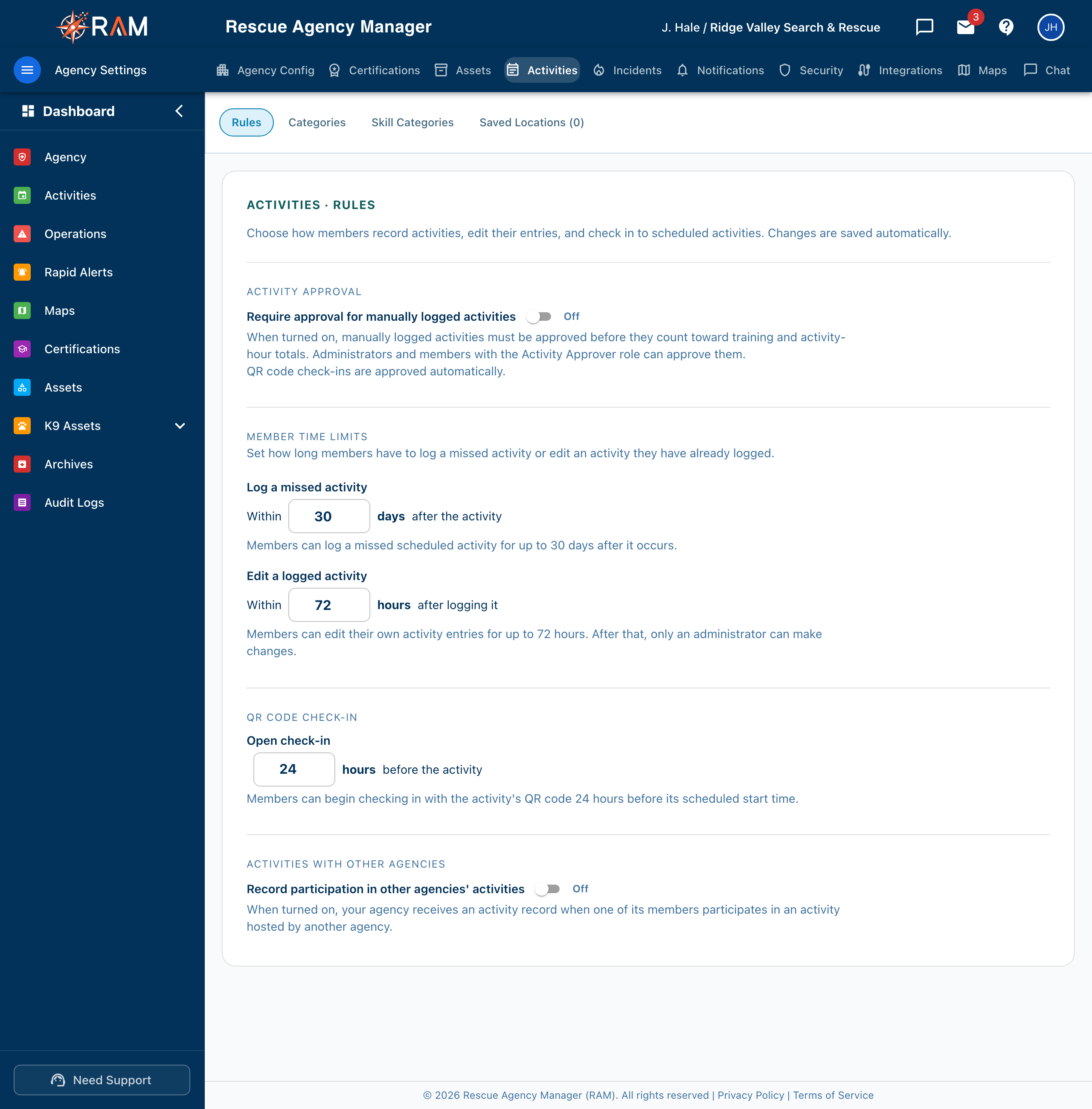
Activity settings decide how members record activities, how long they can fix their entries, when QR check-in opens, and which categories, skills, and places members can pick from. They apply to the whole agency.
To open them: Agency (left menu) → Agency Settings → Activities on the top bar. Four pages sit in the row beneath it: Rules, Categories, Skill Categories, and Saved Locations.
Only Agency Admins can open these pages. There is no Save button; a change saves on its own. See Agency Settings.
Table of Contents
Rules
The Rules page has four sections.
| Section | Setting | Default | What it does for members |
|---|---|---|---|
| Activity approval | Require approval for manually logged activities | Off | On: an activity a member logs by hand does not count toward training and activity-hour totals until it is approved. QR code check-ins are approved automatically. |
| Member time limits | Log a missed activity (days after the activity) | 30 | How long after a scheduled activity a member can still log time they forgot. Set it to 0 and members cannot log a missed activity. Highest value is 365. |
| Member time limits | Edit a logged activity (hours after logging it) | 72 | How long members can change their own activity entries. After that, only an administrator can. Set it to 0 for no limit. |
| QR code check-in | Open check-in (hours before the activity) | 24 | How early members can start checking in with the activity's QR code. 0 means check-in is open from the start until the activity ends. Highest value is 168 (one week). |
| Activities with other agencies | Record participation in other agencies' activities | Off | On: your agency gets an activity record when one of your members takes part in an activity another agency hosts. |
Notes on each rule
- Approval. Administrators and members who hold Approve activity attendance can approve entries. They do it from the Service Log.
- Missed activities. The same number is the entry window when someone records a past activity from the calendar. Past that window, only an Agency Admin can enter one, and must give a reason. See Scheduling Activities. The page spells out the result as you type, for example "Members can log a missed scheduled activity for up to 30 days after it occurs."
- QR check-in. This sets how early check-in opens. How members check in is in Activity Sign-In Sheet.
- Other agencies. Leave this off unless you train or deploy alongside other RAM agencies and want those hours to show up in your records.
Categories
Agency → Agency Settings → Activities → Categories is your list of activity types, such as Training or Meeting. Members choose a category when they create or log an activity. Categories also decide how time is counted in reports.
Each row shows the category's name, how many activities use it, and an Available switch. Hover a row for Edit and Remove.
| Part of a category | What it does |
|---|---|
| Name and Description | What members see when they pick it. |
| Training hours | Time in this category adds to a member's training total. |
| Deployment | Counts as an operational deployment. |
| Membership | Counts toward membership requirements. |
| Offered when logging (the Available switch) | Off: kept, but not offered when members create or log an activity. Activities already in it keep it. |
- Add activity category (top bar) makes a new one. Add the three counting options that fit it.
- Search and the All / Enabled / Disabled buttons narrow the list.
- Remove works only for a category no activity uses. For one that is in use, turn Available off instead. Nothing is lost.
- Standard categories that come with RAM are marked Standard. A standard category's name is fixed; you can still switch it on or off and change its counting options.
A category with Training hours off adds nothing to training totals, however long the activity ran. Check this first if a member's hours look low.
Skill Categories
Agency → Agency Settings → Activities → Skill Categories lists the skills an activity can exercise, such as rope rescue, navigation, or medical care. An activity can be tagged with them so training hours can be tracked and reported by skill.
- It works like Categories: Add skill category, edit, remove when unused, and an Available switch (Offered when logging).
- A new agency starts empty. Choose Add recommended skill categories to load a starter list, then edit it to match your training.
- Skill categories have no counting options. They only label the activity.
Saved Locations
Agency → Agency Settings → Activities → Saved Locations holds the places your agency uses often, such as hospitals, helipads, trailheads, command posts, and staging areas. Save a place once, and members pick it by name instead of retyping an address.
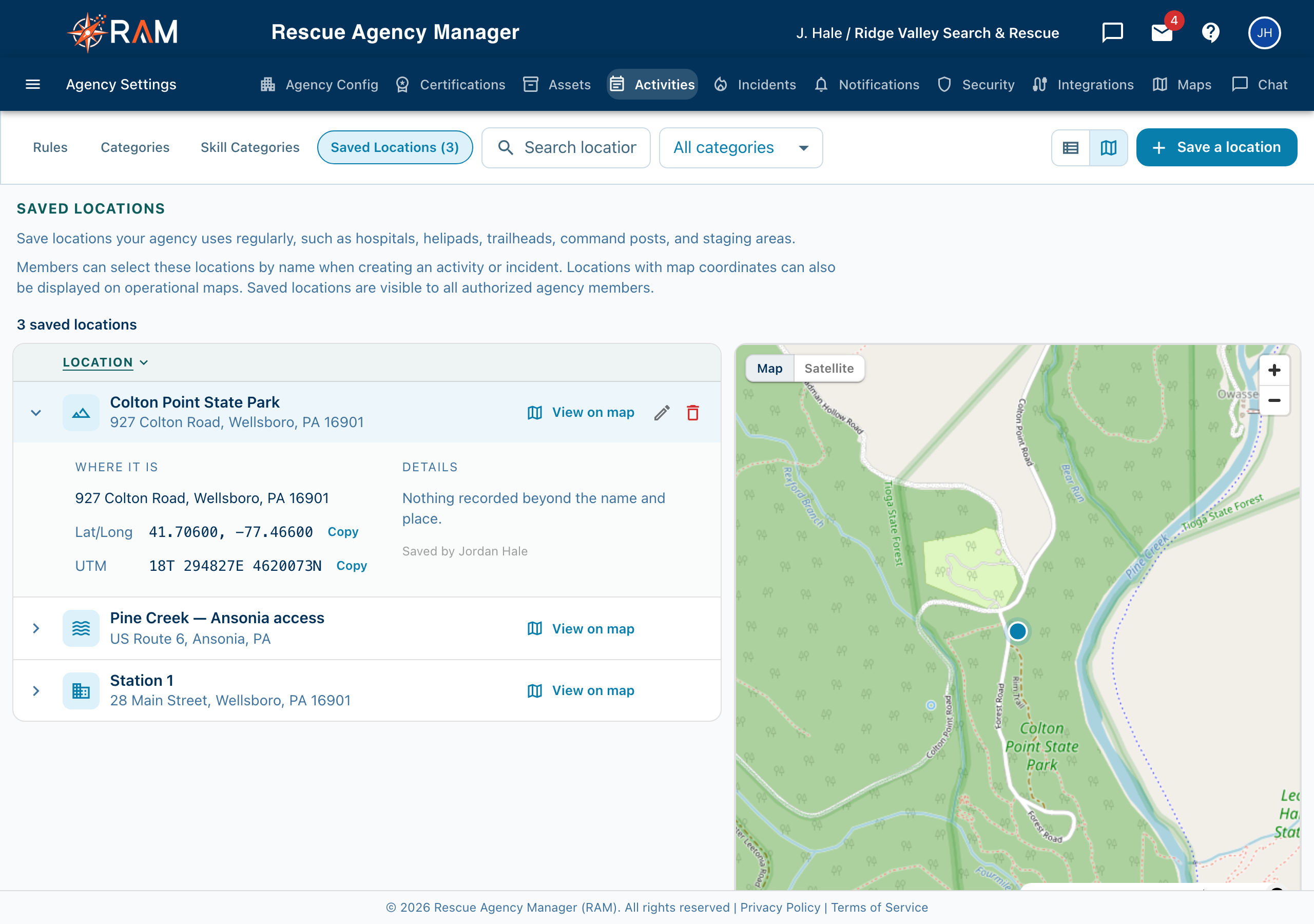
Where members see them: the Saved choice in the Location step when creating an activity (Scheduling Activities). Locations with coordinates can also appear on maps. Every member can see every saved location, so use a clear operational name and keep personal details out.
Browsing the list
- Search looks at name, address, type, notes, and category.
- The category menu lists only the categories you actually use.
- Select Location or Category in the header to sort.
- If any location has no coordinates, buttons appear to show All, On the map, or No coordinates.
- The two buttons beside them switch between List and List and map. The choice is remembered on that browser.
- Select a row to open it: a map preview, coordinates in lat/long and UTM (each with a Copy button), the details for that type of place, and the notes. View on map opens the place in Google Maps.
Saving a location
- Select Save a location (or Save the first location on an empty page).
- Enter a Location name and choose a Category. Both are required.
- Pick a Location type, or type your own. The details that follow depend on the type, for example whether a helipad is lit.
- Add Arrival instructions: the entrance, where to park, who to check in with, the radio channel.
- On the right, look up an address or drop a pin. A trailhead or landing zone with no street address only needs the pin.
- Select Save location.
Closing the form with unsaved changes asks you to confirm first.
Do not put passwords, gate codes, medical details, or home addresses in a saved location. Every member can read it.
Editing and deleting
Hover a row for Edit and Delete. Deleting a location removes it from the choices members see. Activities that already used it keep the address they were given, so nothing scheduled changes.