Archives
Archives is where records that have left the active lists wait. Nothing is added here by hand. You archive or delete a record where it lives, and it appears here.
To open it: Archives in the left menu. The tabs on the top bar are Members, Certifications, Qualifications, and Assets.
You see a tab only if your role allows it, and the Archives item appears in the left menu only if you can reach at least one tab. See Who can do what.
Archives also holds archived and deleted incidents and maps. Those are documented separately.
Archive and Delete
RAM uses two different words here.
| Word | What it means in RAM |
|---|---|
| Archive | Kept for good and read-only. It is out of the way, not gone. |
| Delete | A holding place for a limited time, then destroyed. |
A few things in the app go a little beyond those plain definitions, and this page says so where it happens. Some permission names do not follow the definitions either: Delete members actually archives a member, while Delete certifications for any member and Delete qualifications send items to the holding place.
- Archived members are kept for good, but their personal details are removed after a window your agency sets. The service record stays.
- Permanent deletion exists for archived members, deleted certifications, and deleted qualifications. It destroys the record at once, cannot be undone, and shows only to Agency Admins.
- Deleted qualifications wait 30 days and are then destroyed automatically.
Table of Contents
Archived Members
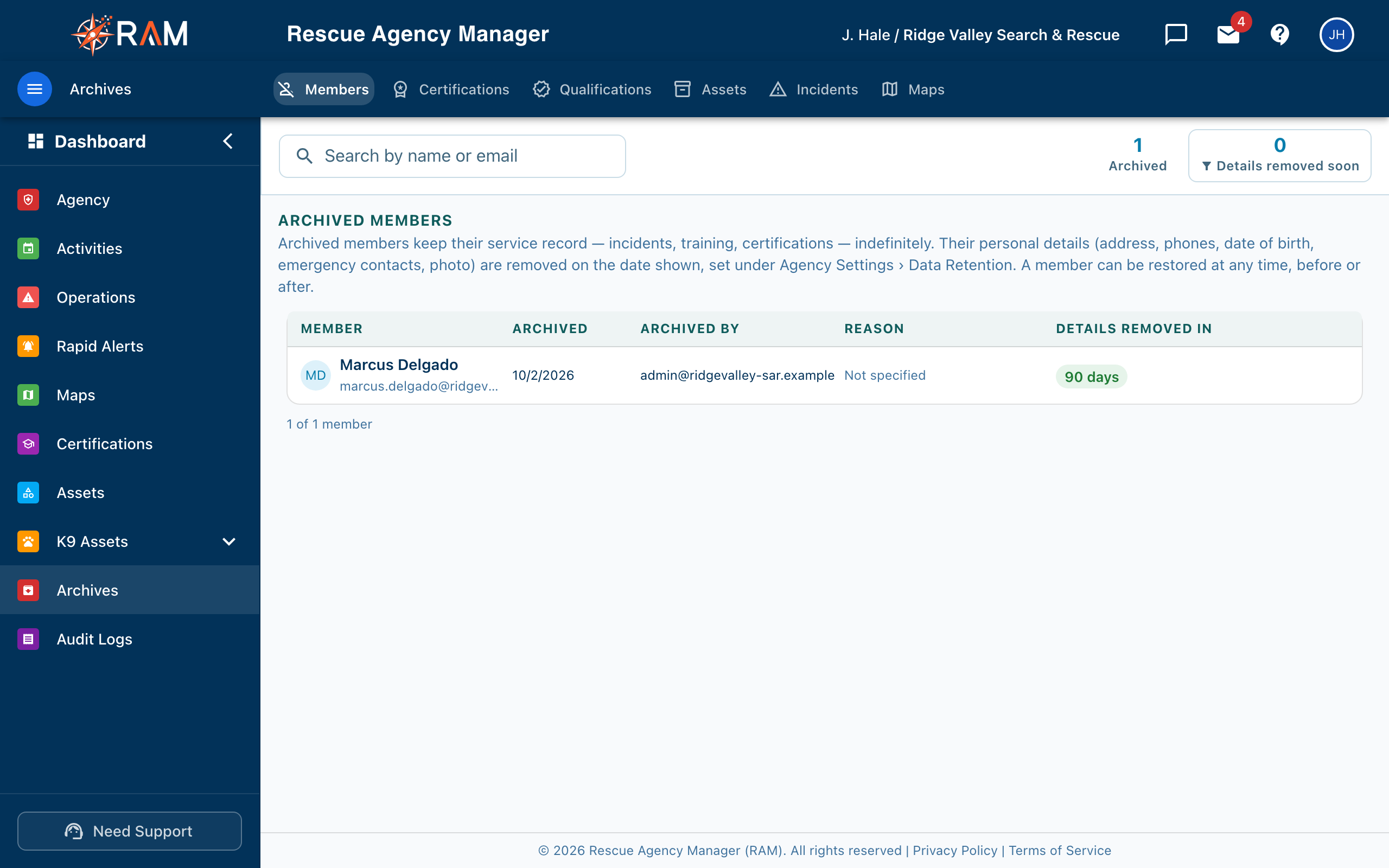
Removing a member from the roster archives them. See Archiving Members. They appear on the Members tab, titled Archived Members.
| Column | Shows |
|---|---|
| Member | Name and email |
| Archived | The date |
| Archived by | Who archived them |
| Reason | The reason given, or "Not specified" |
| Details removed in | A countdown to the day their personal details are removed |
Use Search by name or email to find someone. The tiles show how many members are archived and how many will have their details removed within 30 days. Select the second one to list only those.
The retention window and the countdown
An archived member's record is kept for good, so their name, member number, activity, hours, certifications, and the audit trail stay. Their personal details are removed after a window your agency sets: home address, date of birth, phone numbers, emergency contact, profile photo, and sign-in.
- You set the window under Agency → Agency Settings → Security → Data Retention: 90 days (default), 180 days, 1 year, 3 years, 7 years, or keep forever. See Agency Settings.
- Details removed in counts down in days. It is amber with 30 days or less, and red with 7 days or less.
- Once removed, the cell says Removed with the date. With forever chosen, it says Kept indefinitely.
- Removal runs once a day, so it happens on or just after the day shown. Administrators are reminded 30, 7, and 1 day before.
Restoring a member
Hover a row and select Restore.
- Before their details were removed: RAM asks you to confirm. The member is back on the roster as they were and can sign in again.
- After their details were removed: RAM asks for the member's email address. They get an invitation to sign in and fill in their profile again, because their sign-in details were removed. Their service record, including hours and certifications, is still attached.
Restoring needs a free seat, since the member counts on your roster again. If your agency is at its seat limit, the restore is refused until a seat is freed or the plan is raised. See Agency Subscription.
Deleting a member permanently
Hover a row and select the red Delete permanently icon. Type DELETE to confirm.
Permanent deletion removes the member and their whole history: incident participation, activity logs, hours, certifications, and files. It is recorded in the audit log, and it is never automatic.
- Only Agency Admins can do it. The icon shows only to them.
- Use it for an erasure request from the member, or for an account made by mistake.
- If you only want a member's personal details gone, do not use it. That already happens on the retention schedule while the record stays.
Certifications
The Certifications tab has two views, chosen by the buttons on the top bar. You see the buttons when your role allows both.
Deleted
A certification deleted from a member's record is not destroyed right away. It waits here, with its uploaded documents, for 180 days. Restore it before the date and it goes back on the member's record as it was. After 180 days it is destroyed, and it cannot be restored. RAM does this cleanup once a day.
| Column | Shows |
|---|---|
| Member and Certification | Whose it was and which one |
| Template | The certification template it came from, if any |
| Deleted and Deleted by | When and who |
| Purged in | Days left. Amber at 30 days or less, red at 7 or less. |
- Restore puts the certification back, after you confirm.
- Delete permanently now destroys it and its documents immediately, without waiting. It cannot be undone. This is for Agency Admins only.
- The Purged soon tile counts those with 30 days or less. Select it to list only them.
Previous versions
This view holds the earlier versions of certifications that a renewal replaced. They are kept permanently as history, with their dates, verification status, and a button to open the uploaded document. They are read-only.
Only an Agency Admin can delete one of these permanently.
Qualifications
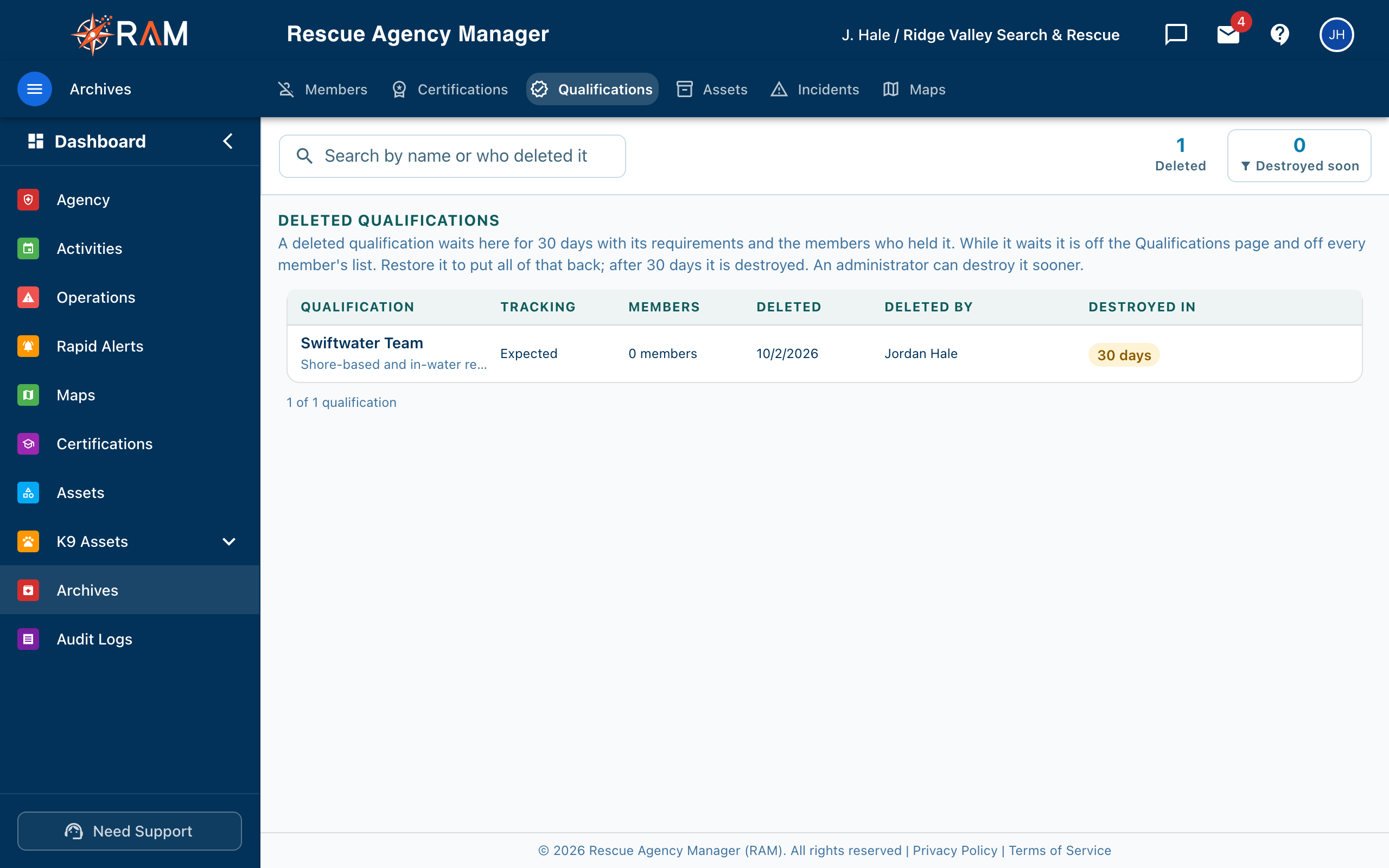
Deleting a qualification does not destroy it. See Qualifications. It leaves the Qualifications page and every member's list at once and waits here, with its requirements and the members who held it, for 30 days. After 30 days RAM destroys it automatically, once a day. Members' certifications are never touched.
| Column | Shows |
|---|---|
| Qualification | Its name |
| Tracking | Earned or Expected |
| Members | How many held it |
| Deleted and Deleted by | When and who |
| Destroyed in | Days left. Amber and red as the day gets close. |
- Restore puts it back on the Qualifications page with its requirements and members, after you confirm. Earned membership and statuses are recalculated from members' current certifications, so they may differ from the day it was deleted.
- Delete permanently destroys it at once, after you type its name. This is for Agency Admins only and cannot be undone.
- The name can be reused while a qualification waits. If you do, rename one of the two before restoring.
Archived Assets
The Assets tab, titled Archived Assets, lists assets taken out of the inventory: sold, lost, or retired. See Asset Management for how to archive one.
An archived asset keeps everything it carried: service history, documents, and assignments. It does not count toward your inventory. There is no timer. An archived asset stays until you restore it.
| Column | Shows |
|---|---|
| Asset ID, Asset, and Serial | Which asset |
| Archived, Archived by, and Reason | When, by whom, and why |
Use Search by ID, name, type, or serial to find one. Hover a row for:
- Open the asset, to read its details.
- Restore to inventory, which puts it back in the active inventory with its history, as Available and with no location, so place it again. It asks you to confirm.
Who can do what
See Roles & Permissions and the Permission Reference. Agency Admins can do all of it.
| To | You need |
|---|---|
| See the Members tab and restore a member | Manage deleted members or Delete members |
| Delete a member permanently | Agency Admin (the button shows only to Agency Admins) |
| See the Qualifications tab and restore a qualification | Delete qualifications |
| Destroy a qualification before its 30 days | Agency Admin |
| See the Certifications tab, Deleted view, and restore | Manage deleted certifications or Delete certifications for any member |
| See Previous versions | View archived certifications |
| Delete a certification permanently | Agency Admin |
| See the Assets tab and open an archived asset | View archived assets |
| Restore an asset | Manage archived assets |
Related Pages
- Team Management
- Agency Settings: the retention window
- Asset Management
- Record & Certification Templates
- Permission Reference