Positions & Ranks
Positions and Ranks help define your agency's organizational structure. While they may seem similar, they serve different purposes:
| Feature | Positions | Ranks |
|---|---|---|
| Purpose | Define job roles and responsibilities | Define seniority or hierarchy levels |
| Per Member | Multiple (a member can hold several positions) | Single (one rank per member) |
| Examples | Team Leader, Medical Officer, K9 Handler | Member, Senior Member, Captain |
| Organization | Grouped by category | Ordered by seniority level |
- Use Positions for functional roles: "What does this person do?"
- Use Ranks for hierarchy levels: "Where does this person fall in the chain of command?"
Accessing Positions & Ranks
- Navigate to Agency Settings in the left menu
- Select the Positions or Ranks tab
Required Permissions: Administrator or Agency Settings Editor
Positions
Positions define the functional roles within your organization. A team member can hold multiple positions simultaneously (e.g., "Team Leader" and "Medical Officer").
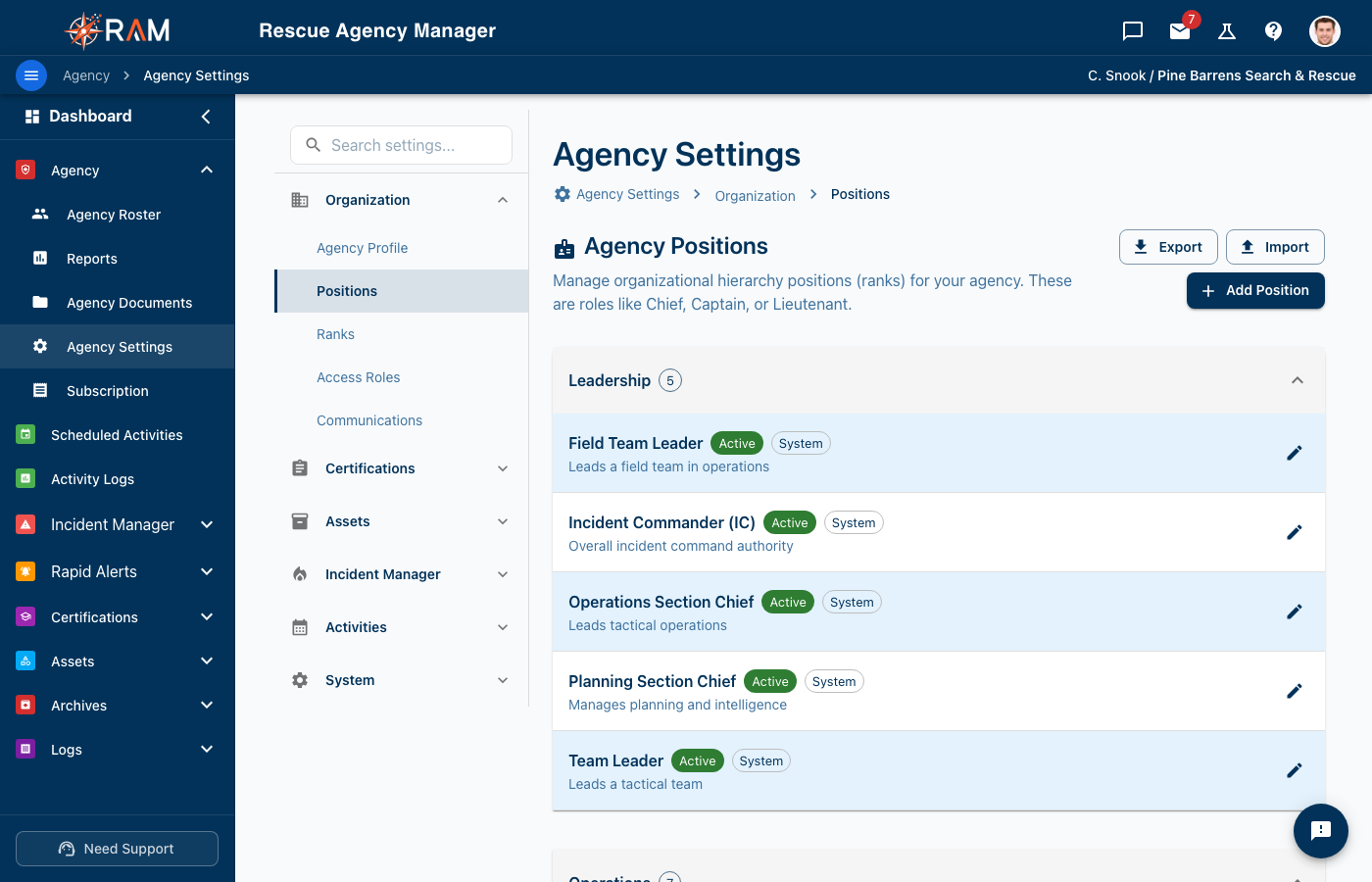
Position Categories
Positions are organized into categories for easier management:
| Category | Typical Positions |
|---|---|
| Leadership | Chief, Deputy Chief, Commander |
| Operations | Team Leader, Squad Leader, Field Coordinator |
| Training | Training Officer, Instructor, Evaluator |
| Administrative | Secretary, Treasurer, Membership Coordinator |
| Logistics | Equipment Manager, Quartermaster, Fleet Manager |
| Safety | Safety Officer, Risk Manager |
| Communications | Communications Officer, Public Information Officer |
| Medical | Medical Officer, EMS Coordinator, First Aid Lead |
| Other | Any position that doesn't fit above categories |
Creating a Position
- Go to Agency Settings → Positions tab
- Click Add Position (upper right)
- Fill in the form:
| Field | Required | Description |
|---|---|---|
| Position Name | Yes | The title members will see (e.g., "Team Leader") |
| Category | Yes | Select from the dropdown to group related positions |
| Description | No | Explain the role's responsibilities |
| Active | Yes | Toggle on to make available for assignment |
- Click Save
The new position appears in the list, grouped under its category.
Position Examples by Agency Type
Search & Rescue Team
| Position | Category | Description |
|---|---|---|
| Search Team Leader | Leadership | Leads ground search operations |
| Medical Officer | Medical | Provides medical oversight and care |
| K9 Handler | Operations | Works with search dogs |
| Communications Officer | Communications | Manages radio communications |
| Training Coordinator | Training | Schedules and tracks training |
Fire Department
| Position | Category | Description |
|---|---|---|
| Fire Chief | Leadership | Department head |
| Captain | Leadership | Shift or station commander |
| Lieutenant | Leadership | Assistant shift supervisor |
| Engineer | Operations | Apparatus operator |
| Firefighter | Operations | Line firefighter |
| Safety Officer | Safety | Scene safety oversight |
EMS Agency
| Position | Category | Description |
|---|---|---|
| Medical Director | Leadership | Medical oversight authority |
| Shift Supervisor | Leadership | Manages daily operations |
| Paramedic | Operations | Advanced life support provider |
| EMT | Operations | Basic life support provider |
| Quality Assurance | Administrative | Reviews call reports |
Editing Positions
- Find the position in the list
- Click the edit icon (pencil)
- Modify the fields
- Click Save
Changes to position names are reflected everywhere that position is displayed, including member profiles.
Deleting Positions
- Click the delete icon (trash can) next to the position
- Confirm the deletion
You cannot delete system-default positions (marked as "System"). You can deactivate them instead by setting Active to off.
Deactivating vs. Deleting
| Action | Effect |
|---|---|
| Deactivate | Hides from assignment dropdowns but preserves data. Members who had this position keep it. |
| Delete | Permanently removes the position. Members lose this position assignment. |
Recommendation: Deactivate positions you no longer use instead of deleting them.
Ranks
Ranks define the hierarchy or seniority levels within your organization. Each team member can have only one rank at a time.
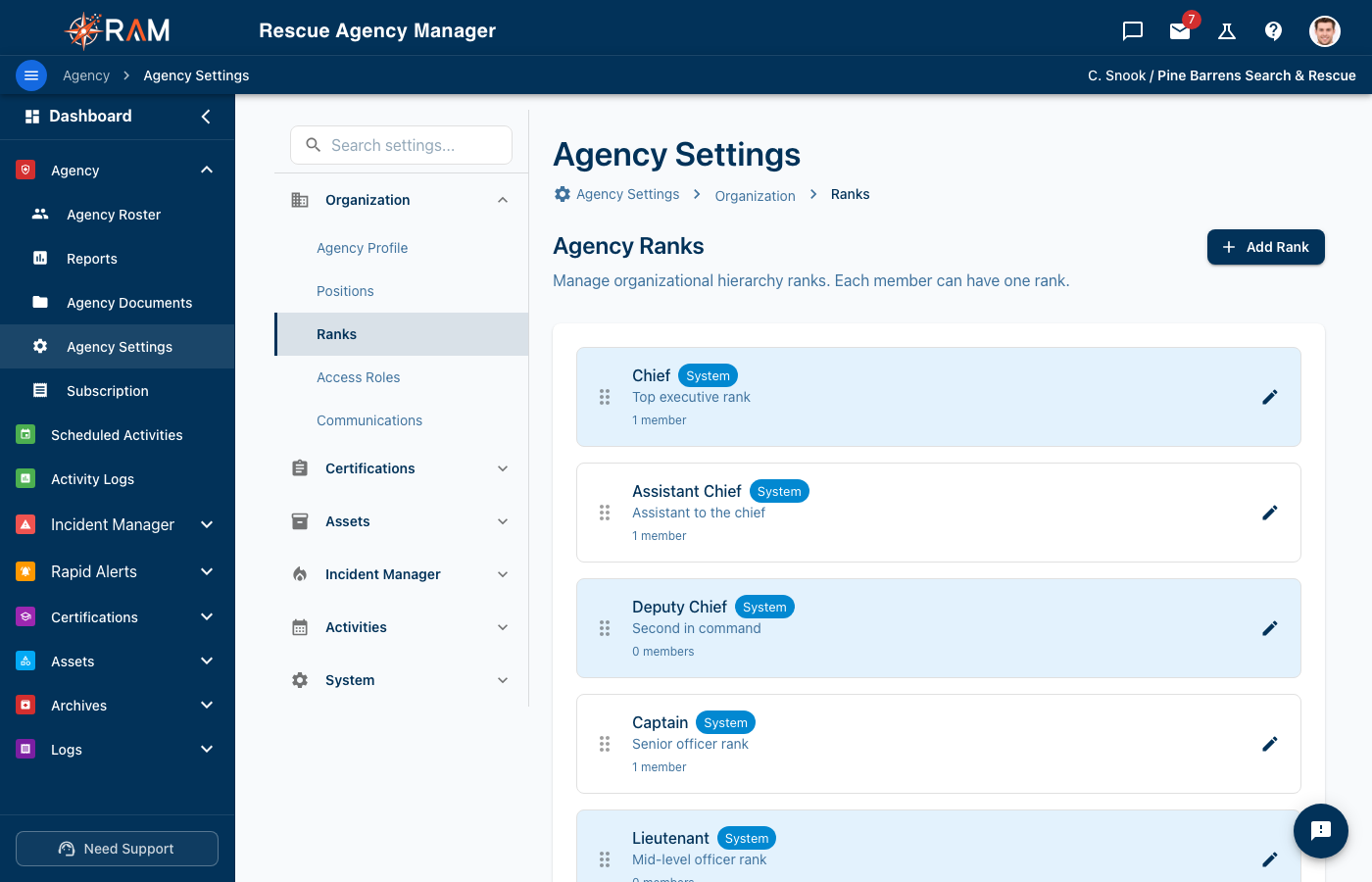
How Rank Order Works
Ranks use a Sort Order number to determine their position in lists:
- Lower numbers appear first (higher seniority)
- Higher numbers appear last (lower seniority)
Example:
| Rank | Sort Order |
|---|---|
| Chief | 1 |
| Deputy Chief | 2 |
| Captain | 3 |
| Lieutenant | 4 |
| Senior Member | 5 |
| Member | 6 |
| Probationary | 7 |
Creating a Rank
- Go to Agency Settings → Ranks tab
- Click Add Rank (upper right)
- Fill in the form:
| Field | Required | Description |
|---|---|---|
| Rank Name | Yes | The title members will see (e.g., "Captain") |
| Description | No | Explain what this rank means |
| Sort Order | Yes | Number for ordering (lower = higher seniority) |
| Active | Yes | Toggle on to make available for assignment |
- Click Save
New ranks automatically get a Sort Order of max + 1, placing them at the bottom. Adjust the number to position them correctly in the hierarchy.
Rank Examples by Agency Type
Search & Rescue Team
| Rank | Sort Order | Description |
|---|---|---|
| Team Leader | 1 | Overall team authority |
| Assistant Team Leader | 2 | Second in command |
| Senior Member | 3 | Experienced searcher |
| Field Member | 4 | Trained field responder |
| Support Member | 5 | Base operations support |
| Trainee | 6 | In training program |
Fire Department
| Rank | Sort Order | Description |
|---|---|---|
| Chief | 1 | Department head |
| Deputy Chief | 2 | Assistant department head |
| Battalion Chief | 3 | Multi-station supervisor |
| Captain | 4 | Station/shift commander |
| Lieutenant | 5 | Company officer |
| Firefighter | 6 | Line firefighter |
| Probationary | 7 | New hire in training |
Volunteer Organization
| Rank | Sort Order | Description |
|---|---|---|
| Director | 1 | Board director |
| Coordinator | 2 | Program coordinator |
| Senior Volunteer | 3 | 2+ years experience |
| Volunteer | 4 | Active volunteer |
| New Member | 5 | Recently joined |
Editing Ranks
- Find the rank in the list
- Click the edit icon (pencil)
- Modify the fields
- Click Save
Deleting Ranks
- Click the delete icon (trash can) next to the rank
- Confirm the deletion
If any team members have this rank assigned, the delete button will be disabled. You must first:
- Reassign those members to a different rank, OR
- Deactivate the rank instead of deleting it
The rank will show a usage count (e.g., "3 members") to help you identify this.
Assigning Positions & Ranks to Members
Positions and Ranks are assigned when editing a team member's profile.
How to Assign
- Go to Team Roster
- Click on a team member to edit
- Navigate to the Member Info tab
- Find the Rank and Positions fields:
| Field | Selection Type | Notes |
|---|---|---|
| Rank | Single dropdown | Select one rank or "None" |
| Positions | Multi-select with checkboxes | Check all that apply |
- Click Save
What Members See
- Rank and positions appear on the member's profile
- Other team members can see these in the roster view
- Positions display as chips/tags when multiple are assigned
Import & Export
Positions
Positions support CSV import and export:
Export:
- Click Export in the Positions tab
- Downloads all positions as a CSV file
Import:
- Prepare a CSV with columns: Name, Category, Description
- Click Import in the Positions tab
- Upload your file
- Review and confirm
Ranks
Ranks do not currently have a dedicated import/export feature in the UI.
Best Practices
Naming Conventions
| Do | Don't |
|---|---|
| "Team Leader" | "TL" or "team leader" |
| "Communications Officer" | "Comms" |
| "Probationary Member" | "Probie" |
Keep names:
- Professional and clear
- Consistent capitalization
- Spelled out (avoid abbreviations)
Organizing Positions
- Start with categories — Think about the functional areas of your organization
- Be specific — "K9 Handler" is better than "Handler"
- Avoid overlap — If two positions do the same thing, use one
- Use descriptions — Help members understand what each position entails
Setting Up Ranks
- Keep it simple — Most organizations need 4-7 ranks
- Leave gaps in sort order — Use 10, 20, 30 instead of 1, 2, 3 for easier reordering later
- Match your bylaws — Rank names should align with your organization's official structure
- Consider progression — Ranks often represent career/volunteer progression
When to Use Positions vs. Ranks
| Scenario | Use |
|---|---|
| John is the training coordinator | Position |
| John is a senior member | Rank |
| Maria leads the dive team | Position |
| Maria outranks other team members | Rank |
| New member joining the team | Rank (Probationary/Trainee) |
| That member is also a paramedic | Position (Medical/Paramedic) |
Troubleshooting
"Position not showing in dropdown"
Check that:
- The position is set to Active
- You have saved the position after creating it
- You have refreshed the page if recently added
"Cannot delete rank"
The rank is currently assigned to one or more members. Either:
- Reassign those members to different ranks first
- Deactivate the rank instead (set Active to off)
"Sort order not working correctly"
Ranks are sorted by their Sort Order number in ascending order (lowest first). To reorder:
- Edit each rank
- Adjust the Sort Order numbers
- Save each change
Next Steps
After setting up Positions and Ranks:
-
Add Team Members — Assign positions and ranks during member creation
- See Team Management
-
Configure Specialties — Link certifications to specialty roles
-
Set Permissions — Create permission groups based on positions