Groups
A group is a set of members who act together: who gets an alert, who shares a chat. It doesn't change what anyone may do in RAM. That is what roles are for.
Table of Contents
Groups: who acts together, not who may do what
Putting a member in a Group does not give them any access, and taking them out doesn't remove any. Access comes only from roles. A group is just a named list of people.
A Group is a reusable list of members who work or communicate together: a K9 team, a swiftwater unit, command staff. One list is used everywhere RAM asks for a group:
| Used for | What happens |
|---|---|
| Activity invitations | Pick the group when scheduling an activity and its members are invited. |
| Rapid Alerts | Pick the group as the people an alert goes to. |
| Group chat | The group has its own shared chat, named after it. Everyone in the group is in the chat. |
Where groups live
Agency Settings → Agency Config → Groups. Each row shows the group's name, a short description, who is in it, and whether chat is On or Off. Select a row to see the members.
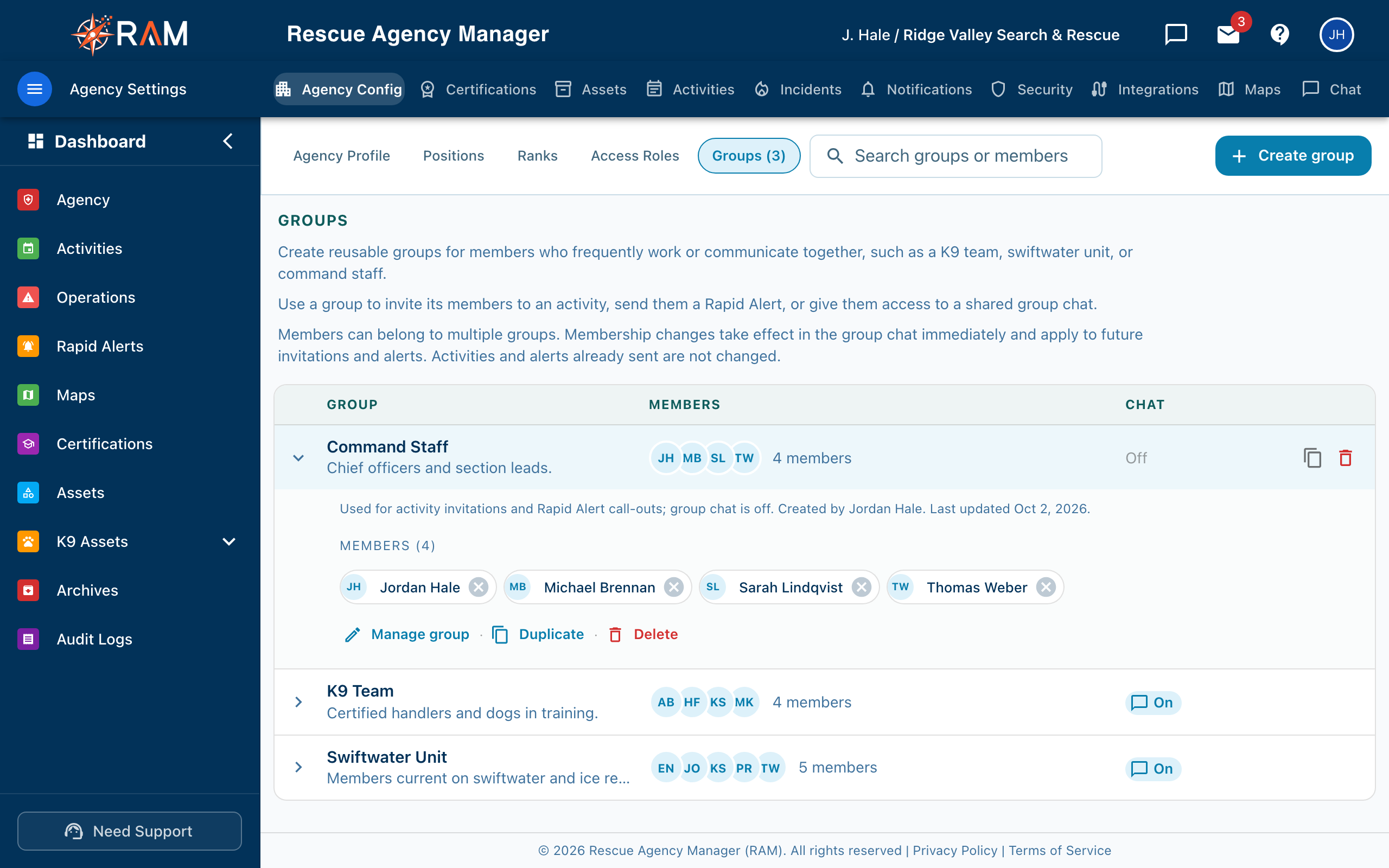
Create a group
- Select Create group.
- Enter a Group name (for example "K9 Team") and an optional Description.
- Under Members, search by name and add people.
- Leave Group chat on if the group should have a shared chat (it is on by default), or switch it off.
- Save.
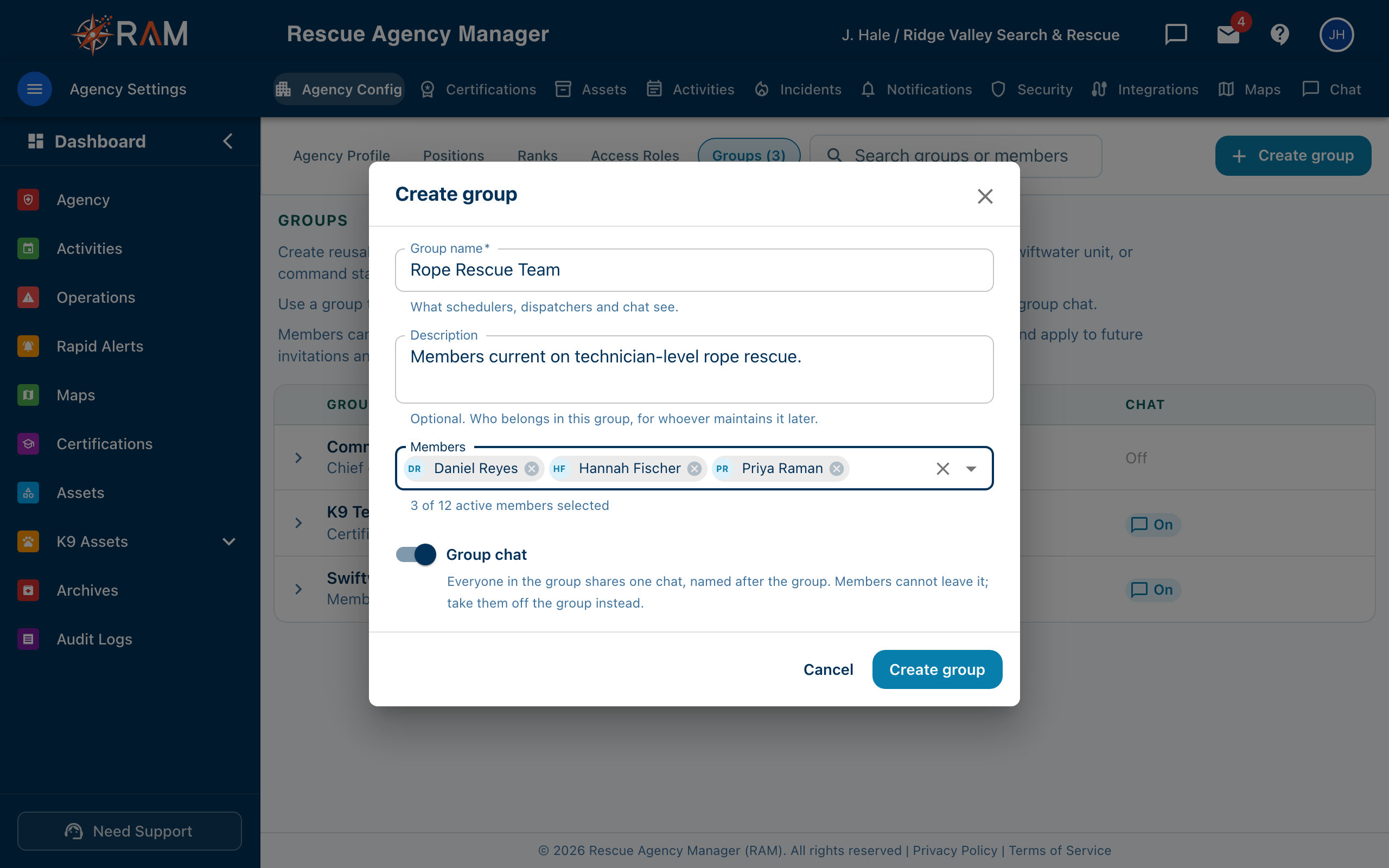
You can also duplicate a group (a quick way to start a similar one), edit it, remove a single member, or delete it.
How group chat behaves
- Adding someone to the group puts them in its chat right away; removing them takes them out.
- Members cannot leave a group's chat. To take someone out, take them off the group.
- The chat's name follows the group's name, and its membership is managed only from the Groups screen. A group chat can't be renamed or edited from the chat window.
- Switching Group chat off takes everyone out of the chat but keeps its messages. Turning it back on puts the members back and the history returns.
- Deleting a group deletes its chat and its messages. A chat that belongs to a Group can't be deleted any other way, even by someone with Delete chat. A Delete chat holder can still remove other members' messages inside it.
What changing a group does and doesn't change
- Membership changes apply to future invitations and alerts.
- Activities and alerts that were already sent are not changed. Someone removed from a group keeps invitations they already received.
- A member can belong to several groups.
- Deleting a group doesn't remove anyone from the agency.
Who can manage groups
Only Agency Admins and members who hold Manage alert groups can create, edit, duplicate, and delete Groups and change who is in them. That makes the permission the way to delegate group upkeep. It works from every screen that changes groups:
| Screen | Needs |
|---|---|
| Agency Settings → Agency Config → Groups | Agency Admin or Manage alert groups |
| A member's edit page, Invite groups field | Agency Admin or Manage alert groups, and Edit members |
| Team Roster, Add to invite group | Agency Admin or Manage alert groups |
- Everyone else sees groups read-only. Members who create or edit activities can pick a group when they invite people, but they can't change a group.
- Manage chat groups is a different permission, for ordinary group chats that aren't tied to a Group.