Asset Setup
The one-time setup an administrator does before the agency adds equipment: asset types, asset IDs, and storage locations. For adding, assigning and keeping track of assets day to day, see Asset Management.
Table of Contents
How it fits together
Every asset has an asset type. The type decides what the asset keeps track of: a rope type asks for length and falls, a vehicle type asks for VIN and mileage, a kit type holds a list of contents. You do not pick fields one by one on each asset. You pick the type, and the asset page shows exactly the sections that type calls for.
- There is one list of types for the whole agency: standard types RAM provides, plus any custom types you create.
- If an asset needs to behave differently, give it a different type. A type is a preset, and every asset built from it behaves the same way.
Set-up checklist
Assets is on by default. Before you add inventory, work through these:
- Check your asset types. Standard types are already there. Create a custom type only if none fits. See Asset types.
- Choose your measurement units (imperial or metric) so lengths, weights, fuel, and mileage read the way your crews expect.
- Set up Asset IDs if you want automatic numbering. See Asset IDs.
- Build your storage locations (optional, but recommended). See Storage Locations.
👉 Steps 1 to 3 are under Agency → Agency Settings → Assets. The same settings are reachable from Asset Settings at the right end of the Assets page bar.
Asset types
👉 Agency → Agency Settings → Assets → Asset Types
The list shows every type with a Standard or Custom tag and the number of assets that use it. Select a row to see what that type tracks.
- Standard types are available to every agency and cannot be edited.
- Custom types are yours. You can edit them, and delete them once no asset uses them.
- Use the filter buttons (All types, Standard, Custom, In use) and the search box to narrow the list.
Creating a custom type
- Select Create custom type.
- Enter a name and description.
- Choose the compliance items the type tracks.
- Choose what the type can do (its capabilities).
- Review and save.
What a type can track
What an asset shows is exactly what its type turns on, nothing more.
Details captured
| Capability | What the asset records |
|---|---|
| Life-Safety Specs | Rated gear: date of manufacture, in-service date, certification standard, minimum breaking strength, inspection cadence, maximum falls |
| Rope Specs | Rope type, diameter, length, color. Only for actual rope, webbing, and cord, not harnesses or carabiners |
| Vehicle Specs | Year, VIN, plate, odometer, engine hours |
| Watercraft Specs | Hull ID, boat type, length, engine, horsepower, fuel, and more |
| Trailer Specs | VIN, plate, length, weight rating, axles, brakes, hitch, tires |
| Medical Specs | For a medication or consumable: lot number, stock on hand, unit, minimum quantity, storage temperature, controlled-substance and prescription flags |
| Communication Specs | FCC ID, frequency range, channels, power, battery, range |
| Contents | The asset holds individually tracked items, like a kit. Each item has its own quantity, expiration, and lot |
| Medical Contents | A bag of drugs and consumables. Each item has its own count, minimum quantity, expiration, and lot |
| Storage Capable | Other assets can be stored inside this one (trucks, trailers, boats, gear caches) |
Records tracked (compliance)
| Item | What the asset records |
|---|---|
| Registration | Registration number and renewal, plus title number and state |
| Insurance | One policy per insurance type, with renewal dates |
| Calibration | Calibration history and an interval for the next due date |
| Maintenance | Services, repairs, and parts replaced |
| Usage Log | Deployment and usage history |
| Warranty | Warranty expiration is checked on the compliance report |
| Expiration | The retire or expiration date is checked on the compliance report |
Some choices switch others on for you, and you will see the boxes select:
- Contents switches on the Usage Log, because contents are used and restocked through it.
- Medical Specs also switches on the Usage Log, because stock goes up and down through it.
- Medical Contents switches on Contents.
Contents templates
For a type that holds contents, open its row and select Contents template to list what a new kit of that type should contain. New assets of that type start with that list.
Asset IDs
👉 Agency → Agency Settings → Assets → Asset IDs
Choose how new asset IDs are made. Changes apply only to assets created afterward. Existing IDs never change.
| Setting | What it does |
|---|---|
| Assign asset IDs automatically | Turns automatic ID numbering on or off |
| Prefix | The letters before the number |
| ID format | How the ID is laid out |
| Number of digits | How many digits the number has (3 gives 001) |
| Next number | The number the next new asset gets |
| Numbering by asset type | A separate prefix and sequence for individual types, such as RADIO-001 and MED-001 |
Asset IDs must be unique in your agency. If you leave the ID blank when adding an asset, one is assigned for you. In a spreadsheet import, reusing an ID that already exists updates that asset instead of adding a second one.
Storage Locations
👉 Assets → Storage Locations (a tab on the Assets page)
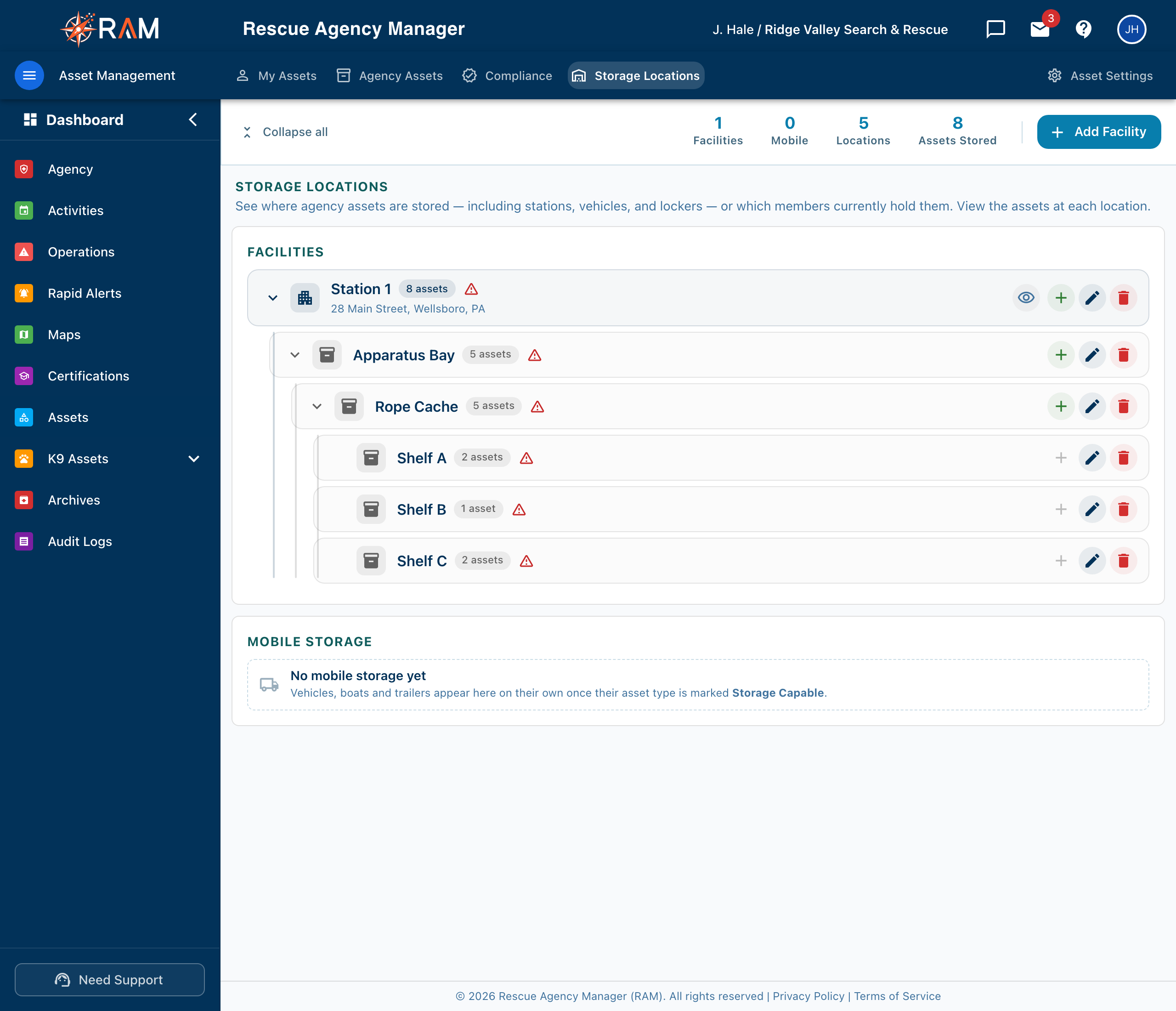
Organize where assets live in a simple tree:
Facility   (Main Station, Training Center)
  └── Area      (Gear Room, Truck Bay)
        └── Section   (Shelf A, Cabinet 1)
              └── Bin       (Bin 12, Drawer 3)
The page has two panels: Facilities and Mobile Storage. The tiles on the bar count facilities, mobile assets, locations, and assets stored.
Mobile storage
A truck, boat, trailer, or any other asset whose type is Storage Capable can hold gear. It appears under Mobile Storage, and you build its areas, sections, and bins the same way as a facility. When the vehicle moves, everything stored inside moves with it.
On a Storage Capable asset's own page, the Internal Storage section shows the same structure for just that asset, and the Overview lists what is inside.
You cannot archive a truck, boat, or trailer that still has assets stored in it. Move or remove the stored assets first.
Who can use it
See Roles & Permissions.
| Permission | What it allows |
|---|---|
| View storage locations | Browse the storage tree, read-only |
| Edit storage locations | Create, rename, move, and delete facilities, areas, sections, and bins |