Agency Reports
The Reports tab lists every report RAM can produce for your agency. Some open on screen, some open as a PDF in a new tab that you can save or print, and some open a page of their own.
To open it: Agency (left menu) → Reports on the top bar.
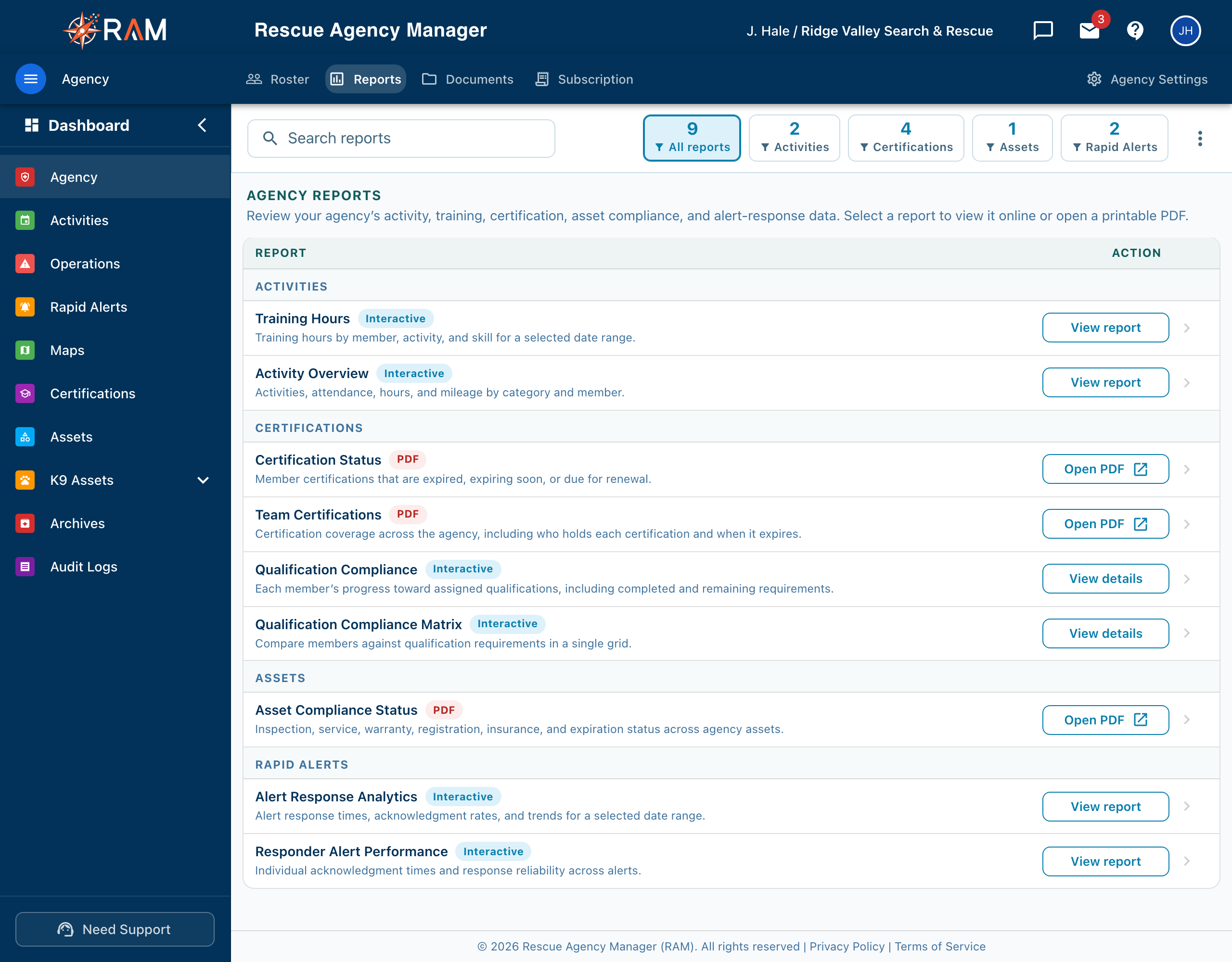
Finding a report
- Search reports looks at report names and descriptions.
- The tiles on the bar (All reports, Activities, Certifications, Assets, Rapid Alerts) show how many reports each holds. Select one to show only those. Select it again, or Clear, to show everything.
- Reports are grouped under a band for each category. Each row has a badge saying what you get (Interactive or PDF) and one button saying what it does.
The reports
| Category | Report | What it answers | You get |
|---|---|---|---|
| Activities | Training Hours | Training hours by member, activity, and skill, for a date range you choose. | On screen (View report) |
| Activities | Activity Overview | Activities, attendance, hours, and mileage by category and member. | On screen (View report) |
| Certifications | Certification Status | Which member certifications are expired, expiring soon, or due for renewal. | PDF (Open PDF) |
| Certifications | Team Certifications | Certification coverage across the agency: who holds each certification and when it expires. | PDF (Open PDF) |
| Certifications | Qualification Compliance | Each member's progress toward assigned qualifications, with what is done and what remains. | Its own page (View details) |
| Certifications | Qualification Compliance Matrix | Members compared against qualification requirements in one grid. | Its own page (View details) |
| Assets | Asset Compliance Status | Inspection, service, warranty, registration, insurance, and expiration status across agency assets. | PDF (Open PDF) |
| Rapid Alerts | Alert Response Analytics | Response times, acknowledgment rates, and trends, for a date range you choose. | On screen (View report) |
| Rapid Alerts | Responder Alert Performance | Each responder's acknowledgment times and reliability across alerts. | On screen (View report) |
An on-screen report has a Back button that returns you to the list. A PDF is made when you select, so it can take a moment (the button reads Generating…). It opens in a new tab, and its file name carries your agency name, the report name, and the date. Allow pop-ups for RAM if nothing opens.
Rapid Alerts reports are covered further in Rapid Emergency Alerting.
Who can open which report
Anyone in the agency can open the Reports tab. Certification and asset PDF reports are unavailable when a member's role does not include the required permission. Point to an unavailable row to see who can open it.
| Report | Who can open it |
|---|---|
| Certification Status and Team Certifications | Agency Admins and members who hold Manage certification templates (View certifications alone is not enough) |
| Asset Compliance Status | Agency Admins and members who hold Export asset compliance (View assets alone is not enough) |
| Qualification Compliance and Qualification Compliance Matrix | Agency Admins and members who hold View certifications (every member does by default); others are turned away from the page |
| Training Hours and Activity Overview | Agency Admins and members who hold View the audit log. They show agency-wide figures, including each member's name |
| Alert Response Analytics and Responder Alert Performance | Agency Admins and members who hold View alerts. They show agency-wide figures, including each member's name |
See Roles & Permissions and the Permission Reference.
Good to know
- Reports are read-only. Fix a figure in the record it comes from, such as a certification or an activity entry, then run the report again.
- To export raw records as a spreadsheet instead, use Bulk Records Import/Export.
Related Pages
- Agency Documents
- Agency Subscription
- Qualifications
- Asset Management
- Activity Settings: which categories count toward training hours