Record & Certification Templates
Record Templates define the qualifications, certifications, and compliance records your agency tracks. Templates standardize how records are created, what fields are required, and when expiration notifications are sent.
Templates are required before you can:
- Add certifications or records to team members
- Configure Agency Specialties (which require specific certifications)
- Track expiration dates and receive notifications
What Templates Do
Templates serve as blueprints for the records your team members will have:
| Function | Description |
|---|---|
| Standardize Data | Ensure consistent naming and required fields across all records |
| Set Defaults | Pre-fill common values (issuing organization, training hours, etc.) |
| Lock Fields | Prevent users from modifying certain values |
| Track Expirations | Automatically calculate expiration dates and send notifications |
| Enable Specialties | Certifications are required to activate Agency Specialties |
Record Types
RAM supports multiple types of records, not just certifications. When creating a template, first choose the record type:
For People (Team Members)
| Record Type | Use For | Example |
|---|---|---|
| Certification | Professional qualifications | CPR/AED, SARTECH II, EMT |
| Training Record | Completed training courses | NIMS 100, Rope Ops, HazMat Awareness |
| Background Check | Security clearances and checks | FBI Background, State Criminal Check |
| License | Professional licenses | Paramedic License, Driver's License |
| Insurance | Personal liability coverage | Professional Liability Insurance |
| Medical Record | Health records | Annual Physical, Fitness Assessment |
| Other | Anything else | Custom compliance records |
For Animals (K9/Working Animals)
| Record Type | Use For | Example |
|---|---|---|
| Certification | Animal certifications | SAR Certification, Tracking Certification |
| Training Record | Training completion | Obedience Training, Scent Training |
| Vaccination | Immunizations | Rabies, DHPP, Bordetella |
| Medical Record | Health records | Annual Exam, Hip X-Ray |
| License | Animal licenses | County Dog License |
| Insurance | Animal coverage | K9 Liability Insurance |
| Other | Anything else | Custom records |
Accessing Templates
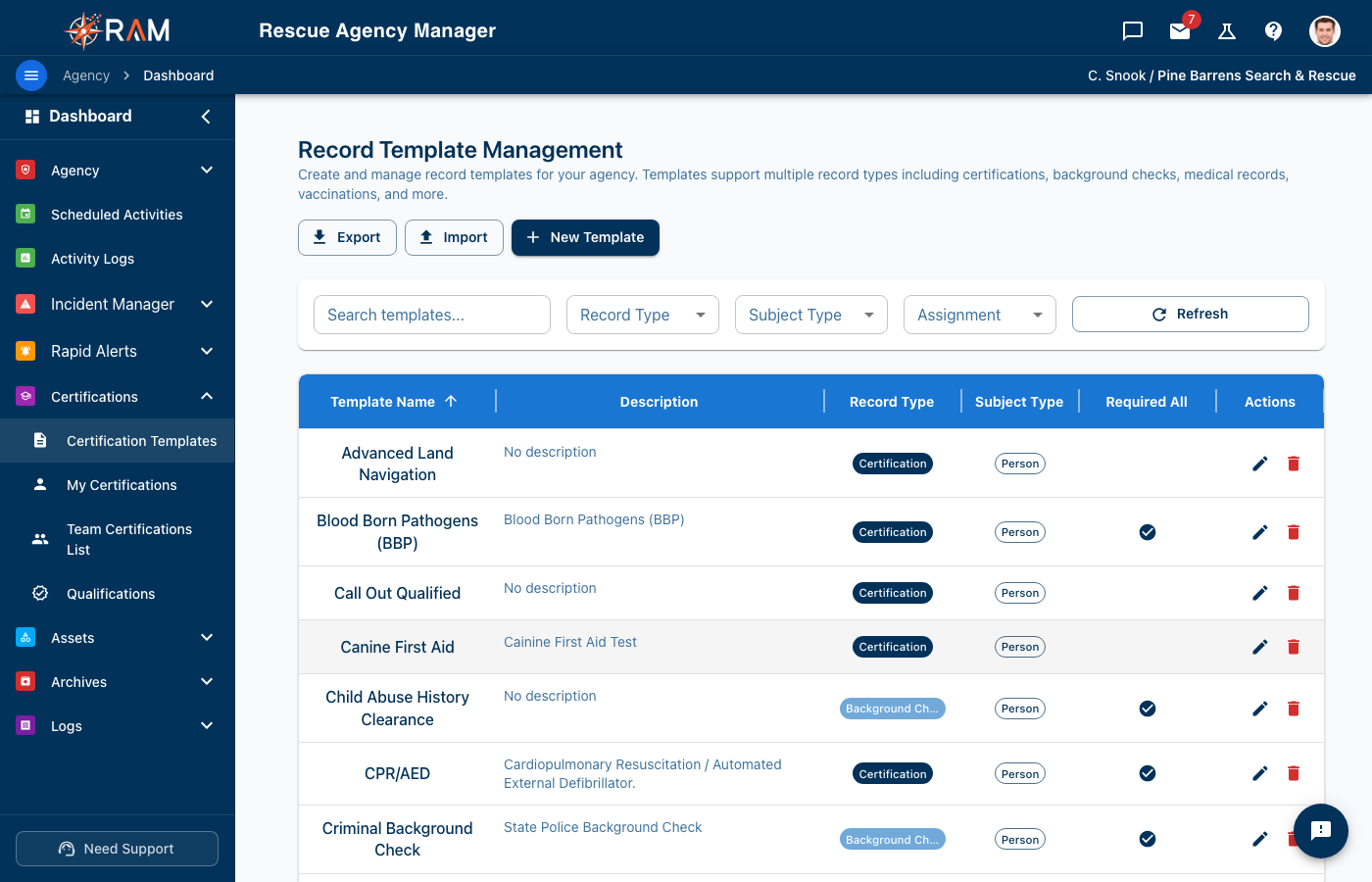
- Navigate to Agency Settings → Certification/Record Settings in the left menu
- You'll see the Record Templates tab
Required Permissions: Administrator or Training Coordinator
Creating a Template
Step 1: Start a New Template
Click the New Template button in the upper right corner.
Step 2: Choose Subject Type
Select who this template applies to:
- Person — For team member records
- Animal — For working animal records (K9, horses, etc.)
Subject Type cannot be changed after the template is created.
Step 3: Select Record Type
Choose the type of record this template will create:
- Certification
- Training Record
- Background Check
- License
- Insurance
- Medical Record
- Vaccination (Animals only)
- Other
Record Type cannot be changed after the template is created.
Step 4: Enter Basic Information
| Field | Required | Description |
|---|---|---|
| Template Name | Yes | What members see when adding records (e.g., "CPR/AED", "NIMS 100") |
| Assignment Type | Yes | How this record is assigned (see below) |
| Description | No | Explain what this certification is and who needs it |
Assignment Types Explained
| Type | Behavior |
|---|---|
| Required | Automatically assigned to all team members. Shows as "missing" until completed. |
| Optional | Members can add this record themselves from their profile. |
| Restricted | Only administrators can assign this record to members. |
Step 5: Set Default Values
Default values pre-fill fields when members create records from this template. The available fields depend on the Record Type you selected:
Common Fields (All Record Types)
| Field | Description |
|---|---|
| Issuing Organization | Who issues this certification (e.g., "American Red Cross", "NASAR") |
| Location | Where training/certification typically occurs |
| Instructor | Default instructor name |
| Expiry Period (months) | How long until the record expires. Leave blank if it doesn't expire. |
Certification & Training Record Fields
| Field | Description |
|---|---|
| Training Hours | Number of hours required for this training |
| Certification Level | Level designation (e.g., "Level I", "Technician", "Instructor") |
Background Check Fields
| Field | Description |
|---|---|
| Check Type | Type of background check (FBI, State, Local, etc.) |
| Clearance Level | Security clearance level if applicable |
Medical Record Fields
| Field | Description |
|---|---|
| Veterinarian | For animal records - default vet name |
| Clinic Name | For animal records - default clinic |
Vaccination Fields (Animals)
| Field | Description |
|---|---|
| Vaccine Type | Type of vaccine (Rabies, DHPP, Bordetella, etc.) |
| Manufacturer | Vaccine manufacturer |
| Batch Number | Lot/batch number template |
| Veterinarian | Default vet name |
| Clinic Name | Default clinic |
Step 6: Configure Field Locking
Each default value field has a lock icon on the right side:
| Icon State | Meaning |
|---|---|
| Unlocked (open padlock) | Default value is a suggestion — members can change it |
| Locked (closed padlock) | Value is enforced — members cannot modify it |
When to lock fields:
- Lock Issuing Organization when only one organization issues this certification
- Lock Training Hours when the hours are standardized
- Lock Expiry Period when expiration is set by regulation (e.g., CPR is always 2 years)
When to leave unlocked:
- Location may vary by training session
- Instructor changes between sessions
Step 7: Set Notification Timing
Configure when RAM sends expiration warnings:
| Notification | Default | Description |
|---|---|---|
| First Notification | 30 days | Early warning to plan renewal |
| Second Notification | 14 days | Two weeks out reminder |
| Third Notification | 7 days | One week urgent reminder |
| Final Notification | 1 day | Last day warning |
You can lock notification timing to enforce consistent agency-wide notification schedules.
Step 8: Save the Template
Click Create Template to save. The template is now available for members to use.
Common Templates to Create
Here are recommended templates for most rescue organizations:
Essential Certifications
| Template Name | Record Type | Expiry | Assignment |
|---|---|---|---|
| CPR/AED | Certification | 24 months | Required |
| First Aid | Certification | 24 months | Required |
| Bloodborne Pathogens | Training Record | 12 months | Required |
NIMS/ICS Training
| Template Name | Record Type | Expiry | Assignment |
|---|---|---|---|
| NIMS IS-100 | Training Record | None | Required |
| NIMS IS-200 | Training Record | None | Required |
| NIMS IS-700 | Training Record | None | Required |
| NIMS IS-800 | Training Record | None | Required |
| ICS-300 | Training Record | None | Optional |
| ICS-400 | Training Record | None | Optional |
Search & Rescue Certifications
| Template Name | Record Type | Expiry | Assignment |
|---|---|---|---|
| SARTECH I | Certification | 36 months | Optional |
| SARTECH II | Certification | 36 months | Optional |
| SARTECH III | Certification | 36 months | Optional |
| Wilderness First Responder | Certification | 24 months | Optional |
| Rope Rescue Technician | Certification | 36 months | Optional |
| Swift Water Rescue | Certification | 24 months | Optional |
Background Checks
| Template Name | Record Type | Expiry | Assignment |
|---|---|---|---|
| FBI Background Check | Background Check | 60 months | Restricted |
| State Criminal Background | Background Check | 24 months | Restricted |
| Sex Offender Registry | Background Check | 12 months | Restricted |
K9/Animal Records
| Template Name | Record Type | Subject | Expiry | Assignment |
|---|---|---|---|---|
| Rabies Vaccination | Vaccination | Animal | 36 months | Required |
| DHPP Vaccination | Vaccination | Animal | 12 months | Required |
| Bordetella | Vaccination | Animal | 12 months | Optional |
| Annual Veterinary Exam | Medical Record | Animal | 12 months | Required |
| SAR Certification | Certification | Animal | 24 months | Optional |
Editing Templates
To edit an existing template:
- Find the template in the list
- Click the edit icon (pencil) or the template row
- Modify the fields as needed
- Click Save
- Subject Type (Person/Animal)
- Record Type (Certification, Training, etc.)
These are locked after creation because changing them would affect existing records.
Impact of Changes
| Change | Impact on Existing Records |
|---|---|
| Template Name | Existing records keep old name |
| Expiry Period | Existing records recalculate expiration dates |
| Default Values | Only affects new records |
| Locked Fields | Only affects new records |
Deleting Templates
Deleting a template does not delete existing records created from it, but those records will become "orphaned" and may display incorrectly.
To delete a template:
- Click the delete icon (trash can)
- Confirm the deletion
Best Practice: Instead of deleting, consider changing the Assignment Type to "Restricted" to prevent new records while preserving history.
Import & Export
Exporting Templates
- Click Export to download all templates as CSV
- Use for backup or to share with other agencies
Importing Templates
- Prepare a CSV file with required columns:
- Record Type
- Subject Type
- Template Name
- Description
- Assignment Type
- Status
- Click Import
- Upload your CSV file
- Review and confirm the import
Best Practices
Naming Conventions
| Do | Don't |
|---|---|
| "CPR/AED" | "cpr" |
| "NIMS IS-100" | "NIMS 100" or "IS100" |
| "Wilderness First Responder" | "WFR" (unless commonly used) |
| "SARTECH II" | "Sartech 2" |
Keep names:
- Consistent with industry standards
- Short enough for dropdown lists
- Clear enough to identify without description
Expiration Periods
| Certification Type | Typical Expiry |
|---|---|
| CPR/AED | 24 months |
| First Aid | 24 months |
| NIMS Courses | No expiration |
| Technical Rescue | 24-36 months |
| Background Checks | 12-60 months |
| Animal Vaccinations | 12-36 months |
Field Locking Strategy
Lock these fields:
- Expiry periods set by regulations
- Issuing organizations that don't vary
- Required training hours
Leave unlocked:
- Locations (vary by session)
- Instructors (change frequently)
- Dates (always vary)
Troubleshooting
"Template name already exists"
Each template name must be unique within the same Record Type and Subject Type combination. Choose a different name or modify the existing template.
"Cannot add certification to member"
Ensure:
- A template exists for this certification type
- The template Assignment Type allows user assignment (not "Restricted")
- User has permission to add certifications
"Expiration date not calculating"
Check that:
- The template has an Expiry Period set
- The Expiry Period field is a valid number (in months)
- The member's record has a completion/issue date
Next Steps
After creating your certification templates:
-
Configure Agency Specialties — Link required certifications to specialties
-
Set Up Notification Recipients — Choose who receives expiration alerts
-
Add Team Members — Members can now add their certifications
- See Team Management
Seeing the Result
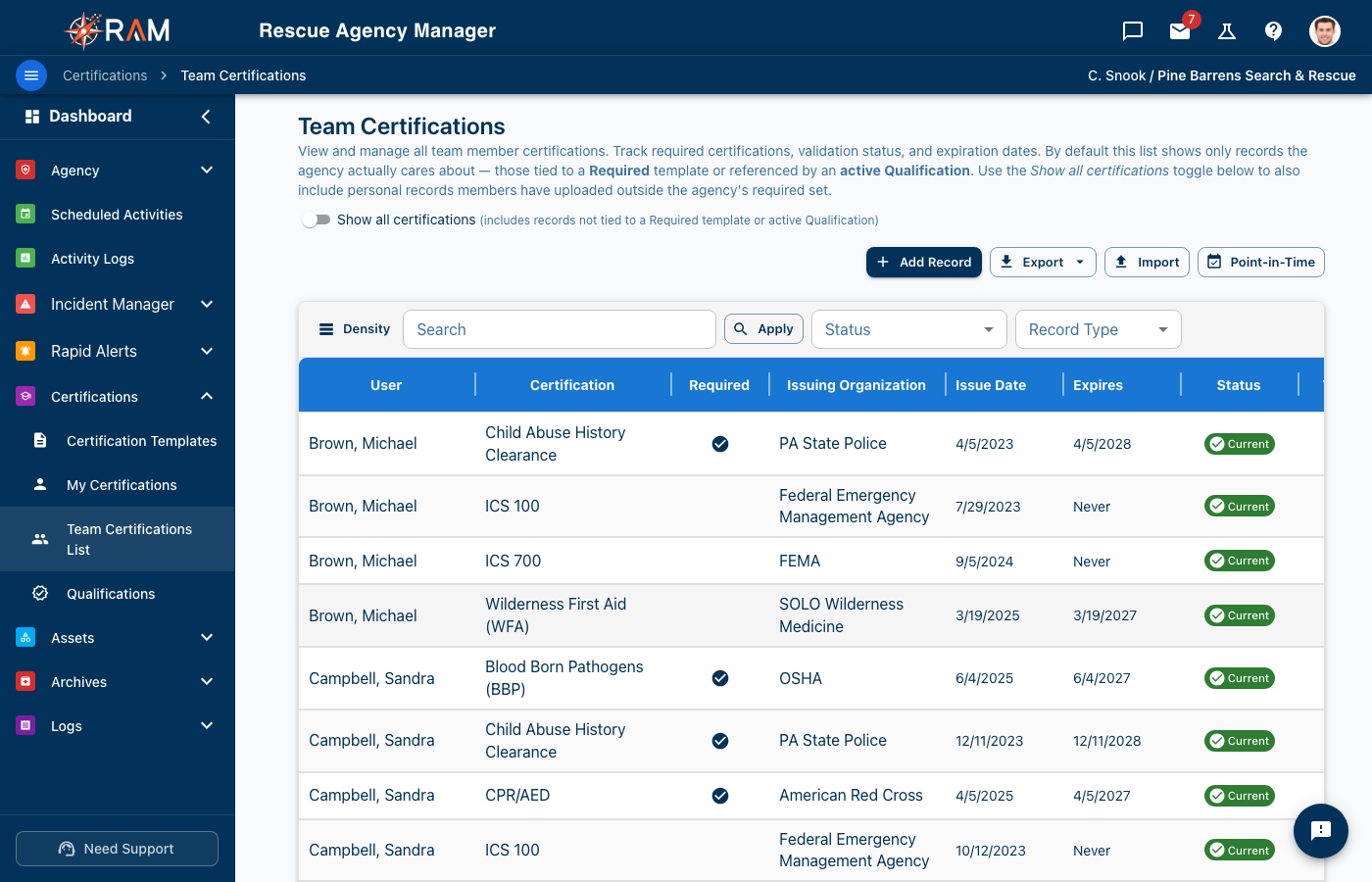
Once templates exist, Certifications → Team Certifications List shows every member record measured against them. By default it lists only what the agency actually tracks — records tied to a Required template or referenced by an active Qualification — with a toggle to show everything else members have uploaded.