Roles & Permissions
Roles decide what each member can see and do in RAM. Every role bundles a set of permissions (like View Inventory, Create Activities, Send Alerts), and admins assign roles to members from one screen.
You don't have to start from scratch — every new agency comes with nine ready-to-use roles covering the most common jobs. Rename them, customize them, delete the ones you don't need, or add your own.
RAM is designed around self-service. Every member can already manage the records that belong to them — their own profile, their own training certifications, their own member medical record, their own activity log — without any extra permission being granted.
The atomic permissions listed below are for cross-member management: giving one person the ability to create, edit, or delete records that belong to someone else. You'll see this called out in permission labels with an "(any member)" suffix, e.g. Certifications — Edit (any member).
If you only want a member to be able to log their own training, update their own medical info, or change their own profile, the Agency User role already covers it. You don't need to assign them anything extra.
(Locked or approved certifications are the one exception: once a cert is locked, even the owning member can't edit it without the Certifications — Edit (any member) permission. This is by design — locking is what makes a cert audit-ready.)
Table of Contents
- How roles work
- The nine starter roles
- Where to find the Roles page
- Creating a custom role
- Editing a role
- Deleting a role
- Assigning roles to members
- How members see their own roles
- What permissions are available
- FAQ
How Roles Work
The simplest way to think about it:
- A permission is one specific thing someone can do — for example, Inventory — Edit lets a member update an asset record.
- A role is a named bundle of permissions — for example, Inventory Manager includes every Inventory permission.
- A member can be assigned as many roles as you want. Their access is the combined total of every role they hold.
Two things are worth knowing upfront:
Every new member starts with the Agency User role automatically. This gives them a read-only floor — they can see inventory, the team roster, training records, activities, documents, and chat. They can post in chat too. From there, you grant additional roles to expand what they can do.
Agency Admins skip the permission system entirely. Anyone with the Agency Admin role gets full access to everything in your agency — billing, settings, every screen. There's no need to give an admin any other role.
If two of a member's roles overlap, the member gets every permission both grant. You can't use one role to "block" something another role allows. To restrict access, don't assign the role that grants it.
The Nine Starter Roles
Every agency starts with these nine roles already set up. Two are locked — you can edit what they grant, but you can't rename or delete them. The other seven are fully yours to change or remove.
| Role | Locked? | What it's for |
|---|---|---|
| Agency Admin | Yes | Full access to everything. Give this to leadership. Assigning it promotes the member to admin; removing it demotes them back to a regular user. |
| Agency User | Yes | The starter role. Every new member gets it automatically. Grants read access to most areas of the app, plus the ability to chat and see alerts. |
| Inventory Manager | No | Full control over assets — view, add, edit, delete, check out, transfer, retire, and audit. |
| Training Manager | No | Full control over certifications and activities, including templates, QR check-in, attendance approval, and checking members in and out (the Activity Sign-In Sheet). Also includes audit log viewing. |
| Operations Manager | No | Full control over incidents, alerts, and alert devices. Owns the emergency alerting workflow end-to-end, and can check members in and out of activities (the Activity Sign-In Sheet). |
| Membership Manager | No | Full control over team members and chat — including promoting admins, sending invitations, and managing chat channels. |
| Member Medical Manager | No | Placeholder role. The dedicated cross-member medical record feature isn't built yet, so this role's permissions are reserved. Members can already manage their own medical info through the Agency User role. |
| Animal Medical Manager | No | Full control over animal health records. |
| Animal Manager | No | Full control over animal profiles. |
You can rename any of the seven unlocked starter roles, change the permissions they include, or delete them. If your agency doesn't work with animals, just delete the two animal roles. Changes only affect your agency.
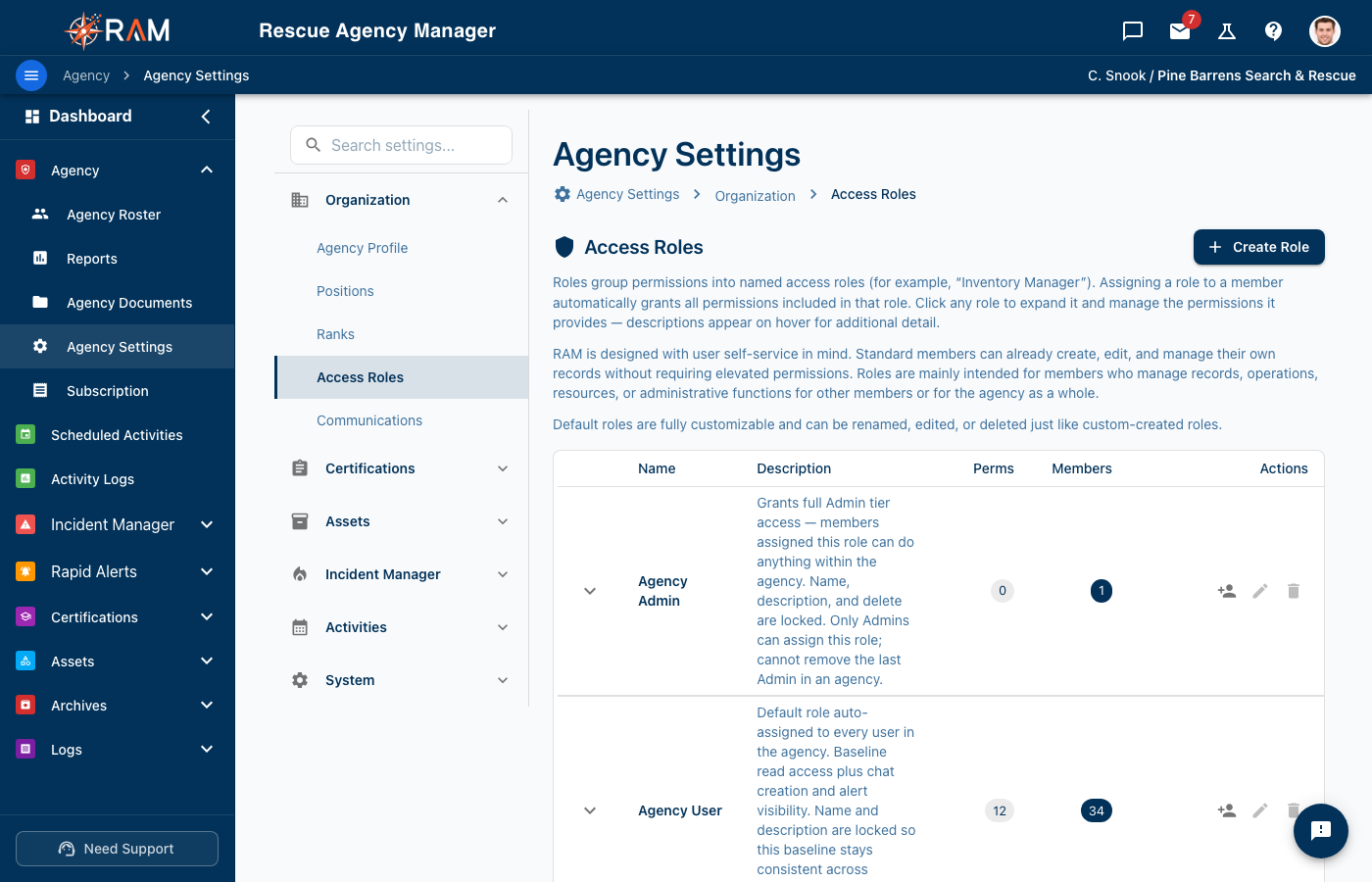
Where to Find the Roles Page
Go to Agency Settings → Organization → Roles.
You'll see a table listing every role. Locked roles (Agency Admin and Agency User) appear at the top. Each row shows the role name, a short description, how many permissions it bundles, and how many members hold it.
Click any row to expand it. You'll see two side-by-side panels:
- Permissions — checkboxes grouped by category (Membership, Inventory & Assets, Operations / Incidents, and so on). Hover the small info icon next to any permission for a plain-language explanation. Check or uncheck to change what the role grants — changes save automatically.
- Assigned Members — everyone who currently has the role, sorted by last name. You can remove someone from the role here, or open the Assign dialog to add more.
Creating a Custom Role
If none of the starter roles fit, build your own.
- On the Roles page, click Create Role in the top right.
- Give the role a short, descriptive name. Members and admins will see this name.
- Optionally add a description explaining what the role is for.
- Click Create.
The new role appears in the list with no permissions yet. Expand it and check the boxes for the permissions it should include. Each box saves on toggle, so there's no separate "Save" step.
Editing a Role
You can change a role's name, description, and the permissions it grants.
- To rename or update the description: click the pencil icon on the role's row. (Agency Admin and Agency User are locked — you can't rename them, but you can still adjust their permissions.)
- To change permissions: expand the role and toggle the checkboxes. Changes save as you click.
The two locked roles can't be renamed or deleted, but their permissions can be edited. Be careful — Agency User is the starter role that everyone gets, and Agency Admin grants full access (its permissions aren't editable; admin status comes from the role itself).
Deleting a Role
- Find the role in the list.
- Click the trash-can icon on its row.
- Confirm in the dialog that appears.
The role is removed from every member who held it. If a member had other roles, they keep those.
Deleting a role immediately removes its permissions from anyone who had it. If that was their only role granting a specific permission, they lose that access right away. Expand the role and review the Assigned Members list before deleting.
Assigning Roles to Members
From the Roles Page (Recommended)
- Go to Agency Settings → Organization → Roles.
- Find the role you want to assign.
- Click the person-plus icon on that row (or open the role and click Assign User).
- Search for one or more members by name or email. Use Select All to pick everyone eligible.
- Click Assign.
The members gain the role's permissions immediately. No logout required.
Removing a Member From a Role
- Expand the role on the Roles page.
- In the Assigned Members panel, click the remove icon next to the member.
- Confirm in the dialog.
The member loses the role's permissions right away. If they had other roles granting the same access, those still apply.
A member can hold as many roles as you want. Someone who is both an Inventory Manager and a Training Manager gets the combined permissions of both, plus the Agency User starter floor.
How Members See Their Own Roles
Members can review their own roles from their User Profile page (top-right account menu, or via the Team Roster).
The profile has an Access Roles card listing every role the member holds. Clicking a role expands it to show the individual permissions it grants. Hover each permission for a plain-language description.
Members can't change their own roles — that's an admin job.
What Permissions Are Available
The Roles page groups permissions into categories. Inside each category, you'll see checkboxes for what a role can do. Here's what's in each category — these names match what you'll see on screen.
Membership
Member profiles, the team roster, and invitations.
- Membership — View — see the roster and member profiles
- Membership — Create — create new member accounts
- Membership — Edit — edit member profiles
- Membership — Delete — remove members (also restores soft-deleted members)
- Membership — Manage Invitations — send and revoke invitations
There is no single-permission promote to admin gate. To make someone an Agency Admin, assign them the Agency Admin role on the Roles page. Removing that role demotes them. The locked Agency Admin role grants the ADMIN access tier through a system signal, which is what unlocks billing and agency-wide settings.
Inventory & Assets
Everything to do with managing assets.
- Inventory — View — see the asset list and details
- Inventory — Create — add new assets
- Inventory — Edit — update existing assets
- Inventory — Delete — remove assets (also archives them — there is no separate retire workflow)
- Inventory — Checkout — check assets in and out to members
- Inventory — Transfer — move assets between locations or assignees
- Inventory — View Compliance — see the Asset Compliance dashboard (overdue / due-in-30 / due-in-90 / on-track / no-schedule roll-up). Can be granted without Inventory — View if you want a compliance-only viewer.
- Inventory — Export Compliance — export the Compliance dashboard as CSV. Also requires Inventory — View Compliance.
- Inventory — Export (any member) — bulk-export the full inventory list as CSV.
Operations / Incidents
Active operations and incidents.
- Operations — View — see incidents and their details
- Operations — Create — start new incidents
- Operations — Edit — update incident details
- Operations — Delete — remove incidents
- Operations — Close — close out an active incident
- Operations — Manage Participants — add or remove people on an incident roster (placeholder — the participant-management UI ships later; the gate name is reserved)
Activities
The calendar, training events, and member sign-in.
- Activities — View — see activities and the calendar
- Activities — Create — schedule new activities
- Activities — Edit — edit activities
- Activities — Delete — remove activities
- Activities — Approve Attendance — approve or reject attendance submissions
- Activities — Generate QR — generate QR codes for activity sign-in
- Activities — Manage Check-In and Check-Out — check other members in and out of an activity, and open the Activity Sign-In Sheet. This is the gate for running attendance on the day of the event (per-person check-in, admin/bulk/force check-out). Without it, the sign-in sheet is hidden and members can only check themselves in/out. Admins always have it.
Certifications / Training
Member certifications and training records.
- Certifications — View — see certification records
- Certifications — Create (any member) — add a certification for someone else. Members can already create their own without this permission.
- Certifications — Edit (any member) — edit anyone's certification, including locked ones. Members can already edit their own non-locked certs without this.
- Certifications — Delete (any member) — delete anyone's certification, including locked ones. Members can already delete their own non-locked certs without this.
- Certifications — Manage Templates — create and edit the certification templates the agency uses
- Certifications — Validate — sign off on a member's certification (locks the record)
- Certifications — Import (any member) — bulk-import certification records from CSV
- Certifications — Export (any member) — bulk-export agency-wide certification records as CSV. Members can always view their own without this.
Alerts & Devices
Sending emergency alerts, managing paging groups, and issuing device licenses.
- Alerts — View — see active and recent alerts (includes full alert history)
- Alerts — Create — send emergency alerts
- Alerts — Edit — edit alert content (resolve, send update); also available to the original sender
- Alerts — Delete — delete alerts
- Alerts — Manage Groups — manage paging recipient groups
- Alert Devices — View / Create / Edit / Delete — manage which devices are licensed to receive emergency alerts
Receiving an alert page on a phone is controlled by that device's license, not by a permission. The Alerts permissions control who can send and manage alerts. Device licensing is its own setup — see your Operations Manager.
Communications / Chat
The in-app chat feature.
- Chat — View — see chat threads
- Chat — Create — send messages and start threads
- Chat — Edit — edit chat messages
- Chat — Delete — delete messages (subject to ownership rules)
- Chat — Manage Groups — manage chat channel membership
- Chat — Invite External — invite people outside the agency into a chat
Documentation
Agency documentation library.
- Docs — View — read agency documents in the in-app viewer (PDFs are watermarked per-viewer)
- Docs — Create — upload new documents
- Docs — Edit — edit existing documents
- Docs — Delete — remove documents
- Docs — Download — download the original file (hides the Download and Open-in-New-Tab buttons in the viewer when not granted) and access the file's direct download URL
- Docs — Print — print the file from the in-app viewer (hides the Print button when not granted)
Withholding Docs — Download and Docs — Print hides the corresponding buttons and the server refuses the download endpoint, but PDFs are streamed to the viewer through a watermarked endpoint that stamps the viewer's email, agency, and UTC timestamp diagonally across every page. A determined user can still screenshot a page or extract the watermarked PDF from the browser. What this buys: any leak of the file carries the viewer's identity.
Animals & Animal Medical
Working animal profiles and their medical records.
- Animals — View / Create / Edit / Delete — manage animal records and handler assignments
- Animal Medical — View / Create / Edit / Delete — manage animal health records
System & Audit
Agency-wide audit log.
- Audit — View — read the audit log
- Audit — Export Logs — export the audit log to a file
Audit — Export Logs isn't included in any starter role. Add it deliberately to a custom role if someone needs it — exported logs can contain detailed records of agency activity.
FAQ
What's the difference between an Agency Admin and a regular member with lots of roles?
An Agency Admin has full access to everything, including billing and agency settings. A regular member, even with every other role assigned, still can't reach the admin-only screens. If someone needs to manage the agency itself, give them Agency Admin — don't try to recreate it from other roles.
What happens if I delete a role that members were using?
Anyone who had that role loses its permissions right away. If you want to preserve access, build a replacement role with the same permissions before deleting, and assign the new role first.
How do I give someone read-only access to inventory?
Create a custom role called something like Inventory Viewer. Expand it and check only Inventory — View. Assign it to the member. They'll be able to look at assets but can't add, edit, delete, or check out anything.
A member's permissions look wrong after I changed their role. What now?
Changes take effect immediately for new actions, but if the member is mid-session, the next page load picks up the update. If something still seems off, have them log out and back in.
Can I stop a specific member from receiving emergency alerts?
Alert reception is controlled by device licenses, not roles. Talk to your Operations Manager to manage which devices are licensed.
Is there a record of who changed which role?
Yes — role assignments and permission changes are written to the agency audit log. Go to Audit & Logs in the Agency Settings sidebar to review.
Can I give a single member one specific permission without putting them in a full role?
The standard way is to create a small custom role with just that one permission and assign it to that member. There's no direct "grant one permission to one user" screen — using a single-member role keeps things consistent and easy to audit.
Related Documentation
- Agency Setup Guide — Initial configuration
- Team Management — Adding and managing members
- Agency Settings — Feature configuration