Agency Documents
Documents is your agency's shared library: operating procedures, policies, forms, training material, and links to resources elsewhere. Members read documents in RAM, in a viewer, without leaving the app.
To open it: Agency (left menu) → Documents on the top bar.
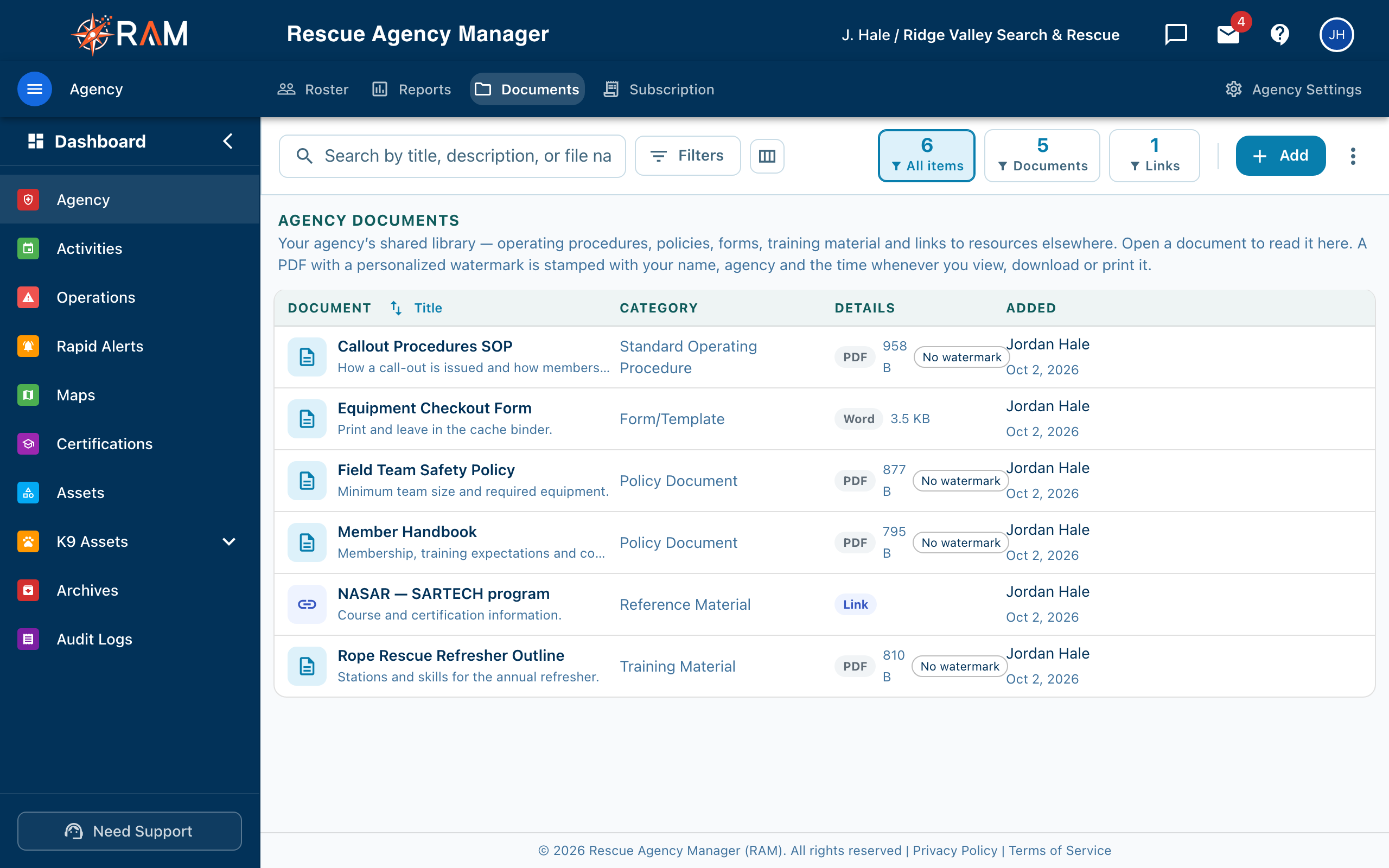
Table of Contents
- Who can see what
- Adding a document or link
- Finding and organizing
- Editing a document
- Deleting
- The personalized watermark
- If the library is locked
Who can see what
The library is shared by the whole agency. There is no way to show a document to only some members. Anyone who can open the library sees every document and link in it, so do not put anything in here that some members should not read.
What a member can do depends on their role. Names are as they appear on the Access Roles screen. See Roles & Permissions and the Permission Reference.
| To | You need |
|---|---|
| Open the library and read documents in the viewer | View documents (included in Agency User) |
| Upload documents and add links | Create documents |
| Edit a document's or link's title, category, description, or web address | Edit documents |
| Delete documents and links | Delete documents |
| Download a copy | Download documents |
| Use the Print button in the viewer | Print documents |
| Open a watermarked PDF without its stamp | Docs — Access original |
| Turn the watermark on or off for a PDF | Docs — Manage watermarking |
Agency Admins pass every check. Of the starter roles, only Agency User holds View documents; no starter role holds any other document permission. Out of the box, only Agency Admins can upload, edit, delete, download, or print, so a member's first question is often why they cannot download a procedure. If you want members to download, add Download documents to Agency User (or to a role you give them).
The row buttons show what a member may do. A button the member's role does not allow is unavailable, with a tooltip.
Adding a document or link
- Select Add on the top bar, then choose Upload a document or Add a link.
- For a document, drag a file onto the box or select it to choose one.
- Enter a Title and a Category. Both are required. Add a Description if it helps ("when to use this").
- For a link, enter the Web address, the full address starting with
https://. - For a PDF, check the Personalized watermark switch (see below).
- Select Upload or Add link.
| Limit | Value |
|---|---|
| File types | PDF, Word (.doc, .docx), Excel (.xls, .xlsx), and images (PNG, JPG, GIF) |
| Largest file | 25 MB |
A file that is too large or the wrong type is rejected with a message saying which. A progress bar shows the upload.
Categories
Every item has one category. The categories are fixed: Standard Operating Procedure, Equipment Issue List, Policy Document, Training Material, Form/Template, Reference Material, and Other. They cannot be added to or renamed.
Finding and organizing
- Search looks at title, description, file name, web address, and category.
- Filters narrows by category and by type (Documents only or Links only).
- The tiles on the bar (All items, Documents, Links) show counts and filter when clicked.
- Sort (beside the Document column heading) orders by Title, Recently added, or Category.
- The columns button chooses which columns show (Category, Details, Added). This is saved for you only.
- Select a row to open it. A document opens in the viewer. A link opens in a new tab.
Hover a row for its buttons: View (or open the link), Download, Edit, and Delete. For a watermarked PDF, Download gives the member their own marked copy.
Editing a document
Select Edit on a row to change its Title, Category, and Description, or a link's web address. You need Edit documents for this. Create documents only adds.
The file itself cannot be replaced. To replace a file, upload the new one and delete the old one.
Deleting
Delete removes the document or link from the library for everyone, and this cannot be undone. For an uploaded file, the file is removed as well. Deleting a link does not affect the page it points to.
Elsewhere in RAM, a deleted record waits for a limited time before it is destroyed. Documents are different. There is nothing to restore. If you may need a document again, keep a copy elsewhere before you delete it.
The personalized watermark
A PDF can carry a personalized watermark. When it is on, every copy of the PDF that leaves the library, whether viewed, downloaded, or printed, is stamped across every page with the viewer's email address, your agency's name, and the time. The viewer tells the member their copy is marked.
- The original is never changed. The stamp is added to the copy sent out.
- It discourages passing a document on and shows whose copy it was. It does not stop copying: someone can still photograph a page or retype it.
- PDFs only. Word, Excel, and image files are not watermarked.
- A watermarked PDF has no direct link, so it can only be opened through the viewer or downloaded as the member's own marked copy.
Where the setting lives
| Setting | Where | Effect |
|---|---|---|
| New PDFs start with the personalized watermark on | Agency → Agency Settings → Security → Access & Sessions | The starting point for new uploads. Documents already in the library keep their own setting. Off by default. |
| Personalized watermark switch | The upload form, and Edit on a PDF | Sets it for that one document. Needs Docs — Manage watermarking. |
Without Docs — Manage watermarking, the switch is unavailable and a new PDF follows the agency setting.
In the Details column, a PDF with the watermark off shows a No watermark badge to members who manage watermarking, so you can see at a glance which PDFs go out unmarked.
Turning it off
Switching it off means everyone gets that PDF unmarked from then on. Copies already saved or printed keep their mark. The change is recorded in the audit log.
A clean copy without changing the setting
A member with Docs — Access original sees a View original button in the viewer. They confirm, then see the unmarked file under a banner that says the copy does not identify them. Each use is recorded in the audit log.
PDFs that cannot be stamped
A password-protected or damaged PDF cannot be watermarked, and RAM will not show it unmarked by accident. Uploading one with the watermark on is refused. Upload a copy without a password, or, if you manage watermarking, turn the watermark off for that document.
If the library is locked
Instead of the library, a member may see a lock and a message.
| Message | Meaning | What to do |
|---|---|---|
| Your role does not include the document library | The member lacks View documents | Give their role View documents |
| No active subscription (with a See plans button) | The agency has no subscription on file. The library is on every plan | An administrator can open Subscription. See Agency Subscription |
Related Pages
- Agency Settings: the default-watermark switch
- Permission Reference
- Roles & Permissions
- Agency Reports