My Activities
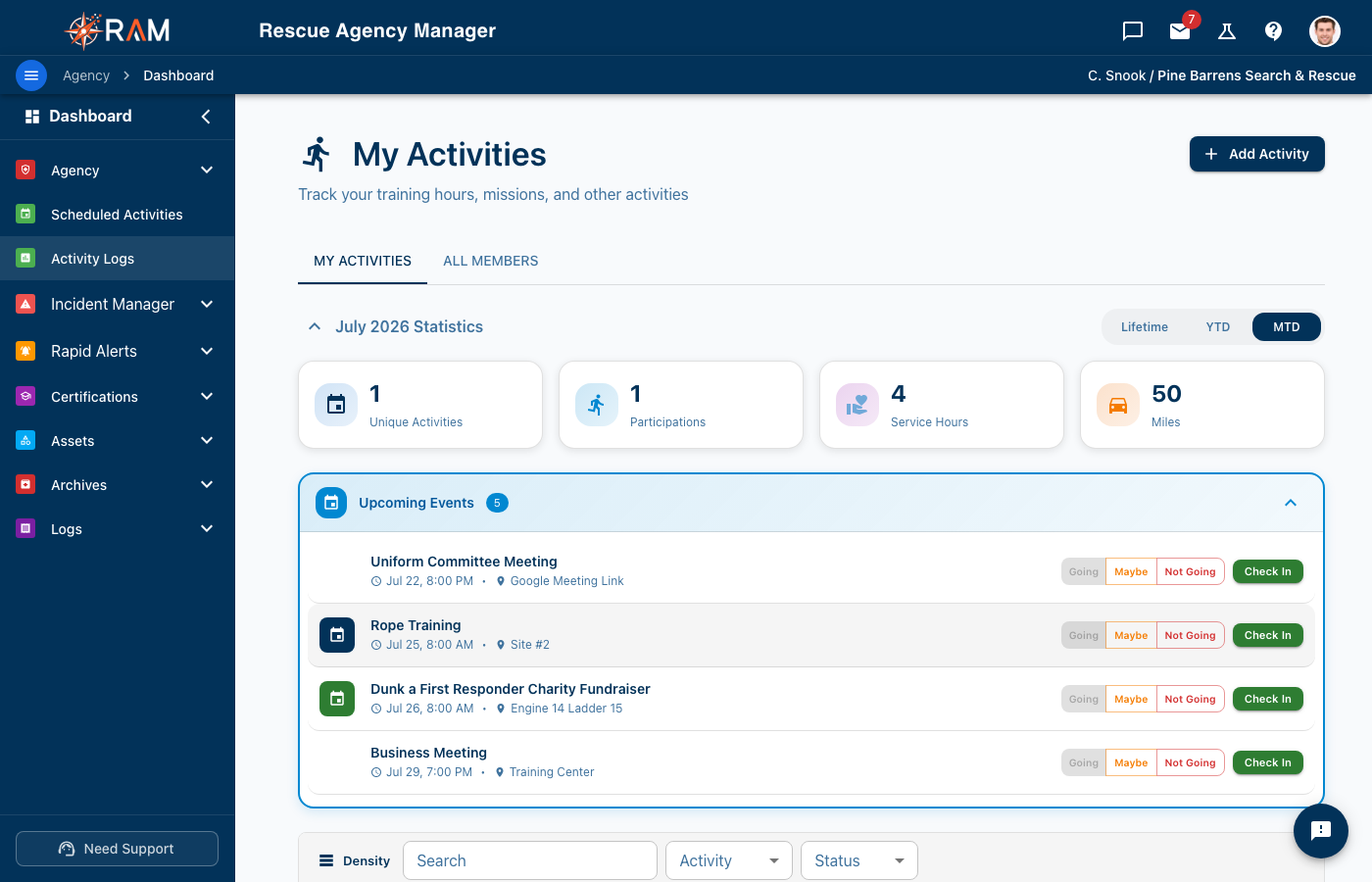
My Activities is your personal hub for tracking service hours, event participation, training attendance, and other activities. It combines manual time logging with automatic event check-in tracking to give you a complete picture of your contributions.
Accessing My Activities
- Navigate to Activities > My Activities from the left sidebar
- Your activity dashboard loads with stats, upcoming events, and activity history
Activity Statistics
At the top of the page, four stat cards summarize your activity:
| Stat | Description |
|---|---|
| Unique Activities | Number of different activities you've participated in |
| Participations | Total activity sessions logged (includes check-ins and manual entries) |
| Service Hours | Cumulative hours across all activities |
| Miles | Total miles traveled for activities |
Hover any stat card to see a tooltip with more detail.
Time Period Toggle
Filter your stats by time range using the toggle buttons:
| Period | Shows |
|---|---|
| MTD | Current month to date (default) |
| YTD | Year to date |
| Lifetime | All time |
Currently Checked In
If you're actively checked into an event, a green banner appears at the top showing:
- The event name you're checked into
- A Check Out button to end your session
When you check out, your hours and mileage are automatically recorded.
Active Manual Activity
If you started a manual activity (not tied to an event), a banner shows:
- Activity title and type
- How long you've been active (elapsed time)
- Location (if provided)
- An End Activity button to stop the session
Upcoming Events
Below the stats, you'll see events you're assigned to or can sign up for:
- Assigned Events - Events you've been invited to or signed up for
- Public Events - Open events you can join
For each event you'll see:
- Event title and category
- Date and time
- Location
- A Check In button (when the event is active and check-in window is open)
- A Sign Up button (for public events you haven't joined)
The check-in window opens 30 minutes before the event starts and closes when the event ends. QR code check-in may be required for some events.
Activity History
Your complete activity history appears in a table (desktop) or card list (mobile).
Desktop View
| Column | Description |
|---|---|
| Date / Time | Date on top, start-end time range below (in your timezone) |
| Category | Color-coded icon and category name |
| Title | Activity title |
| Location | Where the activity took place |
| Duration | Time spent (or "Active" if still ongoing) |
| Type | QR Code or Manual entry indicator |
| Miles | Distance traveled |
| Status | Validation status badge (only shown when validation is enabled for your agency) |
Rows are sorted by date (most recent first). Click any row to open the activity detail drawer.
Selecting and Bulk-Deleting Activities
Each row has a checkbox on the left. Use these to select activities for bulk actions:
- Check one or more rows you want to delete
- A Delete N Selected button appears in the Activity History header
- Click it to open a confirmation dialog showing how many records and how many total hours will be removed
- Confirm to permanently delete all selected records
There's no "select all" checkbox in the header. This is intentional — it prevents accidental selection of everything. Pick individual rows as needed.
Bulk delete is permanent. Deleted activities cannot be recovered.
Mobile View
On mobile, activities appear as cards showing the same information in a stacked layout optimized for touch. Mobile uses per-row edit and delete buttons instead of bulk selection.
Adding a Manual Activity
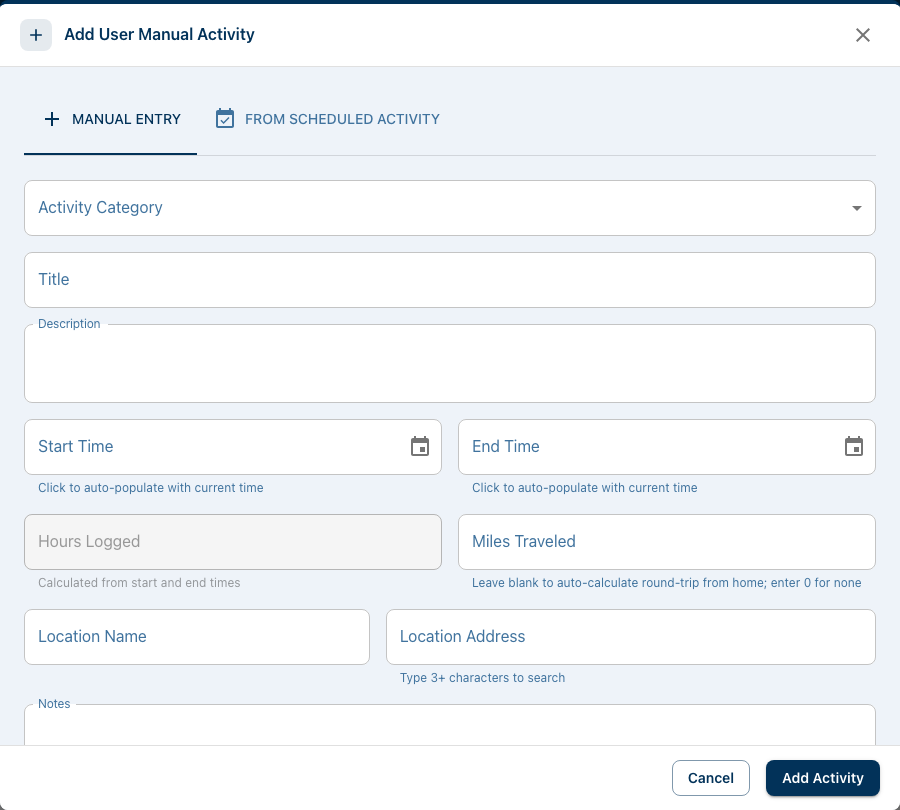
Click the + Add Activity button to log a new activity. The Add / Edit Activity dialog uses a two-column form layout that pairs related fields side-by-side at typical screen widths.
Manual Entry Tab
Fill in the activity details:
| Field | Description | Required |
|---|---|---|
| Activity Category | Select from your agency's categories | Recommended |
| Title | Name of the activity | No |
| Description | What happened | No |
| Start Time | When the activity began | Yes |
| End Time | When the activity ended | No |
| Hours Logged | Auto-calculated or enter manually | No |
| Miles Traveled | Distance traveled | No |
| Location Name | Friendly name (e.g., "Training Center") | No |
| Location Address | Searchable address with autocomplete | No |
| Notes | Additional details | No |
Start Time and End Time, Hours Logged and Miles Traveled, and Location Name and Location Address render side-by-side; Title, Description, Notes, and Reason for Edit stay full-width.
Click the Start Time or End Time field to automatically fill in the current date and time. Hours are auto-calculated from your start and end times.
From Scheduled Event Tab
Instead of manual entry, you can sign up for an upcoming event:
- Switch to the From Scheduled Event tab
- Browse available events
- Click Sign Up on the event you want to attend
- Check in when the event starts to begin tracking your time
Editing an Activity
Click any row to open the activity detail drawer, then click the Edit icon in the drawer's top-right header. This opens the edit form where you can modify the activity's details.
What You Can Edit
- Activity category, title, and description
- Start and end times
- Hours logged (manual override available)
- Location and mileage
- Notes
Edit Restrictions
RAM enforces rules to maintain data integrity:
| Rule | Description |
|---|---|
| 72-Hour Window | You can edit your own activities within 72 hours of creation |
| Validated Records | Activities marked as "Validated" cannot be edited by the owner |
| Reason Required | Admins must provide a reason when editing another user's record |
If the edit window has expired or the record has been validated, you'll see a message explaining why editing is blocked. Contact an admin if changes are needed.
Edit Reason
When editing, you can provide a reason for the change. This is:
- Optional when editing your own records
- Required when an admin edits another user's record
The reason is stored in the edit history for accountability.
Admin Override
Agency administrators can override restrictions on validated or expired records:
- An Admin Override toggle appears when a record would normally be blocked
- Using admin override is logged in the audit trail
- A reason is always required for admin overrides
Validation
Depending on your agency's settings, manual activity entries may require validation by an admin or approver before they're considered official.
Validation Statuses
Validation status is shown as a small icon badge in the Status column and in the activity detail drawer header. Hover the icon for a tooltip with the status name.
| Icon | Status | Meaning |
|---|---|---|
| Hourglass (orange) | Pending | Submitted, waiting for review |
| Shield with checkmark (green) | Validated | Approved by an admin or approver |
| Circle with X (red) | Rejected | Not approved — may need corrections |
Not all agencies require validation. If your agency doesn't use this feature, the Status column is hidden and all manual entries are automatically counted.
Validated records cannot be edited by the owner. If you need to change a validated record, contact an admin.
Activity Detail Drawer
Click any activity row to see its full details. The drawer slides in from the right (720px wide on desktop, full-width on mobile) — there's no longer a modal/drawer toggle; the drawer is the canonical detail view.
Header
Compact sticky header with:
- Activity icon and title
- Location (with tooltip showing full address)
- Key stats row: Duration, Miles, and Check-in Method (QR or Manual)
- Edit and Delete icon buttons in the top-right (visibility depends on your permissions and the activity's edit window)
- Close (✕) button
If the activity has been validated, rejected, or is pending, a colored Validation Status bar appears just below the header. Validate and Reject actions stay as full buttons in that bar.
Tabs
The drawer organizes content into tabs. The order is:
- General — Check-in/out times, mileage breakdown, session info
- My Notes (your own activities only) — Role/position, personal notes, key takeaways, skills practiced
- Training (TRAINING-category activities only) — Training-specific details
- Timeline — Session list, edit history, audit trail
General Tab
Two-column layout on wider screens:
Left column:
- Check-In card (timestamp + map link if GPS available)
- Check-Out card (timestamp + map link if GPS available)
- Session Info (device type + check-in method chips)
Right column:
- Mileage breakdown: Calculated (round-trip from home), Reported (Auto/Manual/Override badge), GPS Recorded (QR check-ins only)
Edit Metadata
When an activity has been edited, a gray bar under the header shows:
- Edit count — How many times it was modified
- Last edited by — Who made the most recent change
- Admin Override badge — If an admin used override permissions
- Hours Adjusted badge — If hours were manually changed from the calculated duration
Timeline Tab
Shows a complete audit trail:
- Who made each change and when
- The reason provided (if any)
- Field-by-field diff of changes
- Multi-session breakdown (for activities with multiple check-in/check-out cycles)
Header Actions
The Edit and Delete actions live as icon buttons in the top-right of the drawer's sticky header (matching the certificate detail pattern). Validate and Reject stay as full buttons in the Validation Status bar when present. Close (✕) is at the far right of the header.
Hours Calculation
Automatic Calculation
When you set both a start time and end time, hours are automatically calculated. If you change the times, the hours update automatically.
Manual Override
You can type a custom value in the Hours Logged field. When you do:
- The auto-calculation stops for that entry
- A "Hours Adjusted" indicator appears on the activity
- The original calculated vs logged hours are tracked
Re-enabling Auto-Calculation
When editing an activity, if the logged hours already match the calculated duration, changing the start or end time will recalculate hours automatically. If the hours were manually adjusted, they stay as-is until you clear the hours field.
Form Validation
The form validates your entries before saving:
Errors (Prevent Saving)
| Validation | Rule |
|---|---|
| End Time | Must be after Start Time |
| Hours Logged | Must be between 0 and 24 |
| Miles Traveled | Cannot be negative |
Warnings (Allow Saving)
| Validation | Rule |
|---|---|
| High Mileage | Miles over 500 triggers a confirmation warning |
Deleting an Activity
You have two ways to delete activities:
Single Delete (from the drawer)
- Click the activity row to open the detail drawer
- Click the Delete icon in the top-right header
- Confirm the deletion when prompted
Bulk Delete (from the table)
- Check the rows you want to delete (left-edge checkboxes)
- Click the Delete N Selected button that appears in the Activity History header
- Review the confirmation dialog (shows count and total hours to be removed)
- Confirm to delete all selected records at once
Deleting an activity permanently removes it. This cannot be undone. Hours and miles from deleted activities are removed from your totals immediately.
Common Questions
Why can't I edit my activity?
There are a few possible reasons:
- 72-hour window expired - You can only edit within 72 hours of creation
- Record was validated - Validated records are locked. Contact an admin
- Not your record - You can only edit activities you created
Why does my activity say "Pending"?
Your agency requires activity validation. An admin or approver needs to review and validate your entry before it's official.
How do I track time for an event?
- Sign up for the event (or get invited)
- When the event starts, click Check In
- When you're done, click Check Out
- Your hours are automatically logged
Can I edit the hours on an auto-created activity?
Yes, you can edit the hours on activities created from event check-ins, subject to the same 72-hour window and validation rules.
Related Documentation
- Event Calendar - Viewing and signing up for events
- Dashboard Overview - Your main overview page
- Account Settings - Configure your timezone and preferences