My Certifications
Track and manage all your certifications, training records, and credentials in one place. RAM helps you stay current and notifies you before certifications expire.
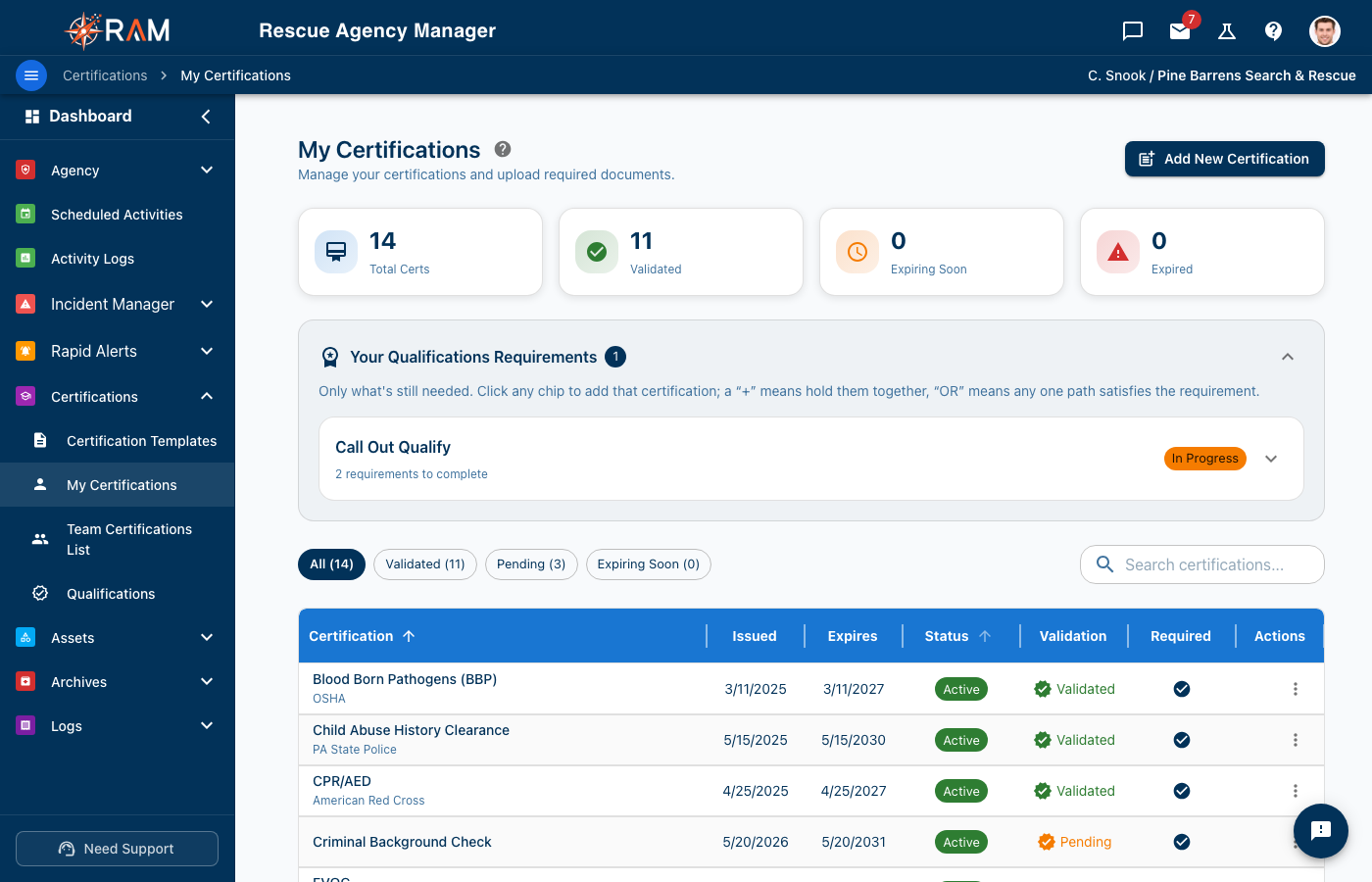
Viewing Your Certifications
Navigate to My Certifications from the left sidebar to see all your certifications organized by status:
| Status | Color | Meaning |
|---|---|---|
| Valid | Green | Current and not expiring soon |
| Expiring Soon | Yellow/Orange | Expires within 30 days |
| Expired | Red | Past expiration date |
| Pending | Gray | Awaiting admin validation (if enabled) |
Adding a New Certification
Step-by-Step
- Click the + Add Certification button
- Select a certification template from your agency's list
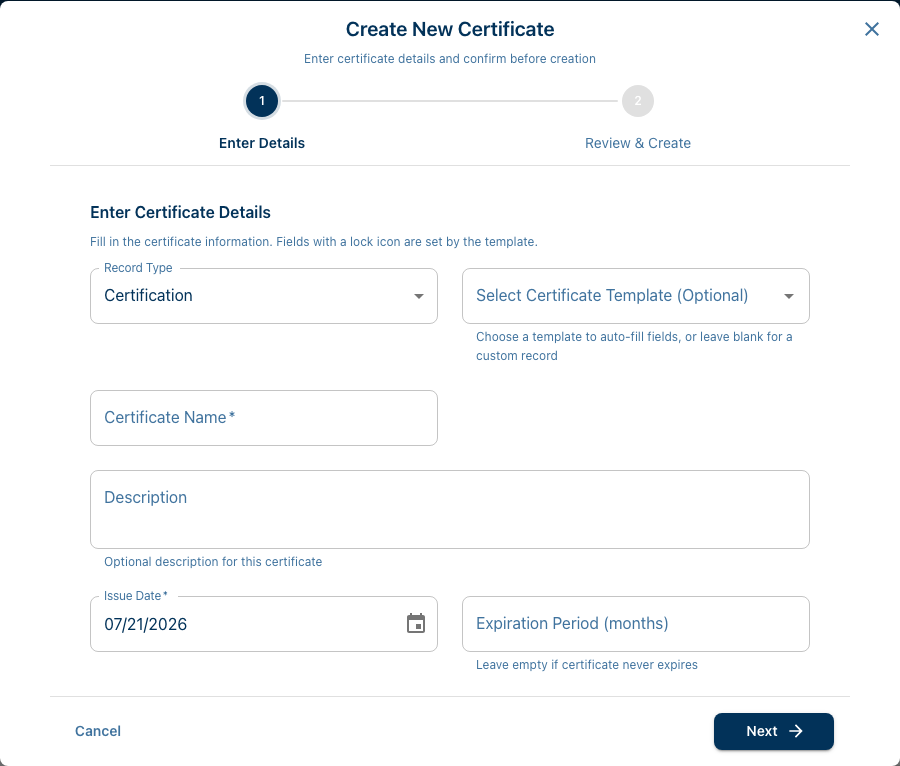
- Fill in the required information:
| Field | Description |
|---|---|
| Issue Date | When you earned/received the certification |
| Expiration Date | When it expires (may auto-calculate) |
| Issuing Organization | Who issued it (often pre-filled) |
| Certificate Number | ID number on the certificate (optional) |
- Upload supporting documentation (recommended)
- Click Save
You can only add certifications that match templates your agency has created. If you don't see your certification type, ask your administrator to add it.
Uploading Documentation
Attach proof of your certifications for verification and record-keeping.
How to Upload
- Click Upload or the attachment icon
- Select your file
- Wait for upload to complete
- Verify the file appears
Accepted Formats
| Format | Best For |
|---|---|
| Official certificates, training completions | |
| JPG/PNG | Photos of cards, credentials |
Maximum file size: 10MB
Tips for Good Uploads
- Capture the entire certificate clearly
- Include both sides of cards
- Ensure text is readable
- Crop out unnecessary background
Certification Details
Click any certification row to open the detail view in a right slide-out drawer (600px wide on desktop, full-width on mobile). It shows:
- Issue and expiration dates
- Issuing organization
- Certificate number
- Uploaded documentation
- History of changes
If you own the record (or you're an admin), the Edit and Delete icons appear in the top-right of the drawer's sticky header. Edit opens the certification edit dialog; Delete prompts for confirmation before removing the record.
Expiration Notifications
RAM automatically sends reminders before your certifications expire:
| Timing | Alert Level |
|---|---|
| 30 days before | First reminder |
| 14 days before | Second reminder |
| 7 days before | Urgent reminder |
| 3 days before | Critical reminder |
| 1 day before | Final reminder |
| Expiration day | Expired notice |
Where You'll See Alerts
- Dashboard notifications
- Email reminders (if enabled)
- In-app notification bell
- Certification list status
Don't wait until the last minute — start your renewal process as soon as you get the 30-day reminder.
Renewing a Certification
When a certification is about to expire:
Option 1: Update Existing
- Find the certification in your list
- Click Edit or Renew
- Update the Issue Date and Expiration Date
- Upload new documentation
- Save
Option 2: Add New Record
Some agencies prefer separate records for each renewal:
- Complete your renewal training
- Click Add Certification
- Select the same template
- Enter new dates
- Upload new documentation
- Save
Check with your agency for their preferred method.
Required Certifications
Your agency may require certain certifications:
- Required certifications appear on your list even if not yet earned
- They show as "Required" or "Missing"
- Complete these to be qualified for certain specialties
Certification Status Explained
Valid
Your certification is current and you're in good standing.
Expiring Soon
Certification expires within 30 days. Start renewal process.
Expired
Certification has passed its expiration date. Renew as soon as possible.
Pending Verification
Some agencies require admin approval for new certifications. Awaiting review.
Not Started
A required certification you haven't added yet.
Editing Certifications
To update certification information:
- Find the certification
- Click Edit
- Update the fields
- Save changes
What You Can Edit
- Issue date
- Expiration date
- Certificate number
- Notes
- Documentation (add/replace)
What You Can't Edit
- Certification template/type (add a new one instead)
- Past activity logs
Deleting Certifications
Certifications typically cannot be deleted by users — this maintains an accurate historical record.
If a certification was added in error:
- Contact your agency administrator
- Explain the issue
- They can remove or archive it
Multiple Agencies
If you belong to multiple agencies:
- Each agency has its own certification requirements
- The same certification may satisfy multiple agencies
- Switch agencies to see agency-specific views
Common Questions
Why can't I find my certification type?
Your agency must create a template for that certification. Contact your administrator to add it.
Can I add certifications from before I joined?
Yes — add historical certifications with their original dates. This creates a complete record.
What if my certification doesn't expire?
Set no expiration date, or your agency may have a template marked as non-expiring.
Who can see my certifications?
- You can always see your own
- Administrators can view team certifications
- Training coordinators may have access
- Specifics depend on agency settings
Best Practices
Stay Ahead
- Start renewals 60-90 days before expiration
- Don't wait for the final reminder
- Schedule training early
Document Everything
- Upload proof for every certification
- Keep backup copies of important certificates
- Download your records periodically
Verify Accuracy
- Double-check dates match your certificates
- Review your list periodically
- Report errors to your administrator
Related Documentation
- Managing Your Records — All record types
- My Profile — Profile overview
- Getting Support — If you need help