Account Settings
Your account settings control your password, notifications, and personal preferences in RAM.
Accessing Settings
To open your account settings:
- Click your profile icon in the top right corner
- Select Settings from the dropdown
- Or go to My Profile → Settings
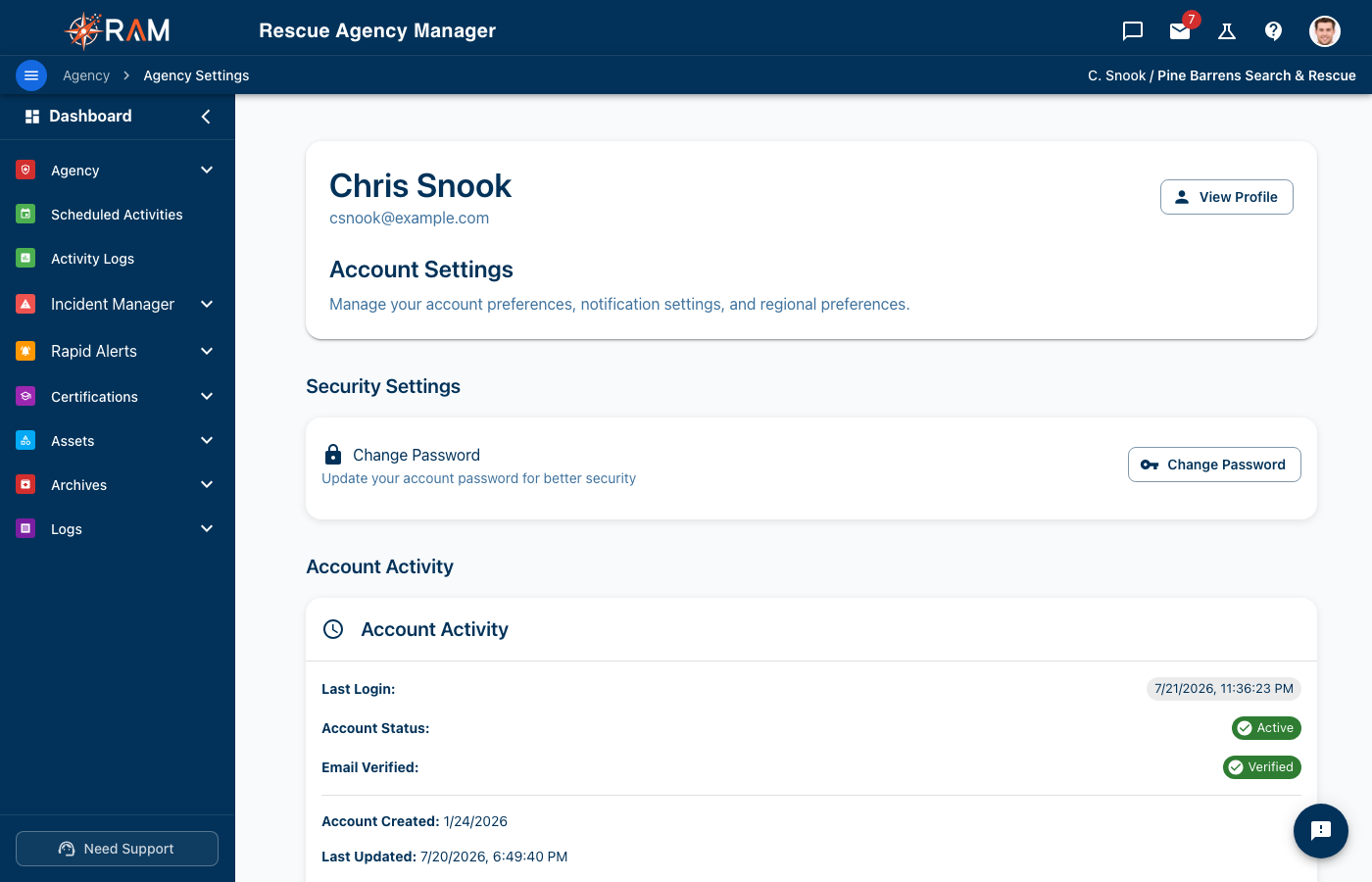
Changing Your Password
When to Change
- Regular security practice (every 6-12 months)
- If you suspect unauthorized access
- After using a shared computer
- If required by your agency policy
How to Change Your Password
- Go to Settings → Security or Change Password
- Enter your current password
- Enter your new password
- Confirm the new password
- Click Save or Update Password
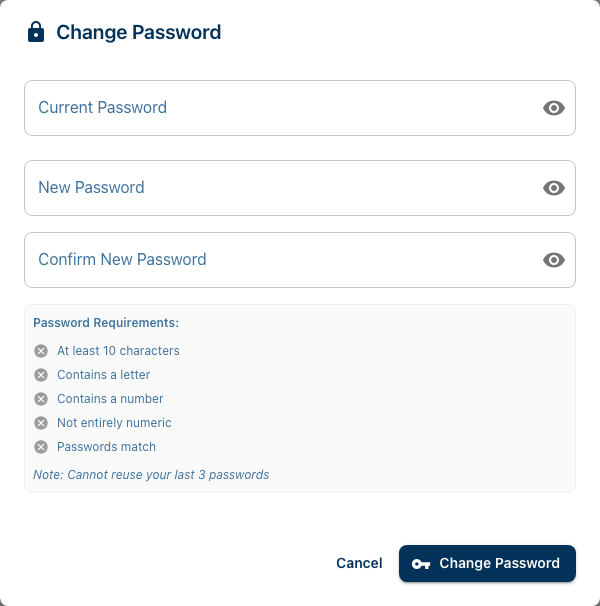
Password Requirements
Your new password must have:
| Requirement | Example |
|---|---|
| Minimum 10 characters | MyP@ssw0rd1 |
| At least one uppercase letter | A-Z |
| At least one lowercase letter | a-z |
| At least one number | 0-9 |
| At least one special character | !@#$%^&* |
Password Tips
- Don't reuse passwords from other sites
- Consider using a password manager
- Avoid personal information (birthdays, names)
- Longer is generally better
Notification Preferences
Control which notifications you receive and how.
Accessing Notification Settings
- Go to Settings → Notifications
- Or My Profile → Notification Preferences
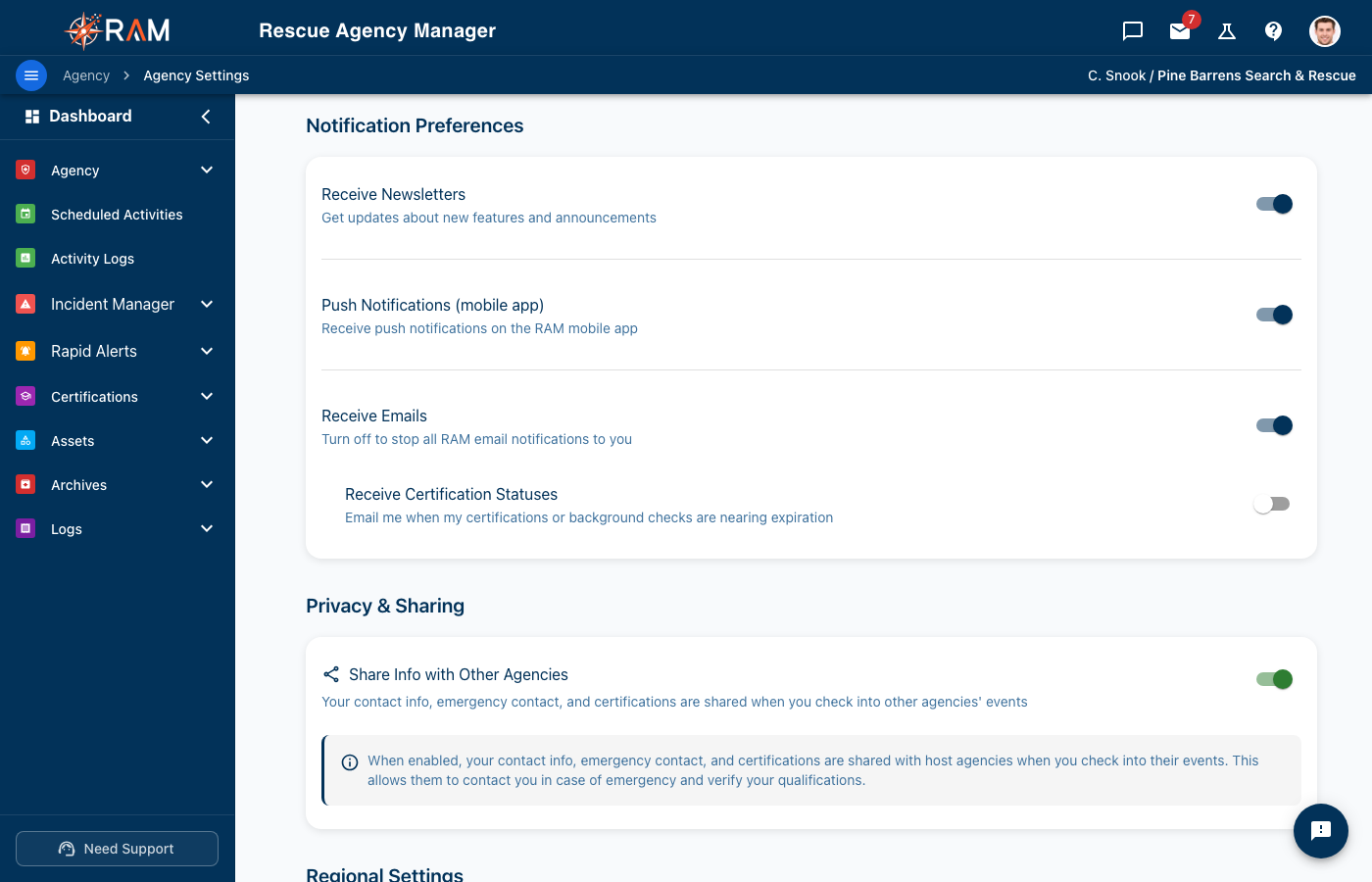
Notification Types
| Notification | Description |
|---|---|
| Certification Expiration | Alerts when your certifications are expiring |
| Assignment Updates | When equipment is assigned or returned |
| Team Announcements | Messages from your agency |
| System Updates | Important RAM updates |
Delivery Methods
Depending on your agency settings, notifications can be sent via:
- In-App — Notification bell in RAM
- Email — To your registered email address
- Both — In-app and email
What You Can Control
Some notifications are:
- Customizable — You choose whether to receive them
- Required — Your agency mandates them (cannot be disabled)
Required notifications typically include:
- Critical expiration alerts
- Security-related messages
- Agency-wide announcements
Profile Information
Updating Your Profile
Basic profile information is managed in My Profile, but some settings appear here too:
| Field | Location |
|---|---|
| Name, phone, address | My Profile |
| Email address | Account Settings |
| Password | Account Settings |
| Notification preferences | Account Settings |
| Timezone | Account Settings or My Profile |
Email Address
Your email address is used for:
- Login credentials
- Password reset
- Notifications
- Agency communications
To change your email:
- Go to Settings → Account
- Enter your new email address
- Verify the change (confirmation may be required)
Changing your email may require verification and could affect your login.
Timezone Settings
Your timezone affects how dates and times appear throughout RAM.
Setting Your Timezone
- Go to Settings or My Profile
- Find Timezone setting
- Select your correct timezone
- Save changes
Why It Matters
- Certification expiration calculations
- Activity log timestamps
- Notification delivery timing
- Report dates
Use your actual operating timezone, not necessarily where the agency is headquartered.
Theme Preferences
Light and Dark Mode
Switch between visual themes:
- Click the theme toggle in the navigation
- Or go to Settings → Appearance
- Choose:
- Light — Bright background
- Dark — Dark background
- System — Matches your device setting
Benefits of Dark Mode
- Easier on eyes in low light
- May save battery on OLED screens
- Personal preference
Session & Security
Auto-Logout
RAM automatically logs you out after a period of inactivity to protect your account. You'll see a warning before being logged out.
Session Timeout
The timeout duration is set by your agency administrator. Typical settings:
- 15-30 minutes for high-security environments
- 1-4 hours for standard use
- 8+ hours for low-risk environments
Staying Logged In
To avoid timeouts:
- Stay active in the application
- Respond to the inactivity warning
- Note: There's no "remember me" for security reasons
Logging Out
Always log out when:
- Using a shared computer
- Finished for the day
- Stepping away from your device
To log out:
- Click your profile icon
- Select Logout
- Confirm if prompted
Connected Devices
Where You're Logged In
Some settings may show active sessions:
| Information | Description |
|---|---|
| Device type | Computer, phone, tablet |
| Browser | Chrome, Safari, etc. |
| Location | Approximate location |
| Last active | When you last used RAM |
Ending Other Sessions
If you see unfamiliar sessions:
- Click End Session or Log Out
- Consider changing your password
- Report suspicious activity to your admin
Account Deletion
Can I Delete My Account?
Account deletion is typically managed by your agency administrator. Contact them if you need to:
- Leave an agency
- Remove your account entirely
- Transfer to a different agency
What Happens to My Data
When leaving an agency:
- Your profile may be deactivated (not deleted)
- Historical records (certifications, activity) may be retained
- Your personal login may remain for other agencies
Troubleshooting
Password Reset Not Working
- Check spam folder for reset email
- Verify you're using the correct email
- Wait a few minutes and try again
- Contact support if it persists
Not Receiving Notifications
- Check notification settings are enabled
- Verify email address is correct
- Check spam/junk folder
- Add RAM to your email contacts
- Ask admin about agency notification settings
Settings Not Saving
- Check for error messages
- Ensure all required fields are complete
- Try refreshing and re-entering
- Clear browser cache
- Try a different browser
Best Practices
Security
- Use a strong, unique password
- Log out on shared devices
- Report suspicious activity
- Keep your email address current
Notifications
- Enable important alerts (expirations)
- Check RAM regularly even with email off
- Update email if it changes
Profile
- Keep information current
- Verify timezone is correct
- Update emergency contacts
Related Documentation
- My Profile — Profile information
- Dashboard Overview — Navigating RAM
- Getting Support — If you need help