Agency Info and Agency Documents
Two places in RAM tell you about your agency as a whole: Agency Info, which says who your agency is and how to reach it, and Agency Documents, the library of policies, procedures, and other files your agency shares with members.
Agency Info
Select Dashboard in the left sidebar, then the Agency Info button along the top. See Dashboard Overview.
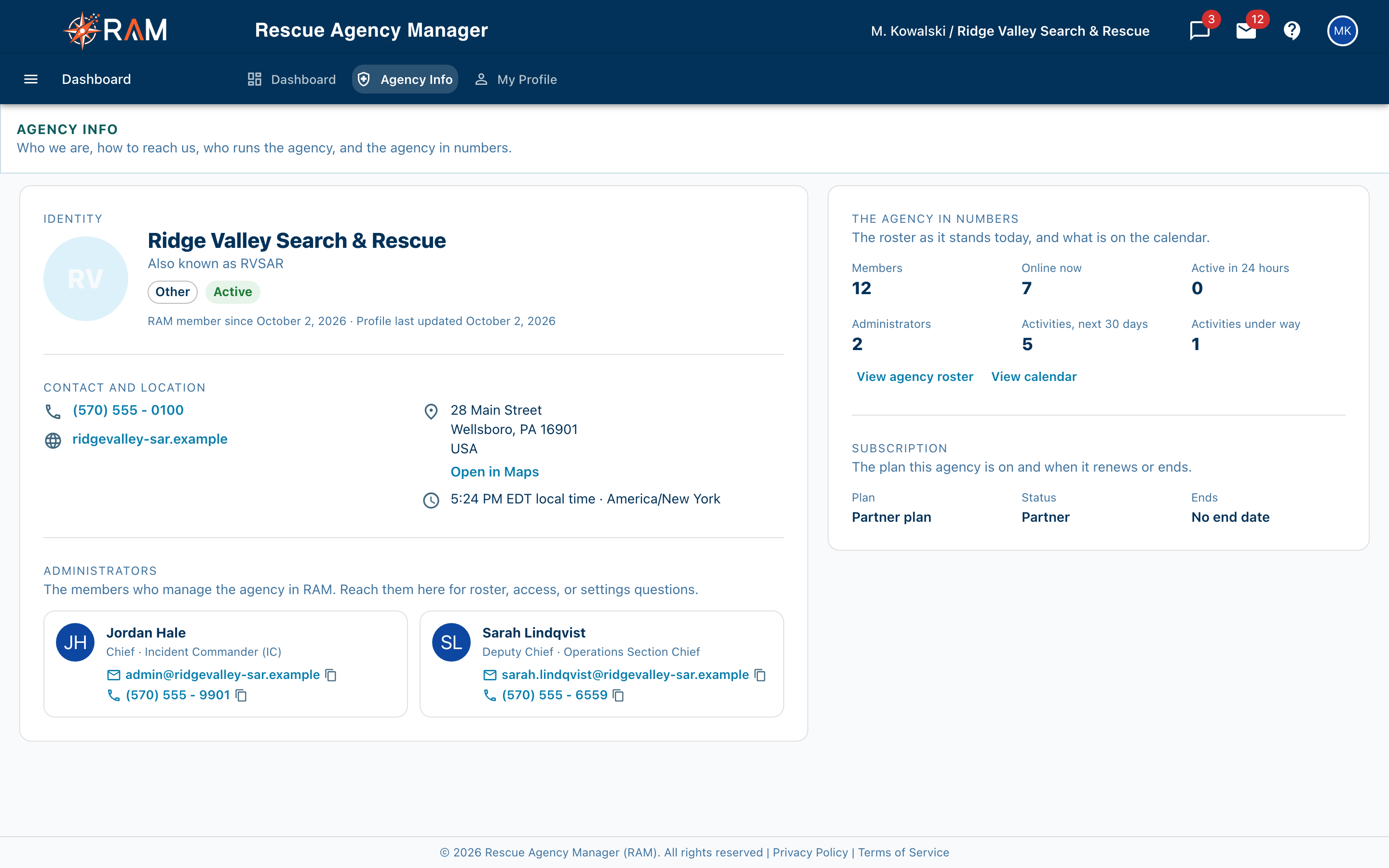
| Section | What it shows |
|---|---|
| Identity | The agency's name and logo, its type, whether it is active, and how long it has been in RAM |
| Contact and location | Phone, website, address (with Open in Maps), and the agency's local time and time zone |
| Administrators | The members who manage the agency in RAM, with their rank, positions, email, and phone. Reach out to them for roster, access, or settings questions |
| The agency in numbers | How many members the agency has, how many are online or were active in the last 24 hours, how many activities are coming up, and a breakdown of members by type and by status |
A line like No phone on file means the agency hasn't filled that in. Some sections, such as the agency's operating totals and who is signed in, are shown to Agency Admins only.
This page is read-only for members. Only administrators get the Edit agency profile button, so to fix a wrong phone number or address, tell an administrator.
Agency Documents
Finding the Library
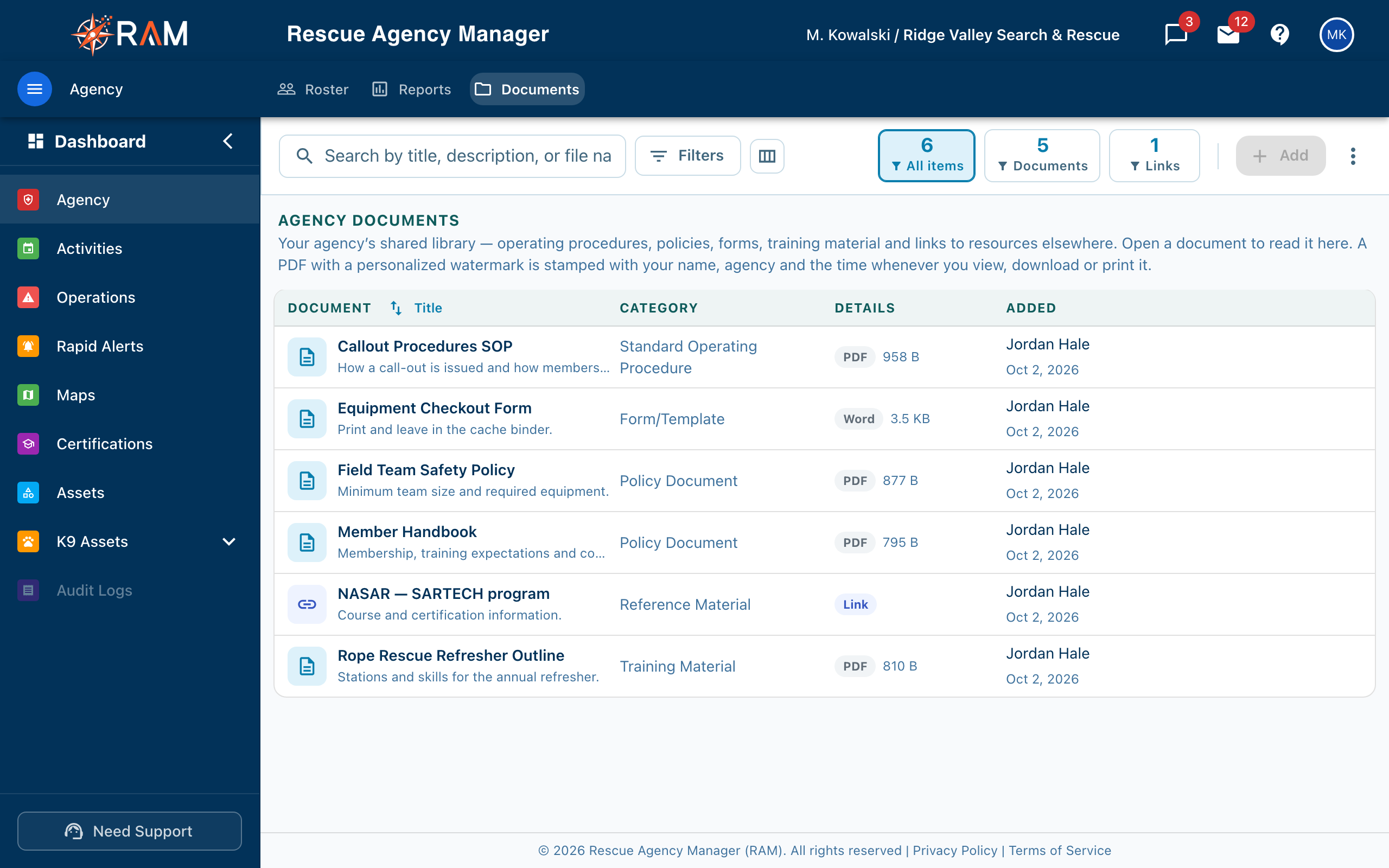
Select Agency in the left sidebar, then the Documents tab along the top.
If you see a message that the library isn't available, your role doesn't include View documents. Ask an administrator. See Roles & Permissions. The library is on every plan.
Browsing and Searching
Each row shows the title, a short description or the file name, its category, the kind and size, who added it, and when.
- Search by title, description, or file name looks across the library
- Filters narrow by Category and by Type: documents only or links only
- The tiles at the top (All items, Documents, Links) count what's there. Select one to filter
- Sort orders by title, most recently added, or category
- The columns button chooses which columns you see
Opening a Document
Select a row, or the View icon at the right when you hover over it. A document opens in a viewer on the page, so you don't need to download anything to read it. A link opens the other page in a new browser tab.
Downloading and Printing
| To | Use | Needs |
|---|---|---|
| Save a copy to your device | The Download button in the viewer, or the download icon on the row | Download documents |
| The Print button in the viewer | Print documents |
Without the matching permission, the button is hidden in the viewer and unavailable on the row. You can still read the document. Out of the box only Agency Admins hold these two permissions, so ask your administrator if you need a copy.
The Personalized Watermark
Some PDFs in the library are stamped on every page with your email address, your agency's name, and the date and time, whether you view, download, or print them. A blue bar above the PDF says so. The stamp is on your copy only, to show whose copy it was. Word, Excel, and picture files are never stamped.
Members with Docs — Access original see a View original button in the blue bar. It asks you to confirm, then shows the PDF without your mark, and your use is recorded.
How the watermark is switched on, and who can change it, is explained in Agency Documents.
Common Questions
Why can't I download this file?
You don't have Download documents. Ask an administrator.
Why is my email address across the page?
That's the personalized watermark. It's on for that PDF so your copy can be traced.
Can I add a document?
Only administrators and members who hold Create documents can upload documents or add links. Changing the title, category, or description of one that is already there needs Edit documents.