Chat
Chat lets you message other members of your agency without leaving RAM. You can write to one person, start a group chat, or join the chat that belongs to one of your agency's Groups.
Opening Chat
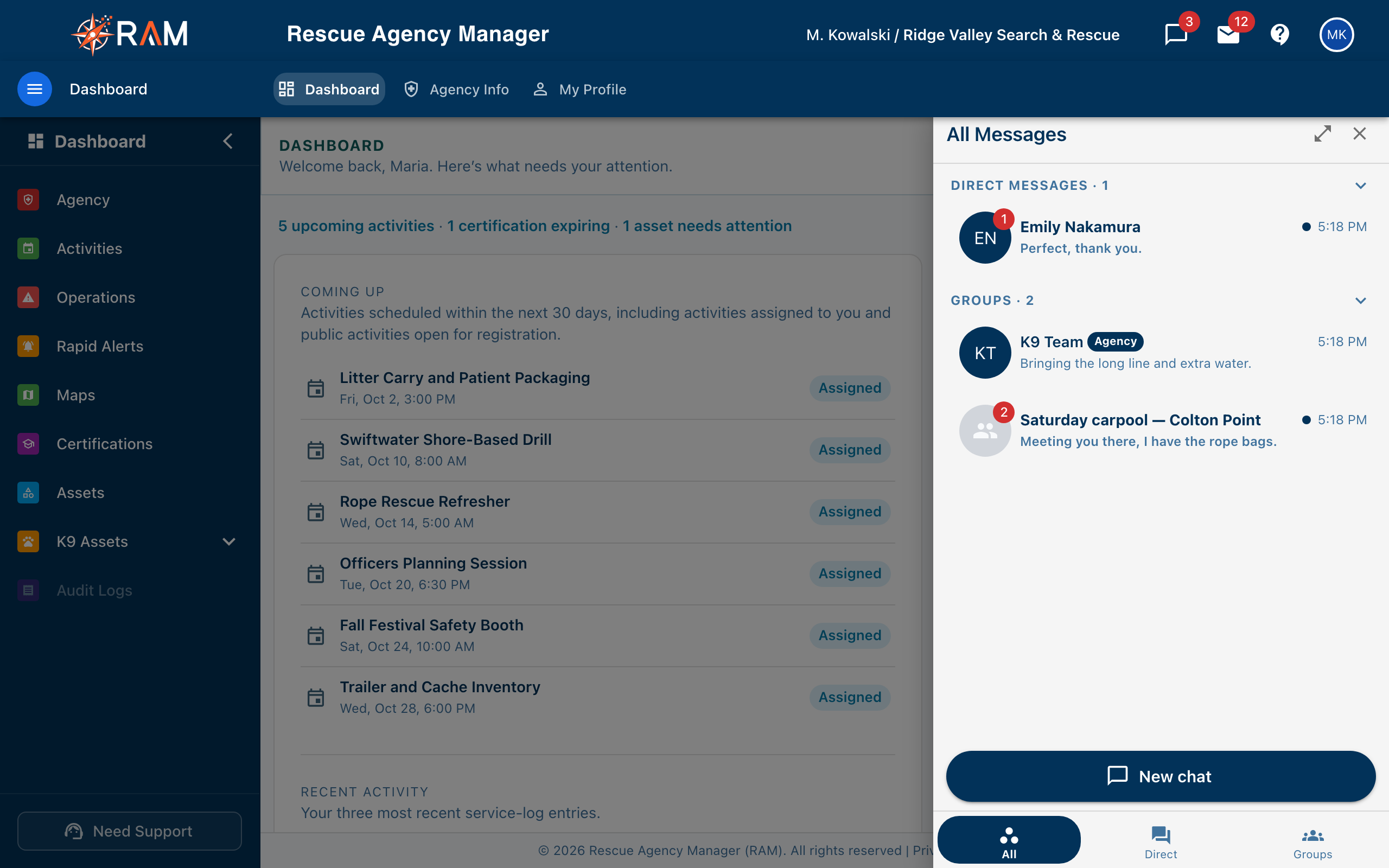
Select the Chat icon in the top bar, next to the notification bell. A panel slides in from the right. A red number on the icon is how many unread messages you have across all conversations.
Your access depends on your role. If the panel doesn't load your conversations, ask an administrator whether your role includes View chat. See Roles & Permissions.
Finding Conversations
The bar at the bottom of the panel switches between three views:
| Tab | Shows |
|---|---|
| All | Every conversation, with direct messages and groups in their own sections |
| Direct | One-to-one conversations |
| Groups | Group chats, split into Agency groups and Your groups |
Each conversation shows the last message, when it was sent, and an unread count. On a wide screen, the expand button in the panel header gives you the list and the open conversation side by side.
Starting a Conversation
- Select New chat
- For one person, stay on Direct Message, search by name or email, and select the member. The conversation opens right away
- For a group, open the Group Chat tab, enter a Group Name, select the members you want, and select Create Group
Anyone in your agency who is active can receive a direct message. Starting a Group Chat needs Create chat; without it you only see the Direct Message tab. Opening the panel needs View chat.
An opened direct message that has no messages in it yet doesn't appear in your list until someone writes.
Writing Messages
- Type in the Message... box and press Enter to send. Shift + Enter starts a new line
- Select the paperclip to send a picture (JPG, PNG, GIF, or WebP). Select a picture in the conversation to open it in a new tab
- You can see when someone else is typing
- A message that didn't go through shows a retry marker. Select it to try again
Deleting a Message
Hover over a message and select the delete icon. The message is replaced with Message deleted for everyone in the conversation. You can delete your own messages. In a group chat, anyone's message can also be deleted by the person who started the chat, by agency administrators, and by members who hold Delete chat and belong to that chat. Nobody gets extra deletion rights in a one-to-one direct message.
Group Chats
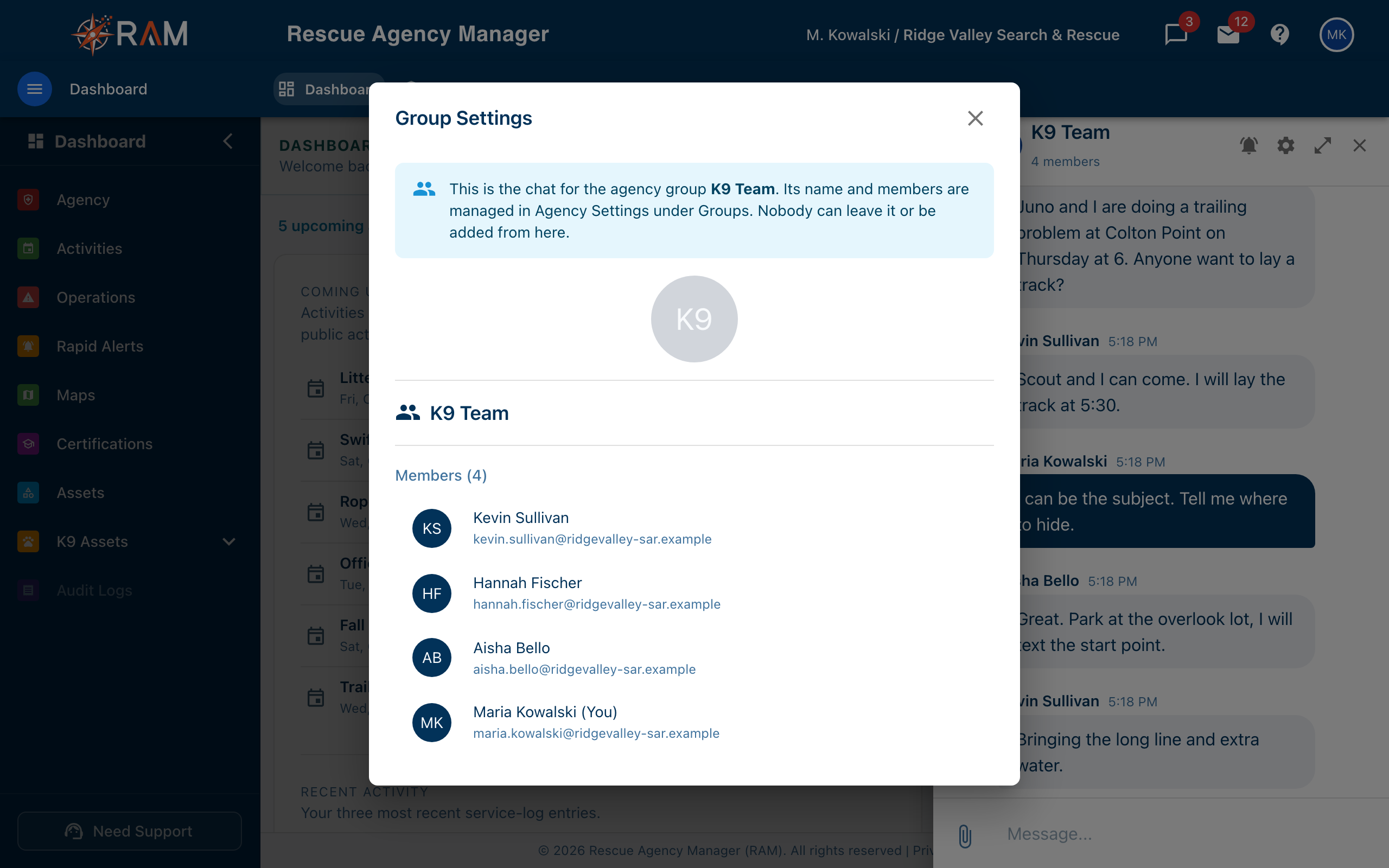
Select the settings (gear) icon at the top of a group conversation to open Group Settings. Everyone in the chat can see its name and member list.
| Who | Can |
|---|---|
| Anyone in the chat | Read the member list, mute the chat, and leave it (from the list, see below) |
| The person who started it, administrators, and members with Manage chat groups | Rename the group, change its picture, add members, and remove members |
| The person who started it, administrators, and members with Delete chat who belong to the chat | Delete the whole group, which removes all its members and messages |
Leaving, Hiding, and Deleting
Hover over a conversation in the list and select the ⋮ at its right.
| Conversation | What the menu offers |
|---|---|
| Direct message | Mute and Hide Conversation. Hiding only removes it from your list. It comes back if a new message arrives |
| Your group | Mute and Leave Group. If you started it, are an administrator, or hold Delete chat, also Delete Group |
| Agency group | Mute only |
Chats That Belong to a Group
Your administrators can organize members into Groups (Agency → Agency Settings → Agency Config → Groups), which are also used for activity invitations and Rapid Alerts. Each of those Groups can have its own chat. You'll see it marked Agency in your list.
For these chats:
- Membership follows the group. When an administrator adds you to the Group, you're added to the chat. When you're removed, you're removed from the chat
- You can't leave one, and nobody can add or remove people from inside the chat. The name and members come from the Group
- You can still mute it, read it, and write in it
- Moderators can remove messages. Members with Delete chat can delete other people's messages in it, but the chat itself can only go by changing the Group
If you need to join or leave one, ask someone who can change the Group (an Agency Admin or a member with Manage alert groups).
Notifications
- Unread counts appear on the Chat icon and on each conversation, and the conversation is shown in bold
- Mute a conversation with the bell icon at the top of the open conversation, or from the ⋮ menu in the list. A muted conversation shows a bell with a line through it, and you aren't notified of its new messages. You can still read it any time
- The RAM mobile app is currently on hold, so RAM does not send chat push notifications to phones right now. Unread counts in the web app are how you see new messages
How Long Messages Are Kept
Your agency decides how long chat messages are kept: 30, 60, 90 days (the default), 180 days, 1 year, or forever. Once a message is older than that, RAM removes it for everyone in the nightly clean-up, from every conversation. Removed messages can't be brought back.
Ask an administrator what your agency's setting is. Don't use chat as the only place something important is written down.
Common Questions
Why can't I start a group chat?
Starting a group chat needs Create chat. Ask an administrator if you need it.
I was removed from a group chat I didn't leave.
If it was marked Agency, an administrator changed the Group. Otherwise the person who started the chat, or an administrator, removed you.