Dashboard Overview
When you log into RAM, the dashboard gives you a quick overview of what needs your attention.
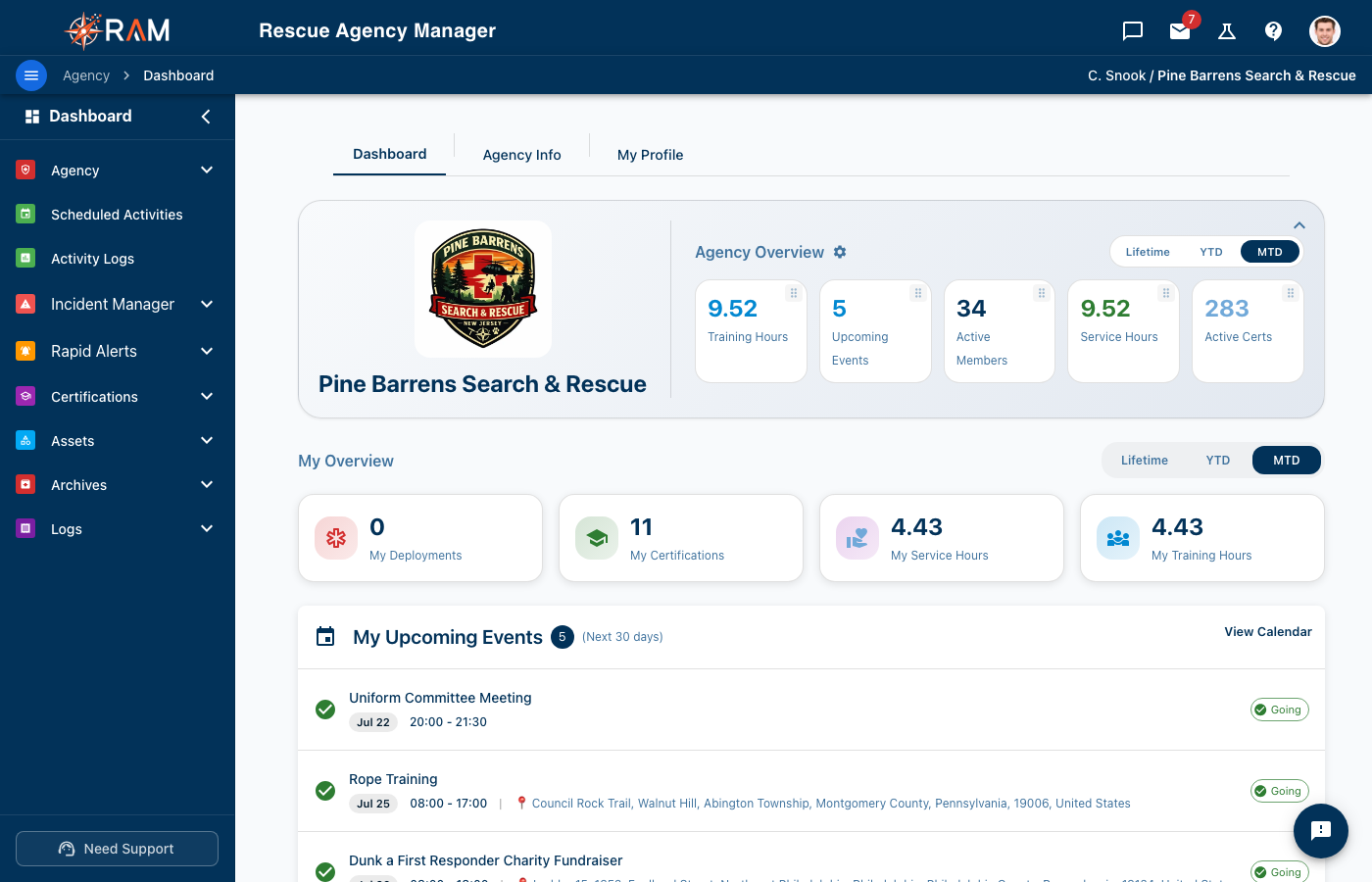
What You'll See
Your dashboard displays personalized information based on your role and agency settings.
Quick Stats
At a glance, you can see:
- Your Certifications — Total count and status
- Expiring Soon — Certifications that need renewal
- Assigned Assets — Equipment currently checked out to you
- Assigned Animals — Working animals you're a handler for (if applicable)
Alerts & Notifications
The dashboard highlights items that need attention:
| Alert Type | What It Means |
|---|---|
| Expiring Certification | A certification expires within 30 days |
| Expired Certification | A certification has already expired |
| Profile Incomplete | Missing required profile information |
| Pending Actions | Items awaiting your response |
Expiring Certifications Widget
This widget shows certifications expiring soon, color-coded by urgency:
| Color | Meaning |
|---|---|
| Yellow | Expires within 30 days |
| Orange | Expires within 14 days |
| Red | Expires within 7 days or already expired |
Click any certification to view details or upload a renewal.
My Assignments
If you have equipment or animals assigned to you, they appear here.
Assigned Assets
Shows equipment currently checked out to you:
- Asset name and ID
- When it was assigned
- Quick link to return it
Assigned Animals
If you're a handler for working animals:
- Animal name and photo
- Your role (Primary/Backup Handler)
- Quick link to animal profile
Quick Actions
Common tasks are available right from the dashboard:
| Action | What It Does |
|---|---|
| Add Certification | Upload a new or renewed certification |
| View Profile | Go to your profile page |
| Check Out Asset | Get equipment (if enabled) |
| View Team | See your agency roster |
Navigating RAM
Main Menu
The left sidebar (or hamburger menu on mobile) provides access to all features:
- Dashboard — Return to this overview
- My Profile — Your personal information
- Certifications — Your qualifications and training
- Assets — Equipment inventory (if enabled)
- Animals — Working animals (if enabled)
- Team — Agency roster
- Support — Get help
Top Bar
The top navigation bar includes:
- Notifications bell — View alerts and messages
- Profile menu — Account settings and logout
- Agency selector — Switch between agencies (if you belong to multiple)
Customizing Your View
Theme Toggle
Switch between light and dark mode:
- Click your profile icon in the top right
- Select Settings or use the theme toggle
- Choose Light, Dark, or System (matches your device)
Notification Preferences
Control which alerts you receive:
- Go to Settings → Notifications
- Toggle notification types on/off
- Save your preferences
Mobile Access
RAM works on mobile devices through your web browser. The dashboard adapts to smaller screens:
- Widgets stack vertically
- Navigation moves to a hamburger menu
- Touch-friendly buttons and controls
Add RAM to your home screen for quick access:
- iOS: Safari → Share → Add to Home Screen
- Android: Chrome → Menu → Add to Home Screen
What's Next?
From your dashboard, common next steps include:
- Complete your profile if information is missing
- Add certifications to your record
- Review account settings for preferences
Need Help?
If something on your dashboard doesn't look right:
- Try refreshing the page
- Check with your agency administrator
- Submit a support ticket