Starting an Incident
Declare an incident when your team is called out. RAM sets up the incident, its map and its first operation in one go.
Declaring the incident
- Open Operations in the left menu.
- Select New, then Declare an incident.
- Work through the four steps. Select Continue after each one.
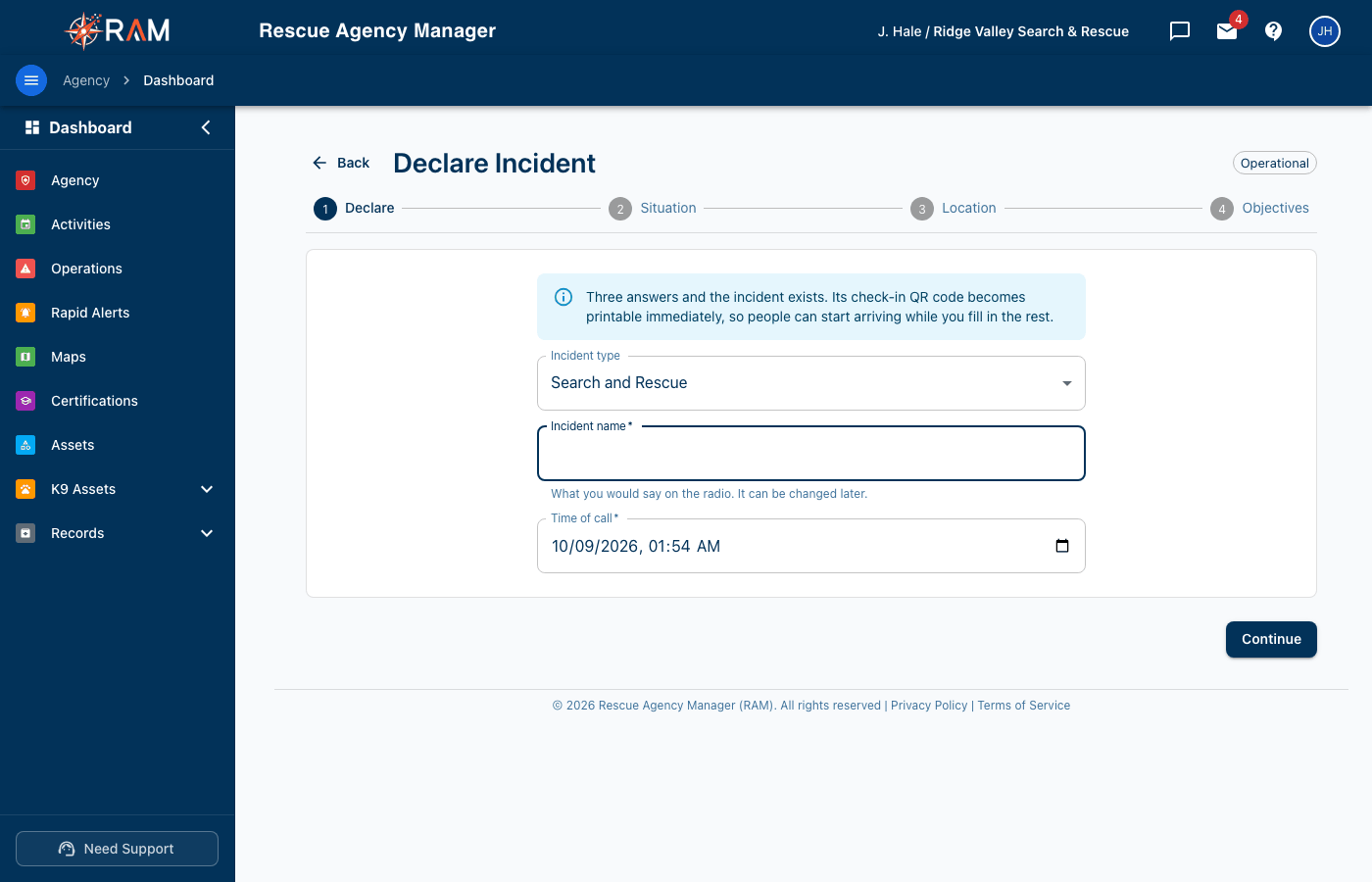
| Step | What you enter |
|---|---|
| Declare | The Incident type, Incident name and Time of call |
| Situation | For a search, the Subject name and Age. Then What happened? and the Hazards and safety briefing |
| Location | Where the Command Post, Staging Area, Last Known Position and Point Last Seen are. Enter each as an address, latitude and longitude, or UTM |
| Objectives | The Objectives for this operational period |
- On the last step, select Create Incident.
Only the three answers on the first step are required. You can leave the other steps blank and fill them in later.
What RAM sets up for you
When you select Create Incident, RAM makes:
- the incident, with its command console and its map (the OPS-MAP)
- a Staging Area marker on the map, if you entered one. People can check in there
- the first ICS-201 briefing and ICS-211 check-in list, with your objectives, hazards and the Point Last Seen
- its first operation, named "Response: " and the incident name
- tasks for the command post and the staging area
- for a search, a Lost Person Questionnaire, filled in from what you entered
You land on the incident's command console. Select Open OPS-MAP to work on the map. Everything in Working on the map applies there.
To work the incident from here, see Running an incident.
From an operation
If you started with a map operation, you don't need to declare the incident again. Use Promote to incident… on the operation's map. See Running an operation on a map.