The Map Library
The Map Library is where your agency keeps its maps. Open it from Maps in the left menu. It lists every map you can see. Select a map to open it, or Create map to start a new one.
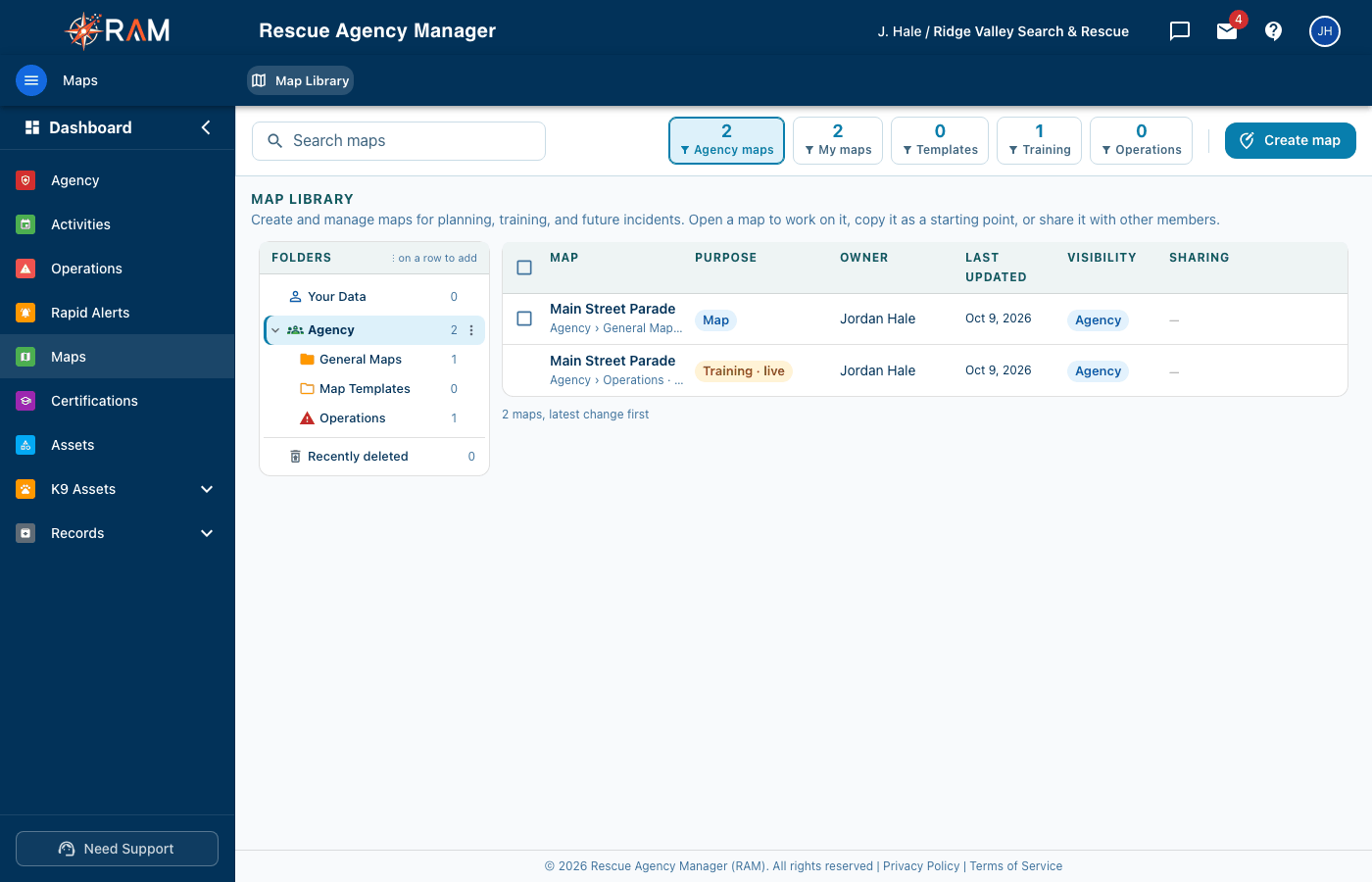
Your personal maps (under Your Data) are yours in full, whatever your level: add anything, change, delete, copy and move them. Only you and agency admins can see them.
For agency maps, your administrator gives you one of these levels:
| Access | What it lets you do |
|---|---|
| View | Open agency maps and look at everything on them |
| Contribute | Add markers and clues to agency maps, and change the ones you added. You can't delete anything |
| Create / Edit map content | Make agency maps. Change or delete anything on an agency map, and add lines, areas and text. Lock and unlock templates |
| Manage maps | Copy and move agency maps. Start and end operations, accept maps offered to the agency, archive and delete any agency map |
An action you can't use is shown greyed out, with the access it needs written underneath. See Map settings and access.
Finding a map
The Folders list on the left sorts the maps:
| Folder | What is in it |
|---|---|
| All maps | Every map you can see |
| Actively shared | Maps with a live sharing link |
| Your Data | Your personal drafts. Only you and agency admins see these |
| Agency › Operations | Maps that have, or had, an operation running on them |
| Agency › General Maps | The agency's working maps |
| Agency › Map Templates | Starting points the agency copies from |
| Recently deleted | Deleted maps, kept for 30 days |
The tiles across the top count Agency maps, My maps, Templates, Training and Operations. Select a tile to show only those maps.
Each map in the list shows its Purpose:
| Purpose | Meaning |
|---|---|
| Map | A working map |
| Template · unlocked / Template · locked | A starting point. Lock it before people copy it |
| Operation · live / Training · live | An operation or training exercise is running on it |
| Ended · read only | The operation has ended. The map can no longer be changed |
| Incident | The map belongs to an incident |
Creating a map
Anyone can make a personal map. Making an agency map needs Create / Edit map content.
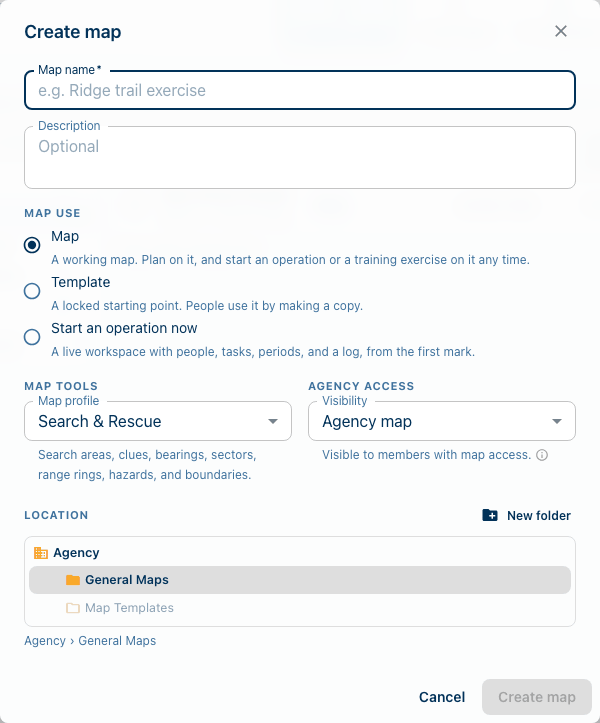
- Select Create map.
- Enter a Map name. A Description is optional.
- Under Map use, choose one:
- Map: a working map. You can plan on it, and start an operation or a training exercise on it any time.
- Template: a starting point that people use by making a copy.
- Start an operation now: makes the map and starts an operation on it at once. You need Manage maps for this.
- Under Map tools, choose the Map profile:
- Search & Rescue adds search tools: search areas, sectors, range rings, bearing lines and clues.
- General keeps the tools simple, for events and planning.
- Under Access, choose the Visibility:
- Personal: only you and agency admins can see it.
- Agency map: everyone with map access can see it. This needs Create / Edit map content. Otherwise, keep it personal and use Offer to the agency… later.
- Under Location, choose the folder it goes in, such as General Maps. Select New folder to make one.
- Select Create map. The map opens, ready to work on.
Templates
A template is a map you copy from, such as a standard parade route or a training area.
- Build the template like any map.
- When it is ready, open its ⋮ menu and choose Lock template. A locked template cannot be changed by accident.
- To use it, open its ⋮ menu and choose Create map from template…. Enter a Map name and select Create map. Anyone can do this. The copy is saved as your personal map.
To change a locked template, choose Unlock template first. Duplicate on a template makes another template, and needs Manage maps.
The ⋮ menu on each map
| Action | What it does |
|---|---|
| Rename… / Map details… | Change the name, description and settings |
| Duplicate | Make a copy. Your own personal map: anyone. An agency map: Manage maps |
| Create map from template… | Make a working map from a locked template |
| Offer to the agency… | Offer your personal draft to the agency. It stays yours until a manager accepts it. Then a copy goes into General Maps |
| Sharing… | Share the map with people outside your team. See below |
| Start operation… | Start an operation on this agency map. A personal map is offered to the agency first. See Operations |
| Archive | Keep a finished operation's map for the record |
| Delete | Remove a map you no longer need |
To move a map to another folder, use the folder button on its row, or drag it. You can move your own personal maps. Moving an agency map needs Manage maps. Templates stay in Map Templates, and an operation's map stays in Operations.
Archive or delete?
Depending on what the map was used for, its menu offers either Archive or Delete, never both:
- Archive is for a map that had an operation or incident on it. The map is kept for good, read-only, under Archives › Maps. It is never removed on a timer. You can bring it back with Return to the library.
- Delete is for every other map. It goes to Recently deleted, where you can Restore it for 30 days. After 30 days it is removed for good.
Sharing a map outside your team
Use Sharing… to give someone outside RAM, such as a partner agency, a link to the map. Each link has a role:
| Role | What the person can do |
|---|---|
| View | See the map and everything on it. Change nothing |
| Contribute | Check in, share their live location, and add markers and clues |
| Edit | Change anything on that map, and help run its operation. It isn't the same as Manage maps |
Select Copy link or Download QR to hand it out. Remove access turns a link off at once. A personal draft must be offered to the agency before it can be shared.