How Check-In Works
Checking in to an operation says you are working on it. You might be on scene, or helping from home.
RAM uses check-in to:
- count who is out, and who is back
- record everyone's service hours
- choose who can be Incident Commander or hold an ICS position. Only someone checked in can.
How you check in depends on the situation. The top of the Check-In page always says how it works on the operation you are looking at. Select Check-In on the map bar, or Checked in on the top bar, to open it.
Where people check in
An operation's map can have three kinds of check-in place:
| Place | What it is |
|---|---|
| Command Post | Where the operation is run from |
| Staging Area | Where people and teams wait for a task |
| Check-In Point | Anywhere else people sign in, such as a trailhead |
Add them from Markers, under Command.
When you check in, you choose where you are. If you are helping from somewhere else, choose Not at a check-in point (working remotely).
The Check-In page lists everyone by place, Command Post first. People working remotely are listed last.
The Check-In page
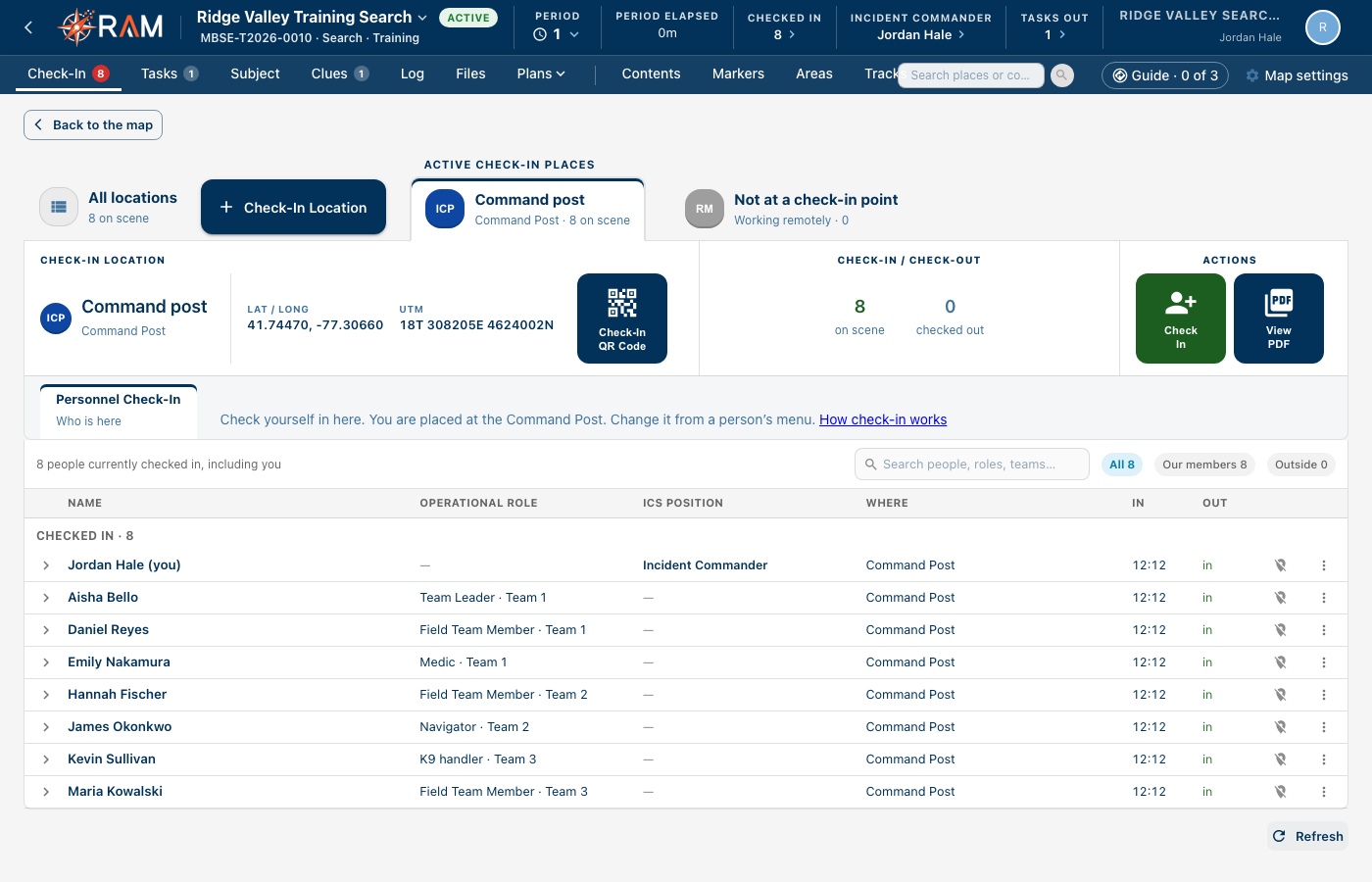
- Places, across the top. Each Command Post, Staging Area and Check-In Point on the map, with how many people are there. Select one to see only its people and its details, or All locations to see everyone. + Check-In Location takes you back to the map to place a new one.
- One row per person: name, Operational role, ICS position, where they are, and when they came in and left.
- Fold a place by selecting its heading. Select it again to open it.
- Their history. Select the arrow at the start of a row. It lists when they checked in and where, each move, and each check-out, with their total time on the operation.
- Checked out lists only people who are not back. Someone who checked in again is listed once, where they are now, and their earlier visit is in their history.
- QR code for a place. Select the place, then Check-In QR Code. Print it, or show it on a screen. Scanning it with a phone camera checks you in at that place, after signing in to RAM. Scanning another place's code moves you there.
Back to the map returns to the map.
Every operation needs its Command Post on the map. Until it is placed, a banner asks for it, and everyone is in one list.
Operational role and ICS position
When one person checks in, you can give them an Operational role and an ICS position. Both are optional, and both start empty.
- An operational role is what the person is doing on this operation, such as Team Leader, K9 handler or Medic. Pick one from the list, or type your own.
- An ICS position is their seat in the incident organization, such as Incident Commander or Safety Officer. It goes in Organization.
One person can have both.
Neither is a qualification. A qualification is what someone is trained for, and it comes from their certifications. Someone qualified as an Incident Commander may serve as the Operations Section Chief on this operation.
ICS position shows unless the operation's Organization tool is turned off. Every operation focus turns Organization on, so you see it unless someone turned it off. See Tools. It only shows for people who can change Organization: Manage maps, or the Incident Commander of the period. Whoever starts an operation always can. It lists the open positions. A position someone already holds shows their name. Positions that need a name, such as a division, are given in Organization.
When you check several people in at once, you choose one operational role for all of them. Give ICS positions afterwards in Organization.
A call-out from home
You are called out, and the operation starts before anyone is on scene.
- Whoever starts the operation leaves Check me in ticked in the Start an operation window, and chooses their operational role and ICS position. They are checked in as soon as it starts.
- The Check-In page opens by itself. Check in the others who are already helping, from Check in, then Check others in….
- The map asks you to Place the Command Post. Until it is placed, everyone is in one list.
- When the Command Post is placed, RAM asks Who is at the Command Post? Tick the people who are there now. Leave the others, who may still be working from home.
- Select Save. The people you ticked move to the Command Post.
Arriving at the Command Post
You arrive at the scene and check yourself in.
- Open Check-In.
- Select the arrow beside Check in, then Check myself in.
- In the Check in window, check Where are you? The Command Post is chosen for you. Change it if you are somewhere else.
- Choose your Operational role and ICS position if you want.
- Select Check in.
When you check someone else in, they go where you are. Change it with Where in the Check people in window.
Moving between places
You leave Staging for the Command Post, or start working from home.
- Open Check-In.
- Open the ⋮ menu on the person's row.
- Choose Change location….
- Choose the new place, or Not at a check-in point (working remotely).
- Select Save.
You can change your own location. Changing someone else's takes Manage incident check-ins access. Every change is written in the log.
Checked in to another operation
A person can be checked in to one operation at a time. If they are still checked in somewhere else, RAM says Checked in somewhere else and names it.
Select Check out there and in here. RAM checks them out of the other operation and in to this one. Both logs record it.
A training linked to a scheduled activity
A training night is scheduled as an activity, and its map operation is linked to it.
- Members check in to the activity, once, with the QR code or the app. They don't check in on the map as well, so their hours aren't counted twice.
- They appear on the Check-In page, at the map's Command Post. If there is no Command Post, they go to the Staging Area. Anyone can change it with Change location….
- When they check out of the activity, they drop off the map too.
- People from outside your agency aren't on the activity's sign-in sheet. Check them in on the map, with Check in someone from outside….
When the activity's end time has passed, nobody is checked in and no team is still out on a task, the map asks Everyone has checked out. End the training? Select End to end it, or Not now. RAM never ends it by itself.
A deployment for another agency
Another agency runs the call and asks for your team. Your map records your own team only.
- Check in your own team on the Check-In page, as usual.
- The other agency keeps its own roster. You don't check in their people.
- Your Team leader is picked from your team. See Running an Operation on a Map.
People from another agency, or with no RAM account
- Open Check-In, select the arrow beside Check in, then Check others in….
- Choose a tab:
- Another agency: enter the person's Email and select Look up. RAM only finds people who share their information with other agencies.
- No RAM account: enter their Name. Agency or group and Phone are optional.
- Select Check in.
A member whose account isn't active is greyed out on Our members. Check them in by name instead.
When the Incident Commander leaves
If the Incident Commander checks out, or someone checks them out, RAM first asks Who takes over?
- Choose someone who is checked in. Or choose Nobody for now.
- If you chose someone, add a Handover note if you want. For example, which teams are out and what to watch for. It is written in the log.
- Select Check out.
The new Incident Commander gets a notification. The top bar shows the Incident Commander. It turns amber when there is none.
To hand over without checking out, change the Incident Commander in the period window or in Organization. RAM asks for the same handover note.
Checking out
- Yourself: open Check-In, select the arrow beside Check in, then Check myself out.
- Someone else: open the ⋮ menu on their row and choose Check out.
An operation can't end while anyone is still checked in, or while a team is still out on a task.
Who can do what
| Action | Needs |
|---|---|
| Check yourself in or out, and change your own location | Contribute |
| Check other people in or out, and change their location | Manage incident check-ins |
| Change the Incident Commander | Manage maps, or being Incident Commander of that period |